WELCOME TO SINGSTAR™ POP
It's time to live the dream of being a pop star! Everyone enjoys singing, whether you have perfect pitch or only sing in the shower. Now there's no excuse to keep that voice to yourself; step up to the mic and into the spotlight!
Playing SingStar™ Pop is easy. You can sing along to your favorite tracks and score points as you perform. It doesn't even matter how well you sing; when you take that microphone, YOU are the star, and that's all that counts.
So let's get moving—round up your friends, plug in those mics, and be the star you really are!
SETTING UP
Set up your PlayStation®2 computer entertainment system according to its instruction manual. Make sure the MAIN POWER switch (located on the back of the system) is turned off.
Attach game controllers/other accessories as appropriate, BEFORE you switch your system on. It is advised that you do not insert or remove accessories once the power is turned on.
Now turn the system ON at the MAIN POWER switch and press the / button. When the indicator lights up green, press the A button and the disc tray will open. Place the SingStar™ Pop disc on the disc tray with the label side facing up. Press the button again and the disc tray will close. Finally, press the button again before commencing play.
SETTING UP THE MICROPHONES
•
Plug the SingStar™ USB converter into one of the USB connectors on the front of the PlayStation®2 system.
•
Plug the microphones into the red and blue sockets on the front of the SingStar™ USB converter. A 'click' sound will confirm that each connector is inserted correctly.
•
Once the game has loaded, a bright blue light on the top of the SingStar™ USB converter will indicate that it is inserted correctly and working.
•
When singing, hold the microphone approximately 1-2 inches from your mouth. Sing directly into the top of the microphone.
•
Keep some distance between yourself and the TV. If the microphone gets too close to the TV, you will get a loud, high-pitched audio feedback.
NOTE
Only the official SingStar™ red and blue microphones can be used to play SingStar™ Pop. Ordinary microphones cannot be inserted properly into the SingStar™ USB converter and will therefore not be picked up by the game. If the SingStar™ USB converter is connected, but with incompatible microphones inserted, the game will still appear to run, but players' singing will not be detected, nor will their voice be drawn on screen.
GETTING STARTED
Following a short cinematic sequence, the Title Screen will be displayed. Press the button to access the Choose Mode Screen.
CHOOSE MODE SCREEN
•
single player sing a song or part of a duet
Press or to highlight an icon and press the button to confirm. Choose from Sing Solo for a quick song, Party for a multiplayer or two player game, Freestyle, or Game Options to change game settings.
NOTE
Details on each of the individual SingStar™ Pop game modes can be found later in this manual.
PLAYING THE GAME
To play SingStar™ Pop, all you have to do is pick a game mode, hold the mic and... SING!
The different modes each have various set-up options to help you configure the game you are about to play. These options include things like choosing a song, organizing teams in Party Mode, or selecting whether to perform a full song or a short version, and are made by following a screen-by-screen series of simple instructions.
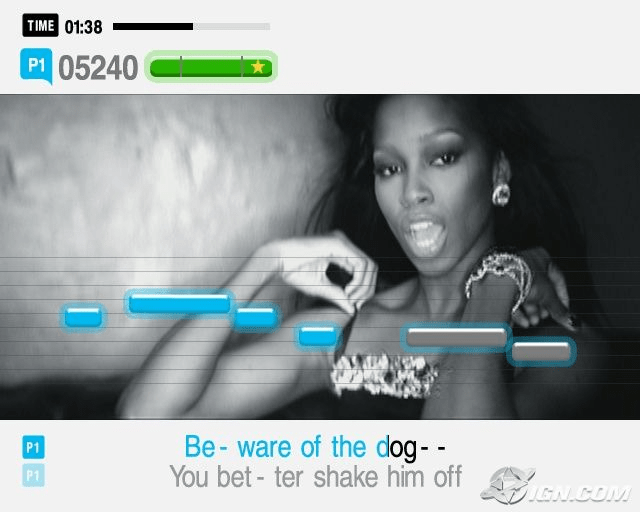
When the game begins and you start to sing into one of the microphones, the SingStar™ technology recognizes your pitch, tone and rhythm and is therefore able to give you a score depending on how well you perform. With rapping, you are given a score based on timing and recognition of the words that you are saying.
Player 1 always uses the blue microphone and their vocal performance is drawn in blue on screen. In multiplayer games, Player 2 uses the red microphone and their vocal performance is drawn in red on screen.
NOTE
In a Pass the Mic game, the Red Team might sometimes use the blue mic and the Blue Team might use the red mic, for example, in a Duet.
TRACK TIME
This device lets you see how far through the song you are.
GOLDEN NOTES
Every song has special golden notes - these are the particularly high or long notes. Hit these golden notes to accumulate more points.
SINGSTART™ POP GAME MODES
SING SOLO
Pick this mode if you just want to practice or have a jump in quickly—simply choose a song and sing along!
Select Sing Solo from the Choose Mode Screen and then set the following preferences before you begin:
Player Set Up
Select from Easy, Medium or Hard difficulty levels and press the button to confirm. The evaluation of your singing depends on what difficulty level you select. How accurately you have to sing on each difficulty setting is represented on-screen by the size of the pitch and timing indicators—on Easy, the pitch bars are fat, but on Hard they are much thinner and you really have to nail the song for top scores.
Song Selection
The songs available for you to perform are displayed on a carousel. Press or to scroll through the available songs and to hear a sample of each one. When you have decided which one you want to sing, select it and press the button to confirm.
Song Length


.png)
.png)
