Getting Started
1. Turn OFF the POWER switch on the Nintendo® Game Boy® Advance system. Never insert or remove a Game Pak when the power is ON.
2. Insert the Backyard Football™ Game Pak into the slot on the Game Boy® Advance. To lock the Game Pak in place, press firmly. 3. Turn ON the POWER switch.
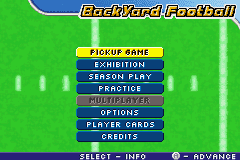
4. When the title screen appears, press START to proceed to the Main Menu.
Exhibition
Choose this mode to play a pickup game as the coach; pick your team, field, weather conditions and players. If you do not want to hand-pick each player individually, press START to have random players chosen for you.
Season Play
Choose this mode to play through an entire season. Certain game, team and player statistics will be tracked as you advance through the season. The winner advances to the playoffs!
Season Menu Options
Once you have signed in as the coach and set the difficulty level, home field, team and players, the Season Menu appears. From there you can select from the following:
•
Begin Season/Next Game: Brings you directly into the next game of the season.
•
League Standings: Show your team's ranking against the rest of the league.
•
Team Statistics: Show your team's records.
•
Team Strategy: Brings you to the Time Out Options menu.
•
Options: The same as those accessed from the Main Menu.
•
Quit Game: Quit and save, or just Quit without saving.
Saving
When you quit a season game, the game will prompt you to save. Your season will be saved from that point.
Loading
When starting a season game, you can load your saved game by selecting Continue Season.
Practice
Choose this mode to test your football skills and brush up on the basics of the game.
Multiplayer (Two-Player)
Two Backyard Football Game Paks, two Nintendo Game Boy Advance systems and a Game Boy Advance Game Link Cable are required for linked games. Two-player Multiplayer is the only configuration supported. Choose this mode to play against a human opponent on another Nintendo Game Boy Advance system via the Game Link Cable. From the Main Menu, both players must select the Multiplayer option. The person connected to the purple connector on the Game Link® Cable is always the host.
Options
Choose this to toggle ON/OFF the options for Music, Commentary and Auto-Save After Every Game.
Player Cards
View the individual player cards, which list each player's skills and background information. Use the L Button or R Button to scroll through the players.
Custom Player
Create a custom player before you pick your team. Start a season with a new coach. When you get to the Player Select screen, choose the icon at the bottom of the list that has a question mark on it. Then press the A Button to go to the Custom Player Card screen.
Choose the nickname and physical attributes of the custom player. Distribute the total skill points across the skill options. Your custom player gains experience as he or she plays more games. At certain milestones, the custom player earns more skill points to add to the individual skill options of your choice.
InfoChuck™
Press SELECT to bring up Chuck Downfield as your source of information and further explanation. Press SELECT again when you're done with him.
Difficulty Level
The following settings are pre-set depending on what difficulty level you choose, but can be toggled independently:
•
Power-Ups: Teams earn special “power plays” by accomplishing certain tasks.
•
Fatigue: Players tire over course of game.
•
Turnovers: Offense cannot fumble ball or throw interceptions (Defense drops passes instead).
Leather Or Laces
In Exhibition and Multiplayer mode, you will play Leather Or Laces to see whether you or your opponent chooses a team first. A Backyard Kid spins the football around and stops with one hand covering the top of the football and the other hand covering the bottom.
Now, it's your turn to guess what is on top: just leather, or the laces of the football. If you guess correctly, you get to choose your players first and your opponent gets to choose second.
Team Photos
Once your full team is chosen, you'll see a picture of all of your players in uniform.
Commentary
Press the A Button to advance commentary (move on to the next screen of text) from Sunny Day and Chuck Downfield. Press START to skip the commentary.
Time Out Options
Team Strategy
To substitute players, use the + Control Pad ▲ and ▼ to highlight the player you want to move, then press the A Button to select that player. Use the + Control Pad to move the player to another position. Press the A Button again to de-select the player. Note: The other players will move down below the moved player, in the same order as before.
The green bars indicate fatigue, which is only applicable if turned ON from the Difficulty Level screen. From this screen, press the L Button or the R Button to scroll between Defensive, Offensive, Kicking and Kick Return rosters.


.png)
_2.png)
.png)
