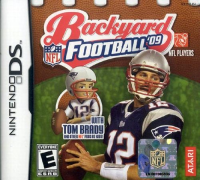
WELCOME TO BACKYARD FOOTBALL™!
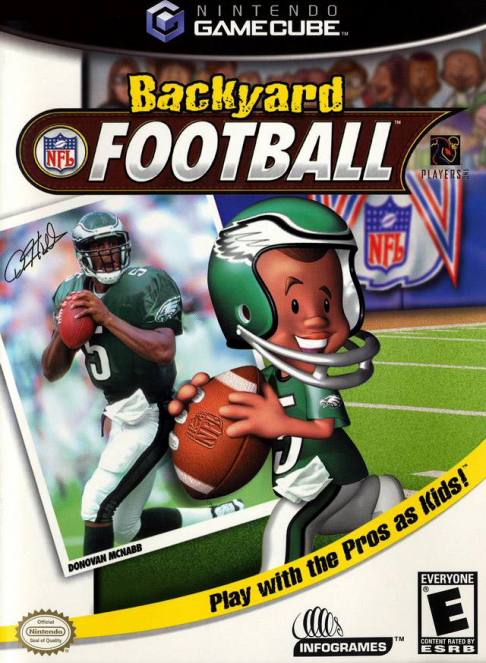
The Backyard Football game brings you all the action and excitement of the gridiron, with the charm and nostalgia of neighborhood sports. Create the football team of your dreams with Backyard Kids and real pro players as kids. Pick your team, logos, and playing fields. Play single games or an entire season.
As the coach, draft your team, set your starting line-up, and strategize your plays. Make a custom playbook with plays you create. Then play a 14-game season against the toughest teams in the Backyard Football League (BFL). You can become a football dynasty, filling your team's trophy case with honors and awards. GETTING STARTED
NINTENDO GAMECUBE™
•
Turn OFF the POWER Button on your Nintendo GameCube™. •
Make sure a Nintendo GameCube™ Controller is plugged into Nintendo GameCube™ Controller Socket 1. •
If playing against a friend, plug another Controller into Controller Socket 2.
•
If playing in Season Game mode, insert a Nintendo GameCube™ Memory Card into either slot. •
If playing Coaches' Challenge, insert Memory Cards containing information on both coaches.
•
Insert the Game Disc into the Nintendo GameCube™ Optical Disc Drive. •
Turn ON the POWER Button and proceed to the title screen. If you can't proceed, begin again at step 1.
•
At the title screen, press START/PAUSE to advance to the Main Menu.
WARNING: Never try to insert or remove a Nintendo GameCube™ Game Disc while the power is ON. PROGRESSIVE SCAN MODE
This game can display a higher resolution image on TVs that support progressive scan mode (EDTV, HDTV). To use this mode, you need a compatible TV and a Nintendo GameCube Component Video Cable. To activate, press and hold the B Button while the Nintendo GameCube logo is displayed until the message "Do you want to display the game in progressive mode?" appears. Select YES. On some TVs, activating progressive scan mode will set the image format to widescreen (16:9).
SAVING AND LOADING
Backyard Football saves Season Game mode information about teams and player progress. Your coach name identifies which saved game is which, as each coach has only one saved game. Before starting a season, you'll be asked to enter a coach name, which creates a saved game file on a Memory Card. Each saved game takes up six blocks. There is no limit to the number of coaches you can have, other than Memory Card space. The game recognizes Memory Cards in both Slot A and Slot B.
You can delete coaches in-game. Refer to the Nintendo GameCube™ instruction booklet for directions on how to erase non-coach saved data and initialize a Memory Card. Note: Do not remove the Memory Card from the Nintendo GameCube™ while the power is ON, especially when the game is being saved. Do not press the POWER Button during this time, as the Memory Card could be damaged. MAIN MENU
This is the starting point for all Backyard Football League (BFL) action. From here, you can start a quick pick-up game, create or load a coach for a single-player season game, learn new moves, play a two-player coach vs. coach exhibition, look through player cards, or personalize your game options. From the Main Menu, you can select from the following:
PICK-UP GAME
A pick-up game is a quick, 4-quarter game between two teams. It can be single-player or two-player, and the results are not saved.
You can select from seven fields, four field conditions, three difficulty levels, and three time lengths for a quarter. To advance, select Kick Off! for the game to pick teams and players, or select Pick Teams to create your perfect team.
If you choose Pick Teams, you will go to the Pick Teams screen.
PICK TEAMS SCREEN
You can choose from all 32 NFL teams and 8 BFL teams in either the Backyard Conference or Frontyard Conference. Switch between conferences using the scrollbar at the top of the screen.
Move the selection highlight with the +Control Pad or Control Stick and press the A Button to accept. Once both Home and Away teams are chosen, the game moves to the Controller Select screen.
CONTROLLER SELECT SCREEN
You can use any of the four Controller Sockets. The game supports up to two players but will show all attached Controllers.
For each player, use the Control Stick to move the Controller image from the center to either the Away or Home team column. When all Controllers are assigned, press the A Button. If you press the A Button without assigning a Controller, a CPU vs. CPU game starts.
If you've reloaded an existing season coach, you jump to the Matchup screen. Otherwise, you go to the Pick Players screen to fill out your team.
PICK PLAYERS SCREEN
After each player is assigned a Controller, it's time to pick the kids for each team. Coaches play the traditional Leather or Laces guessing game to pick who goes first.
Each coach needs seven players. Current team players are shown on the right side of the screen. As kids are selected, they appear with a helmet as you scroll through them.
•
To scroll between players, move the Control Stick left or right. Stats for each kid are displayed when highlighted.
•
To change the order kids are displayed in, move the Control Stick up
.png)

.png)

.png)


.png)

.png)
.png)


.png)