STARTING THE GAME
Set up your Saturn game console according to the instructions in its Instruction Manual. Make sure the power is OFF before inserting or removing a compact disc. Insert the *Crusader: No Remorse* disc and close the CD door. Insert the game controller and memory card (if used) and turn on the Saturn game console. From the Sega opening screen, select Start Application and push A to load the game. Use START to bypass the introduction.
Subtitles are available. Press A during any video to toggle subtitles on or off.
MAIN MENU
This screen allows you to set your preferences and get into play. Highlight your selection with ^ and v, and press A to select an option.
NEW GAME
This option takes you to the beginning of the first mission. First, however, you must select the difficulty level at which you wish to play.
DIFFICULTY LEVEL
There are four different levels of difficulty in *Crusader*. Progressively higher difficulty levels have more, tougher, and better-armed enemies. The four levels are:
Highlight your selection with ^ and v. A accepts your choice, C returns you to the Main Menu.
PAUSE MENU
If you wish to save, reload, or adjust your volume levels during play, you may push START to access the Pause Menu. Move between options with ▲ and ▼.
SAVE GAME
Save the game at the point you paused. Use (A) to enter the save game screen, use (L) and (R) to select the slot you wish to save, then (A) to save or (C) to cancel and return to the Pause Menu. (Y) (Z) cycles through internal memory and external memory devices.
LOAD GAME
Return to a previously saved point in the game. Use (A) to enter the load game screen, use (L) and (R) to select the slot you wish to load, then (A) to load or (C) to cancel and return to the Pause Menu.
SOUND VOLUME
Use ◄ and ► to increase or decrease the volume of sound effects and voices. (A) plays a sound sample.
MUSIC VOLUME
Use ◄ and ► to increase or decrease the music volume.
CONTROLLER SETUP
Allows you to select the controller setup you prefer. Use ◄ and ► to select the setup you wish to load.
MOTION
Allows you to toggle between absolute and relative movement. Use ◄ and ► to toggle movement.
From the Pause Menu, push START to save changes and return to play, (B) to quit the game, or (C) to return to play without saving changes. If you choose to quit the game, you will be prompted to confirm your choice - use (A) to confirm and quit the game, or (C) to return to the Pause Menu.
FIRE AND MOVEMENT
TARGETING
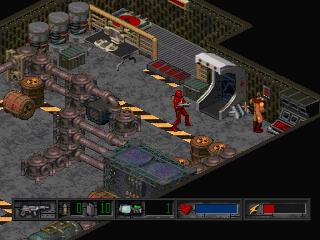
Whenever the Silencer has a weapon readied, cross hairs will appear a short distance in front of him to help with aim. When he's lined up with an enemy or targetable object, an orange targeting reticle will appear and zero in on that object.
FIRING
A firing action (A) will fire or reload a weapon. When the current clip is out of ammo, and there are more clips in the Ammunition Inventory, a single firing action will automatically reload the weapon with a fresh clip.
MOVEMENT MODES
The Silencer can be moved in two basic ways - absolute and relative movement. You can toggle between the two modes with R Z, or from the Pause Menu.
In Relative Movement, ▲ moves the Silencer ahead in the direction he's facing, ▼ causes him to back up, and ◄ and ► cause him to turn to the left or the right.
In Absolute Movement, the Silencer moves in the direction indicated by the arrow. ▲ will cause him to face and move towards the top right corner of the screen. Switching from ▲ to ► will cause him to do a right-face and move towards the lower right corner of the screen. (If he is crouched or holding down the Fire key during Absolute Movement, ◄ and ► rotate the Silencer, making it easier to aim.)
SEARCHING AND USING ITEMS
To Search or Use an object, the Silencer must be standing next to it. Use Ⓡ, and a cursor appears over the object if it can be Searched or Used. Further pressing of Ⓡ toggles you through any other Searchable objects that might be in reach - never assume that the first use of Ⓡ shows you everything there is to see. If there are no Searchable objects at hand, a soft “beep” will sound.
Once the Search cursor is on an object, Ⓛ throws switches, opens footlockers, pushes buttons, or otherwise manipulates the object, or transfers any items the object contained to your inventory.
TAKING ITEMS
If you open an object like a footlocker or a safe, or Search a dead body, a list of the items it contains appears in the top left corner of the screen, and everything on that list is automatically added to your inventory. If you do not have room for the item in your inventory, it will remain on the floor.
TRANSPARENT WALLS
The isometric perspective used in *Crusader* produces “blind walls” - you can