Movement Modes
There are two modes of movement: when the characters are visible in the Action Area and when they are not.
When the characters are not visible, you can use the Control Pad to look or move in any direction to explore the outside world.
Character Visibility
The characters are automatically or manually made visible under four circumstances:
•
Press the L or R Button to make the characters visible or not.
•
The characters are automatically made visible when you encounter an enemy.
•
The characters are automatically made visible when you come upon a building or castle.
•
The characters are automatically made visible when you use the Icon Area to give commands.
Group and Individual Movement
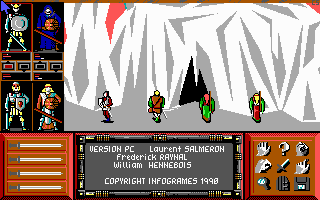
When the characters are visible, you can choose to move the entire group or an individual character.
To move the entire group, you must first choose a leader. The leader of the group is indicated by a red lamp below the character's picture in the Character Area. You can choose the leader of the group by pressing the Y Button until the red lamp appears under the desired character. With a selected leader, the Control Pad will move the leader of the group, and the other members will follow.
You can also choose to move just one selected character. By pressing the X Button, the lamp below the character will change from red to blue. The blue lamp indicates that the character has been chosen to move alone. Now, when you use the Control Pad, you will be moving only the selected character.
Viewing the Map
You can view a map of Drakkhen Island by pressing either the SELECT or START Buttons.
The map shows your current location as well as the location of the eight castles and other buildings. The compass in the upper right of the screen indicates the direction you are currently headed. When you are done viewing the map, press the A Button to return to the game.
Doing Battle
Drakkhen Island is inhabited by a large number of rather unfriendly creatures. When you encounter one of these creatures, the battle will be waged automatically.
You may choose to try to avoid battle by repeatedly pressing the L and R Buttons. This will not always work, but it is sometimes wiser to avoid a confrontation. If you are inside a castle, the only way to avoid battle is to exit to another room.
During battle, if your characters inflict damage upon the enemy, a yellow arrow beneath the character's picture in the Character Area will light up. The number shown is the amount of damage inflicted upon the enemy. If the number appears without the yellow arrow, your character has suffered that amount of damage.
Your chances for success in battle can be greatly improved by properly arming your characters and providing them with the best possible protective armor. This can be accomplished by giving commands.
Giving Commands
The icons contained in the Icon Area let you give commands to your characters and let you save your game. You can activate the Icon Area by pressing the A Button.
A dagger cursor will appear, pointing to one of the command icons, which will also have a frame around it. You can choose a command using the Control Pad and pressing the A Button. To cancel, press the B Button.
The Character Icon
The Character icon gives you detailed information about each of your adventurers and allows you to control the allocation of weapons and items. Choosing the Character icon will bring up the first screen of character information and pause the game.
This screen shows you the Level (LV), Health Points (HP), and Magic Points (MP) for each character. As characters gain more experience, their Level will increase. The Health Points measure the life of the character; when they decline to zero, the character dies. The Magic Points indicate the ability of the character to use spells.
In addition, a compass in the upper right corner shows your current direction, with your heading shown in degrees below it. The eight blinking dots at the bottom of the character screen will be replaced by blue dots as you acquire each of the eight tears.
You can choose to view detailed information on each character by moving the triangle cursor to the desired character and pressing the A Button. You can choose EXIT to return to the game.
Detailed Character Screen
Choosing to view detailed information on a character will display their Level, Experience, and the amount of Jade Coins carried by the group. You can choose from the menu using the Control Pad to move the triangle cursor to the desired item and pressing the A Button.
Weapon-Armor Menu
Choosing WEAPON-ARMOR will allow you to change the weapons and protective clothing worn by the character. The middle of the screen shows an inventory of all equipment carried by the character. Items with an asterisk next to them are currently being used.
•
GIVE: Choose this to give a piece of equipment to another character. You will then be allowed to choose the piece of equipment you wish to give and who should receive it.
•
EQUIPMENT: Choose this to change the currently used items for the character. This is the means of using a newly acquired weapon or piece of protective clothing. You will be presented with a list of available equipment in each category. Move the cursor with the Control Pad and press the A Button to change the selected item.
•
DROP: Choose this to drop a piece of equipment. You can then choose which item you wish to get rid of. You may find that it is not possible to drop all items.
•
EXIT: Choose this to return to the previous screen.
Item Menu
Choosing ITEM will let you manage items like rings or phials (bottles).
•
GIVE: Choose this to give an item to another character. You will then be allowed to choose the item you wish to give and who should receive it.
.png)

_1.png)
.png)





.png)



.png)
_1.png)
.png)














 (En,Fr,Es).png)
.png)

.png)