Loading Instructions
•
Make sure the power is off on your Super Nintendo Entertainment System. •
Insert the Brett Hull Hockey Game Pak into your system by following the instructions in your system manual.
•
Plug a controller into port 1. For 2 players, plug a second controller into port 2.
•
Turn the power switch on. If nothing appears on screen, re-check your Game Pak to make sure it is inserted properly.
•
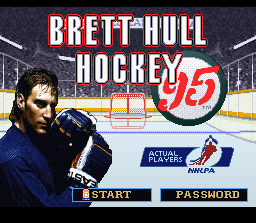
Press any button, after viewing the title sequence, to advance to the Main Menu.
Quick Start
•
When the Title Screen appears, press START on Control Pad 1 — the Main Menu will appear.
•
Press START again and the Team Summary Screen will appear.
•
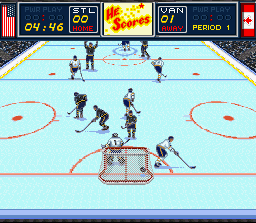
Press START a third time, and you're ready to play the game with the following default settings:
•
1 Player-Home (Home team vs. computer)
•
Exhibition Game: St. Louis (Home) vs. Vancouver (computer)
•
Period length: 5 minutes
•
Line Changes: Off (only one line used, players will not tire)
•
Penalties: Off (no penalties will be called by the referee)
•
Offsides: Off (offsides will not be called)
•
Fighting: Off (fighting will not be allowed)
•
Announcer: On (Al Michaels will call play-by-play)
•
Sound: Stereo (sound effects, crowd noise and music)
Main Menu Navigation
•
Press ▲/▼ on your Control Pad to move the flashing goal light next to the desired option.
•
Press ◄/► to cycle through available settings (access Edit Team and Options by pressing the B Button).
Player Options
•
1 Player-Home (Home team vs. computer)
•
1 Player-Away (Away team vs. computer)
•
2 Players (player vs. player)
•
Note: 2 Player mode is not available during the Playoffs or Season play.
Game Options
•
Exhibition Game - Play one game at a time against the computer or a human opponent to develop your skills.
•
Playoffs 3, 5, or 7 - Go straight to the Playoffs in a best of 3, 5, or 7 game format. A Playoff Tree Screen will appear before and after each game to update your team's progression toward the championship.
•
Season Play 11, 42, or 84 - Play an entire season of 11, 42, or 84 games and, if you qualify, go through the Playoffs for the Stanley Cup. During the season, the computer will choose your opponent in a pre-set schedule. A League Standings Screen will appear before and after each game, updating your team's wins, losses, and total points.
•
Shootout - A shootout consists of a player getting five penalty shots, one-on-one against the goalie. In two player mode, one player controls the goalie while the other controls the shooter.
•
Note: Before your next Playoff or Season game, the Main Menu will be displayed showing your next opponent and allow you to select Edit Team, Period Length or Options. All other selections will be disabled.
Team Selection
•
Home Team Option: Select your Home team from 26 league teams and two all-star teams. You'll be the Home team for the Exhibition game and the start of the Playoff series. Use this option to select your team for Season play, but you won't necessarily begin as the Home team. (Note: You cannot select East or West All-Stars in Season play or in the Playoffs.)
•
Away Team Option: Choose a Visiting team from 26 league teams and two all-star teams. You'll be the Visiting team for the Exhibition game and the start of the Playoff series. (The Away Team option is not available when Season play is selected.)
•
Edit Team: Press the B Button to display the Edit Team Menu. Press START to return to the Main Menu.
Game Settings
•
Period Length: Each game consists of three periods. Choose 5, 10 or 20 minutes.
•
Line Changes: With this feature turned On, you can choose between four available lines during a game and the lines will experience fatigue.
•
Penalties: The referee will call minor and major penalties with this feature On.
•
Offsides: Turn this feature On if you want the referee to call offsides.
•
Fighting: With fighting On, fighting may occur during game play. Switch to Off if you don't want this feature. (To turn this feature On, the Penalty feature must first be On.)
•
Announcer: Select On to have Al Michaels call the plays or Off if you don't want an announcer.
•
Sound: Turn sound effects, music and crowd noise to Stereo, Mono, or Off.
Edit Team Menu
•
Press ▲/▼ on your Control Pad, then press the B Button to choose an option.
•
Press START to return to the Edit Team Menu.
View Team Roster
•
This screen displays your players' number, name, position and whether he's left or right-handed. It also ranks individual attributes from 1 (weakest) to 100 (strongest):
•
To scroll through the player attributes, press ◄/►.
•
To view the entire roster, press ▲/▼.
.png)


_2.png)
.png)


.png)


.png)
.png)
.png)

.png)