Exhibition Games Setup Screen
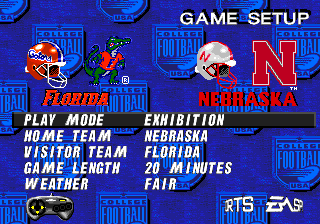
If you select EXHIBITION as game mode, the Setup screen gives you the options listed.
•
Home Team: Select the home team. Teams are listed alphabetically and their logos appear as you cycle through the different teams.
•
Visitor Team: Select the visiting team. The visiting team gets to call the coin toss.
•
Game Length: Select either 20, 40, or 60 minute games.
•
Weather: Select from FAIR, WINDY, RAIN, or SNOW.
When you've made the selections you want, press START. The Team Select screen appears.
Team Select Screen
Select the team that you want to control.
To make selections:
•
1. Control Pad ↔ to position the controller icon under the team you want. If you leave the icon in the middle, the computer controls both teams.
•
2. When you're done selecting, press START. The User Records screen appears.
Multi-Player Adapter
The Multi-Player adapter lets up to four people play 3-on-1, 2-on-2, or 4-against the-computer. When you use the adapter, the Team Select screen appears with four controller icons, each a different color. Move the controller icon ↔ to choose a team and press START.
The colors assigned to each controller are:
On offense, one player is always the quarterback and playcaller. Other players can press B to cycle through the other positions and take control of any player except the quarterback.
On defense, the same player that calls the offensive plays calls the defensive plays. Again, other players can press B to select other positions to control.
The person who presses B first takes control of the player closest to the ball on offense and defense. The person who presses B second takes control of the second closest player, and so on.
In Computer vs. Computer play, any button pressed on the Controller except START returns you to the Game Setup screen.
User Records Screen
Here you can enter a name and track your performance records. To skip this screen without entering a name, select NONE and press START.
To enter a name:
•
1. Control Pad ↕ to move the highlight box to one of seven name slots. Press START or X to select a slot. The Enter Player Name screen appears.
•
2. Enter another name or press START or X to continue. The Player Selection menu appears.
•
3. Control Pad ↕ to SELECT the highlighted PLAYER, ERASE the highlighted PLAYER, RESET the CPU and erase all user records, or CANCEL and return to the User Records screen.
•
4. Press X to continue to the Pregame menu.
New Season Setup Screen
Choose between Bowl games or Playoffs to determine the National Champion, and play through a whole season with one or more teams. If you start a new season, any old season or tournaments are erased.
If you select NEW SEASON, the Setup screen gives you the following options:
•
Game Length: Select either 20, 40, or 60 minute games.
•
Weeks: Choose a 1-12 week season.
•
Finals: Chooses to complete the season with PLAYOFFS or BOWL GAMES.
•
Players: 1-16 players can participate in a Season.
When you select the number of players, you determine the number of games a human player actually plays. For example, if you choose 4 players, you can select four different teams at the Team Setup screen and can play a maximum of four games per week during the scheduled season.
After making your selections, press START. The Team Setup screen appears.
Team Setup Screen
Select the teams you want to play with through the season. The same number of team slots appears on the Team Setup screen as the number of players you chose from the Setup screen.
•
Control Pad ↕ to select a team slot; Control Pad ↔ to cycle through team names.
You can play without entering your own name (i.e., just selecting a team), or you can enter a name and track your performance. When you've finished making your selections, press START to go to the Week Schedule screen.
Week Schedule Screen
This screen lists the schedule for the entire season on a week-by-week basis, starting with week one of the season.
•
To view all 56 of the matchups for the week, Control Pad ↕.
•
To view the other weeks' matchups, Control Pad ↔.
The games you're scheduled to play have a controller icon beside them and are termed HOLD games. All other games on the schedule default to CPU, or computer-played games. You can change individual HOLD games to CPU and back.
•
To toggle between CPU and HOLD games, highlight the game and press X.
•
To display the Week Schedule menu, press START.
Week Schedule Menu
•
To select the highlighted option or toggle an option ON/OFF, press X.
•
To exit an option screen and return to the Week Schedule menu, press START.
•
After setting up your season, select PLAY WEEK to go to the Team Select screen.
The menu options include:
•
Week Schedule: Return to the Week Schedule screen.
•
Play Week: After you select the games you want to play the first week, select PLAY WEEK. All CPU games play automatically and you play the HOLD games.
.png)

_1.png)
_2.png)
_3.png)
.png)
.png)
