GETTING STARTED
•
Insert a Memory Card into Slot A.
•
Close the cover and press the POWER Button to turn the power on.
•
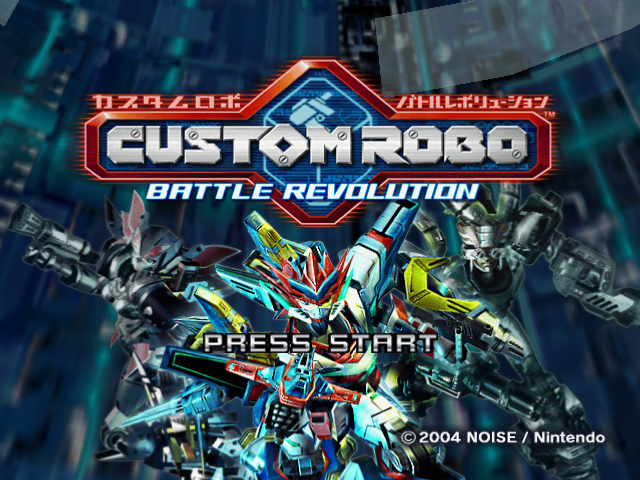
On the title screen, press START to move to the SELECT MODE screen.
If your Memory Card contains no Custom Robo save files, the game will ask if you want to create a Custom Robo file. This game requires one file and 15 blocks.
SELECT MODE
Select the mode you would like to play on this screen.
Playing for the First Time
The first time you start the game, you can choose either Story mode, Vs. mode, or Options. Select Story mode and press A to confirm.
Continuing a Previous Game
If you already have a Custom Robo save file, you will see a different menu. Custom Robo contains the following game modes: Story, Arcade, and Vs. You can also adjust Controller functions and game rules in Options and view detailed information for parts you've used in Arcade mode in the Parts Index.
Arcade mode, Vs. mode, and the Parts Index become available as you progress through the Story mode.
•
This game requires one file and 15 blocks on the Memory Card to save game data.
•
If you have saved game data, you can continue playing at any time. Check to make sure you have a Memory Card inserted that contains Custom Robo game data.
•
For more information on managing Memory Card data and formatting Memory Cards, see the Nintendo GameCube Instruction Manual. Game Modes
Here are brief explanations of the game modes available in Custom Robo.
Single Player Only Story Mode
Mystery and adventure await in this RPG adventure. As a young robo commander, you'll work with your friends to protect and serve the local citizenry. Along the way, you'll find new robos and parts for use in Arcade and Vs. modes.
Single Player Only Arcade Mode
Battle test the parts you've collected. You must defeat your computer-controlled opponents on eight different stages. There are various battle types to be played.
1 to 4 Players Vs. Mode
Straight-up combat for you and up to three friends. You can play in a number of different types of robo battle.
Options
Choose controller configurations and adjust game settings.
Only robos and parts you have found in Story mode are available in Arcade and Vs. modes. Those robos and parts will not disappear if your saved story data is deleted. However, if you delete all game data on the Options screen, your available robo and parts data will be deleted as well. Be careful.
STORY MODE: A NEW JOURNEY
This is a brief introduction of the basic elements of Story mode.
SELECTING SAVED DATA FILES
Select which saved data file to play. You can save up to three game data files.
Playing for the First Time
If this is your first time playing, you will see three save-file slots for your game data. Use the control stick to highlight a slot and then press A to confirm. Then, select A New Journey.
Continuing a Previous Game
Use the control stick to select a saved file and press A to begin the game from where you last saved. You can also copy or delete files here.
Start Story Mode
Begin a new game or continue a saved game. If all three file slots contain saved data and you want to start a new game, you'll have to delete a saved file first.
Copy File
Copy a saved data file into an empty file slot. If all three file slots are full, you can overwrite a file. However, once you write over a file, the old file can never be retrieved.
Erase File
Delete saved data files from Story mode here. Deleted saved data files can never be restored. Think carefully before deleting a saved data file.
SELECTING A STORY MODE
Choose which story mode you would like to play: A New Journey or The Grand Battle, and then press A to confirm. In the beginning, you can only play A New Journey. The Grand Battle becomes available once you've completed A New Journey.
Playing for the First Time
If you're playing for the first time, select A New Journey and press A to begin.
There are a number of differences between A New Journey and The Grand Battle.
STARTING STORY MODE
This is it! It all starts here! Use the control stick to move next to characters you want to talk to and press A. If you see a prompt, press A to scroll through to the rest of the message.
•
You can even speak to people who are engaged in robo battles.
•
Helpful game hints appear in green letters. Important terms appear in blue letters.
Once you step onto the city map, you'll find many different places waiting for you. Use the control stick to move your character in any direction. The degree to which you tilt determines your movement speed—tilt a little to walk, tilt a lot to run. Buildings with name plates above them are ones that you can enter freely to meet and speak with people.
STORY MENU
Press START anytime outside of battle or conversation to view the story menu. From this menu, you can check your robo's status, change game settings, or quit the game. Use the control stick to choose an item, and press A to confirm your selection. To return to the game, simply select Return to Game or press B.
Story Menu Options
•
Customize Robo: Use the parts you've acquired to customize your robo. Press B to
.png)

.png)