Build/Remove Mode Controls
•
Place/Remove wall/wallpaper/floor: button
•
Build/Fill room: L1 button/ R1 button + button
•
Remove/Uncover room (remove mode): L1 button/R1 button + button
•
Clone wallpaper/floor: L2 button
•
Toggle Blueprint mode: button
Building Your Sim Family
To create a new Sim person, dog, or cat, select a location, choose MOVE IN FAMILY, then select CREATE A NEW FAMILY. You can also select the Real Estate building and select CREATE A NEW FAMILY.
Create a Family
Control Styles
Direct Control
This is the default control scheme, which allows you to directly control your Sims' movement and interactions.
•
Move the left analog stick to move your Sim towards an object you wish them to interact with. When your Sim reaches that object, press the button to select it and then choose an action (if appropriate).
Classic Control
This is the traditional method for controlling Sims. Move a cursor around the environment to queue up actions. This allows you to manage your time more efficiently by giving your Sims multiple commands in a short period of time.
•
To use Classic Control, press the SELECT button. When the cursor touches an object with which your Sims can interact, the object is automatically highlighted. (Note: If the cursor touches more than one object you must select which object you wish to choose from a menu.) Press the button to select the object, and then choose an action (if appropriate).
•
To edit the action queue, hold the button, press the D-button to highlight the action you want to delete, and then press the button.
Playing the Game
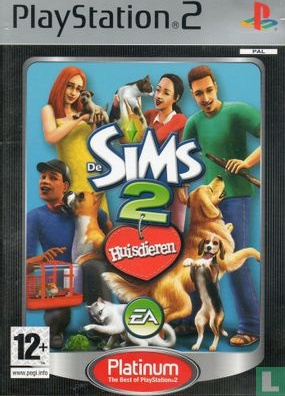
Your Sims have pets! Bring a cuddly kitty or a feisty Fido into the Sims' homes for them to train, care for, and love as their very own. Create Sims, customize their world, and unlock their future. Your Sims and their pets are in your hands.
Moving In
To start a game, select START NEW GAME from the Main menu. Next, use the on-screen keyboard to choose a name for the neighborhood (or just keep the default, Whiskerton), and select DONE to confirm. Your neighborhood appears.
Once you've arrived at the neighborhood, use the cursor to select a house. There are three kinds: Unoccupied (with building), Occupied, Unoccupied (no buildings).
•
Choose an occupied location and select ENTER HOUSE to begin the game. Or, evict the family already living there and move in your own family by selecting MOVE IN FAMILY or select BULLDOZE and build anew. With an unoccupied location you can move in a custom family or select BUILD ON LOCATION to begin building on an empty lot.
Creating a Sim
•
To create a Sim, select ADD A FAMILY MEMBER then select SIM. Select either a MALE or FEMALE Sim, or choose RANDOMIZE.
Create-a-Sim Menu
Create and customize your Sims from head to toe. Shape, appearance, personality, and aspirations: your Sims are a reflection of your creativity.
•
Body: Choose your Sim's skin tone and body type, morph their body shape and head, select a hair style and color.
•
Fashion: Is your Sim a fashion force or a fashion faux pas? Customize your Sim's tops, bottoms, shoes, and accessories here.
•
Aspiration: Determine your Sim's Aspiration - Family, Wealth, Knowledge, Popularity, Creativity.
•
Personality: Adjust your Sim's personality.
•
Back: Save your Sim and return to the Create a Family menu.
Create a Pet Menu
You can customize the appearance and personality of your Sims' pets. Everything from their noses to their tails can be uniquely theirs.
•
To create a dog, select ADD A FAMILY MEMBER then select DOG. To create a new cat, select ADD A FAMILY MEMBER then select CAT. Select a breed for your pet or choose MIXED BREED to create a random pet. (Note: pressing the button with MIXED BREED selected allows you to keep generating random pets until you are happy with what you see.)
Create a Pet
•
Body: Body type, fur, markings, and tail length can be adjusted here.
•
Head: Morph face and ear features.
•
Fashion: Hats, glasses, and neckwear. Your pet can be as fashionable (or fashion less) as its owner.
•
Personality: Adjust your Sim pet's personality.
•
Name: Name your Sim's pet.
•
Save: Save your Sim pet and return to the Create a Family menu.
Pet Sharing
You can share pets you have uniquely created with your friends.
•
Once you have saved your pet, you can access its Pet Sharing code by opening the Pause menu during gameplay, selecting PERSONAL INFO, then selecting PET PROFILE.
•
To enter a Pet Sharing code, press the button in the Create a Family screen, then enter the code exactly as you received it.
Game Screen
•
Mood: A lot of green indicates your Sims are happy; a lot of red indicates they're unhappy.
•
Relationships: (D-button)