MAIN MENU
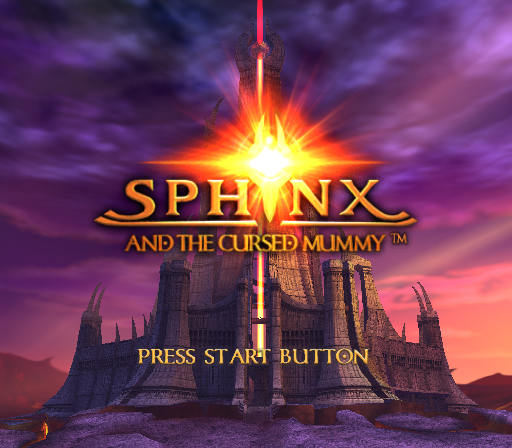
When you first start Sphinx and the Cursed Mummy, you will have three choices from the Main Menu.
•
New Game: Select to begin a game from the beginning.
•
Load Game: Select to choose a game saved on your memory card (8MB) (for PlayStation 2). •
Options: Select to modify some of the characteristics of game play.
•
Bonus: View the extras here.
New Game
When you select NEW GAME from the Main Menu, choose an empty slot on your memory card to save the game file. This will identify your saved games. Choose START GAME to begin.
Choose CONTINUE WITHOUT SAVING to begin a new game without the ability to save your game.
Note: If you do not have a memory card with 200 KB free space in MEMORY CARD slot 1 of your PlayStation 2 computer entertainment system, you will not be able to save or load games. Load Game
Select LOAD GAME from the start screen to view the Save/Load screen. Use the directional buttons to highlight your saved game file, then press the button to load your game.
Options
Choose OPTIONS from the Main Menu to customize the game's display and audio settings.
Screen Setting Options
•
Adjust Screen: Use the left analog stick or directional buttons to adjust the position of the screen on your TV or monitor.
•
Wide Screen (on/off): Toggle between wide and normal screen width.
Controller Setting Options
•
1st Person Invert Vertical (on/off): Reverses controls for the right analog stick - inverts the ↑ and ↓ controls for Blowpipe mode.
•
3rd Person Invert Vertical (on/off): Reverses controls for the right analog stick - inverts the ↑ and ↓ controls for normal mode.
•
3rd Person Invert Horizontal (on/off): Switches the ← and → camera controls (right analog stick) in normal play mode only.
•
Vibration On/Off: Set the DUALSHOCK 2 analog controller vibration feature ON or OFF for your game.
Sound Setting Options
•
Sound Mode: Sets the sound mode.
•
Sound Volume: Use the left analog stick or the directional buttons to adjust the volume of sound effects.
•
Music Volume: Use the left analog stick or the directional buttons to adjust the music volume.
THE GAME SCREEN
The Button Interface
Normally when you play the game, this is all you will see on your screen. This interface shows the main buttons on your controller and will change according to the context of the game, as explained previously.
However, if you press any of the directional buttons, the Item Menu will appear.
The Item Menu
This menu displays certain usable items. Press and to highlight individual items on a menu.
Press the USE ITEM button a selected item once. Or press the L1 button, R1 button or A button to assign the highlighted item to the corresponding button on your controller.
Gold Health Ankhs
Sphinx will lose health when hit by enemies, certain objects and other hazards in the environment. Sphinx's total health is represented by a number of Gold Health Ankhs. These are displayed at the top of the screen when he is hurt or healed, or when you press any of the directional buttons.
If Sphinx runs out of Gold Health Ankhs, he dies. You can replenish Sphinx's health by retrieving Gold Health Ankhs from fallen foes or employing the services of a healer.
Money Scarabs
At the bottom right of the screen, you will see a display of the amount of money you currently have, in the form of Gold Scarabs. You will see this display when you press the directional buttons in any direction, or when you receive or spend Gold Scarabs.
PAUSING THE GAME
Press the START button at any time to pause the game and view the Pause Menu. The Pause Menu allows you to adjust the game options or end the current game. You can also return to the current game.
INVENTORY
Press the SELECT button to access your current inventory. You'll notice that there are several tabs across the top of the screen.
Use the directional buttons or to move from one tab to another. Press or on the directional buttons to access specific information within the inventory's tab, or to access specific items.
Artifacts
•
Quest Items: Your currently held Quest Items will be shown here.
•
Ability Items: Your currently held Ability Items will be shown here.
Monsters
•
Captured Monsters: All currently captured monsters will be displayed here along with their Attack and Defense ratings.
Notes
•
Display information on your current quests.