Starting the Game
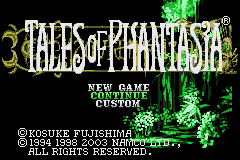
Select the mode by pressing Up and Down on the +Control Pad, and confirm your selection with the A Button.
•
New Game: Select this to begin a new game. Use the +Control Pad to select Confirm, and then press the A Button.
•
Continue: Select this to load saved game data and continue an adventure. Save can be selected on the Field Map or on a Memory Glyph. See page 31 for a detailed explanation of the saving method.
•
Customize: Select this to adjust various game settings. See page 30 for details.
It is a good idea to learn the game's basic controls before playing. Note that some battle controls can be changed in the Customize menu.
Game Controls
This section describes the controls for each screen.
Menu Screen
•
B Button: Cancel, exit screen
•
L Button: Delete item, remove equipment, prohibit/allow and remove battle skills
•
R Button: (with the +Control Pad) display next page when viewing Skills, Equip, Items, and Cooking
•
START: Display help, display Party Window
•
SELECT: Switch between Help items
Field Map Screen
•
+Control Pad: Move; (← →) rotate (when using the Techbird); (↑ ↓) up/down angle (when using the Techbird)
•
A Button: Take off/accelerate (when using the Techbird)
•
B Button: Land (when using the Techbird)
•
R Button: (With +Control Pad) fine movement control (when using the Techbird)
•
START: Switch the Navigation Map display
•
SELECT: Open the Menu Screen
Normal Map Screen
•
A Button: Talk, investigate, (with the +Control Pad) move items
•
B Button: (With the +Control Pad) move rapidly
•
R Button: Use Sorcerer's Ring (when equipped)
•
SELECT: Open Menu Screen
Battle Screen (Basic Controls)
•
+Control Pad: Move, select item; (← →) hold down at the edge of the screen to flee; (with the A Button/B Button) skill shortcut
•
L Button: Use selected skill shortcut (with A or B Button)
•
R Button: (With ←) hold position, (with ↑) reverse formation, (with →) change target
•
START: Switch control mode
•
SELECT: Display Battle Menu
Normal Attack
•
↑ + A Button: Thrust Attack
•
↓ + A Button: Flying Attack
Jump Attack
Only activates when the player is far from the enemy.
•
Jumping Slash: A Button, A Button (enter in rapid sequence)
•
Jumping Thrust: D + A Button, A Button (enter in rapid sequence)
•
Jumping Flying Attack: D + A Button
Consecutive Attacks
•
Slash + Thrust: A Button, A Button
•
Thrust + Upward Slash: D + A Button, A Button
•
Upward Slash + Jumping Slash: D + A Button, A Button
Deadly Skill/Secret Skill
(When set in the Skills menu)
•
Selected Skill Deadly Skill: B Button (Short Range)
•
D + B Button: D + B Button (Short Range)
•
D + B Button: B Button (Long Range)
•
D + B Button: D + B Button (Long Range)
Playing the Game
This section describes three important screens used to play the game. Make sure you understand the role of each screen.
Map Screen
The screen displayed in towns, villages, and dungeons is called the Normal Map Screen. Leaving this screen will take you to the Field Map Screen.
Menu Screen
Use this screen to check the state of your characters, as well as various settings. Press SELECT in the Map Screen to switch to this screen.
Battle Screen
This screen will appear whenever you encounter enemies. Battles utilize the Linear Motion Battle System. Your characters will grow stronger with every battle you win.
Equip
Equippable Items
This area shows a list of equippable items and quantities of said items. Simply carrying weapons and armor will not have any effect. Once you obtain a weapon or armor, you must equip it on this screen. You can also quick-equip items easily from the Items Screen. Use this command to equip an item. Select the slot you wish to equip to or change, such as Weapon, Body, or Shield, by using ← and → on the +Control Pad, and then select one of the equippable items for that slot from the list that appears on the left side of the screen.
Current Equipment
Press ← or → on the +Control Pad to select the slot to equip to, and press ↑ or ↓ to select the character.
When an Item is Selected
This displays how the parameters would change if the currently selected item is equipped. Statistics are displayed in green if the item would increase them, or in red if the item would decrease them.
Remove
Removes the equipped item. It is also possible to remove an item by selecting an equipped


_1.png)
 (En,Fr,De,Es,It).png)
.png)
.png)