Starting the Game
Put the game disc into the Nintendo GameCube™ and insert a Memory Card into Slot A. Close the cover, and press POWER to turn the system on. Once the title screen appears, press START/PAUSE to get to the Main Menu. First-time Playing
If this is your first time playing, follow the instructions on page 9.
Continuing a Game
Once you have started a game, various scores and statistics will be saved to the Memory Card automatically. In some game modes, you can save in the middle of a game. When you want to continue one of these saved games, select Continue from the Main Menu.
Memory Card
After turning the system on and reaching the title screen, you must have a Memory Card inserted in Slot A, or you will not be able to save your progress at any time. Insert a Memory Card and follow any on-screen instructions.
•
The Memory Card in Slot A must have at least 13 free blocks to save your game.
•
Once you save a game, you can continue playing it at any time.
•
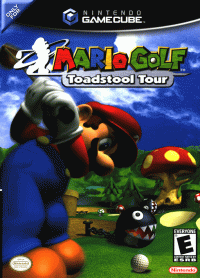
Please confirm that the Memory Card in Slot A has a Mario Golf: Toadstool Tour game file saved on it. •
Please refer to the Nintendo GameCube™ instruction booklet for directions on how to format the Memory Card and delete files. Main Menu Actions
Playing a Game
1 Select the Number of Players
Choose the number of players from the choices on the Main Menu.
2 Select Your Character
Choose your character from those available on this screen. Press to make your character a left-handed golfer. Press more to make your character right-handed again.
•
All the available characters appear here.
3 Select a Play Mode
The available modes will differ depending on the number of players.
4 Select a Course
The available courses differ depending on the play mode you select. More courses will become available once you meet certain conditions in the game.
•
Set game conditions, such as the number of holes and tee boxes.
5 Setting Handicaps
This is not available in all modes. See page 29 for more details.
Before You Play
The Play Screen
•
Distance from ball to pin
•
Distance and elevation to desired landing point
•
Elevation difference between ball and pin
•
Current wind speed and direction
•
Overall score and current hole score
•
Shot type and Lie factor
Viewing the Terrain
Before hitting your shot, check the flight path and projected landing point using the simulation line. Keep in mind that the better you time your shot, the more closely the ball will follow the simulation line.
•
The simulation line does not account for wind speed or direction.
•
X View landing point shows where the ball will land.
•
Press to view the lay of the green.
•
Press or to return to the play screen.
The Grid
The grid surrounding your desired landing point can help you read the surface slope and differences in elevation.
•
If you choose "Stopping Point" on the Handicap screen, the simulation line will display where the ball lands and where it should stop rolling.
•
Blue lines on the grid sit lower than your desired landing point.
•
Red lines on the grid sit higher than your desired landing point.
Pre-swing Checklist
Before hitting your shot, gather all the information you can!
•
Press Y to view the hole from above.
•
Tilt to change your view.
•
Press, or to go back to the play screen.
Hitting the Ball
There are two different types of swings you can use to make your shots: an auto-swing and a manual swing. Both swings use the power meter shown to the right, but the auto-swing is easier to use. Until you get more comfortable making shots, it's probably best to start with the auto-swing.
Reading the Power Meter
•
Random auto-swing impact zone
The Auto-swing
Two Easy Steps!
Step One
Press A to start the swing.
Step Two
Press A again to set the power and determine the distance of the shot.
Step Three
The impact-zone timing is set randomly inside the auto-swing impact zone (the blue line on top of the power meter).
•
The closer you set the power meter to the Mario icon, the farther your ball will fly. •
If you don't press any buttons after starting your swing, you can redo your swing after the cursor resets.
How do I hit good shots?
Using the auto-swing
1. Get as close to your desired power as you can!
2. Hope that the power meter stops exactly on the sweet spot. (It's random!)
The Manual Swing
You have control over more aspects of your swing with the manual swing.
More Steps to Think About
•
A or B Set impact timing
Step One
Press A to start the swing.
Step Two
Press B to set the power and determine the distance of the shot.
Step Three
As the cursor returns
.png)

.png)

_1.jpg)








_1.png)


.png)

.png)