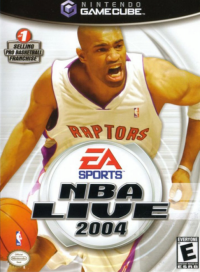
Powering On and Starting a Game
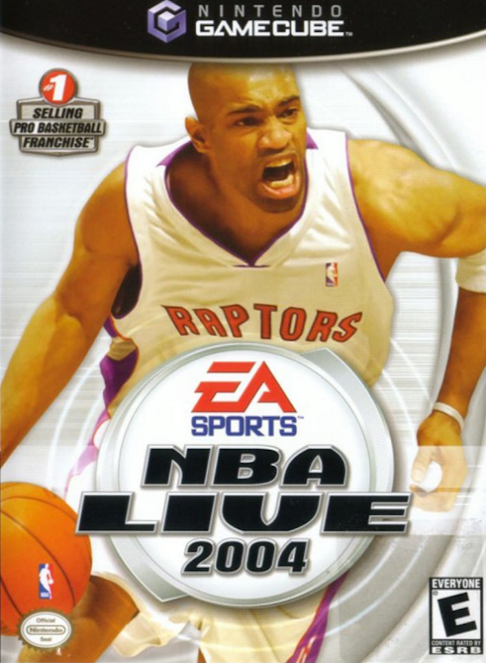
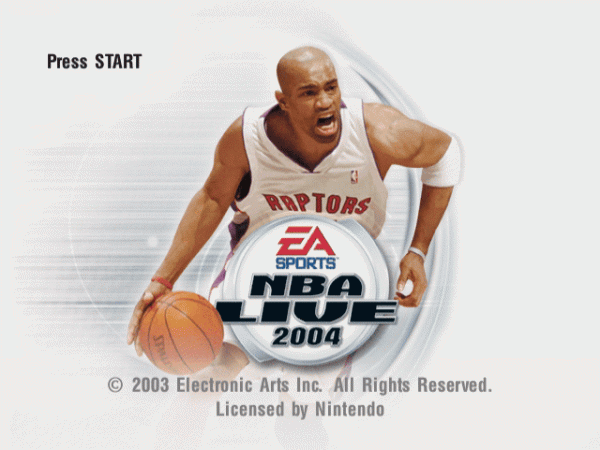
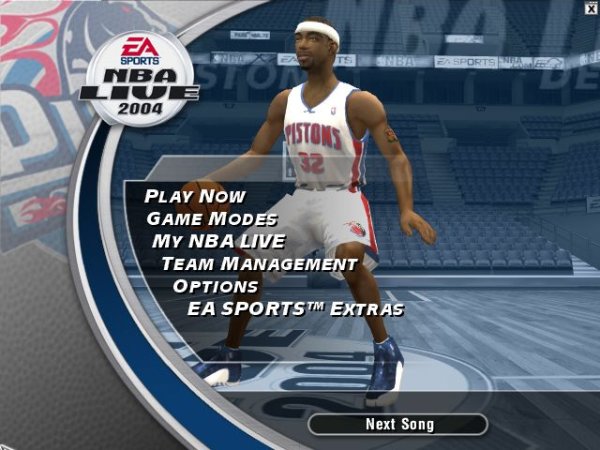
1. Turn OFF the Nintendo GameCube™ by pressing the POWER Button. 2. Make sure a Nintendo GameCube™ Controller is plugged into the Nintendo GameCube™ Controller Socket 1. 3. Press the OPEN Button to open the Disc Cover then insert the NBA LIVE 2004 Nintendo GameCube™ Game Disc into the Optical Disc Drive. Close the Disc Cover. 4. Press the POWER Button to turn ON the Nintendo GameCube™ and proceed to the NBA LIVE 2004 Main menu. If you can't proceed to the Main menu, begin again at step 1. Main Menu Options
•
Start to play right now (Play Now—Starting An Exhibition Game)
•
Get the scoop on EA SPORTS Freestyle Control (EA SPORTS Freestyle Control)
•
Take full control of a team and league rosters (Team Management)
•
Load or save your game, or adjust your controller configurations (Options)
•
Play more advanced game modes (Game Modes)
•
Load profiles, change settings, and more. (My NBA LIVE)
•
EA SPORTS Extras: View game credits
Note: Default options are listed in bold in this manual.
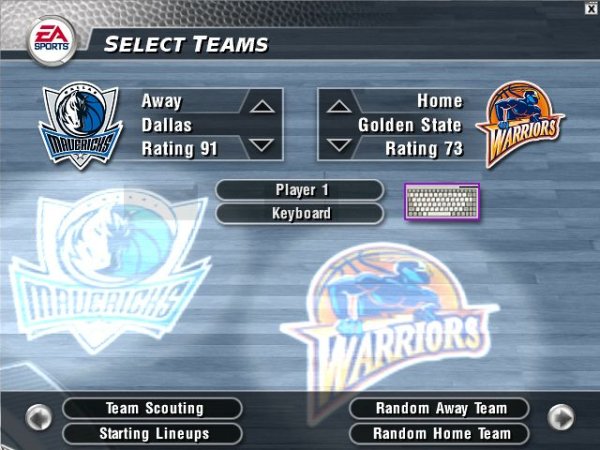
Selecting Teams
•
User-controlled team (Player 1)
To select a team to control, press the + Control Pad or Control Stick to move the controller icon under the desired team.
To play with another team, press the + Control Pad or Control Stick to scroll through available teams.
User Profiles and Roster Management
Keep track of your individual stats in a User Profile. To create a User Profile, press the L Button.
To adjust your starting lineup, press the B Button.
Navigation
•
Press the Z Button to access the Help menu.
•
Press the Y Button to go back to the Main menu.
•
Press the L Button to access the User Profile screen.
•
Press the A Button or START/PAUSE to advance to the Select Jerseys screen.
Selecting Jerseys
To choose a different jersey, press the +Control Pad or Control Stick.
Press the X -Button to navigate the home and away teams.
Press the A Button or START/PAUSE to go to the Quick Settings screen.
Quick Settings Screen
Set the basic settings for the upcoming game.
Skill Level
Set your skill level to ROOKIE, STARTER, ALL-STAR, or SUPERSTAR.
Quarter Length
Set the quarter length from 2 to 12 minutes.
Arena Select
Choose the arena in which to play the game.
Camera View
Choose one of five camera views: CENTER COURT, SIDELINE, BASELINE LOW, PRESS BOX, or BASELINE HIGH.
Quick Settings Navigation
•
Press the L Button to access the Settings screen.
•
Press the A Button or START/PAUSE to begin the game.
Current Play
Offensive Plays
On offense, press the +Control Pad to run Isolation, Post Up, Pick-and-Roll, or Basket Cut.
Defensive Plays
On defense, press the + Control Pad to run Man to Man, Zone, Double Team, and Full Court Press defenses.
Pause Menu
To access the Pause menu, press START/PAUSE during a game.
•
RESUME GAME: Return to the current game.
•
HOME/AWAY TIMEOUT: Call one of six timeouts per game for each team.
•
SUBSTITUTIONS: Substitute players.
•
SELECT CONTROLLER: Switch the user-controlled teams mid-game.
•
SETTINGS: Adjust your in-game settings.
•
STATS CENTRAL: View stats, Task List, and the Shot Display for the current game.
•
INSTANT REPLAY: View the most recent action of the game.
•
QUIT GAME: Abort the current game and return to the Main menu.
Team Selection and Division Navigation
•
When a team is highlighted, press the +Control Pad or Control Stick to highlight a team in the division.
•
Press the A Button to toggle the highlighted team to either CPU or USER control.
•
Press the + Control Pad to change divisions.
•
Press the X Button to navigate the screen.
League Setup
•
Set up a custom or default NBA type of league.
•
Set the length of your season.
•
Choose a random or NBA type schedule.
Season Management
•
Review the season schedule or simulate games.
•
Begin the playoffs immediately.
•
Load or save game files.
GM's Desk
Review your team's stats, matchups, standings and news from around the NBA.
Playoff Setup
•
Playoff Type: Default NBA
•
Current Playoff settings
1. Press the + Control Pad to select a conference.
2. Press the X Button to navigate to the team list. Press the + Control