Game Set-Up Menu
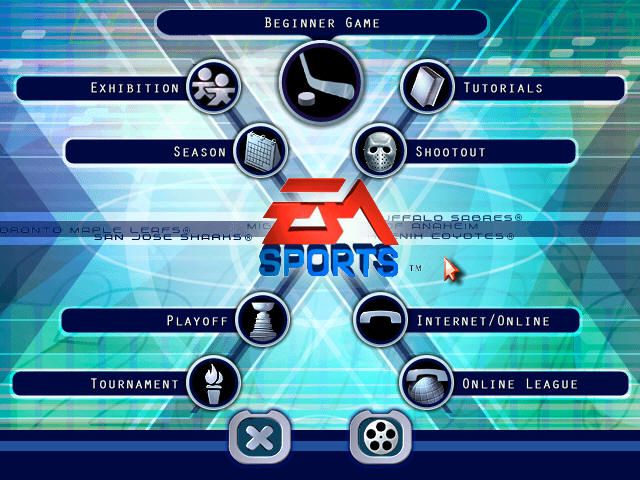
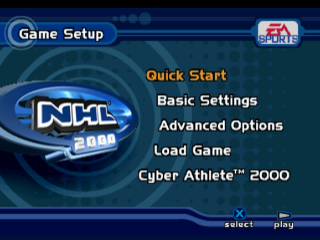
From the Game Setup menu you can define as many or as few details as you want.
Quick Start
A quick route onto the ice and into the fray. Teams are randomly selected.
Basic Settings
Tweak the essentials (select teams, skill level, period length, penalty levels and more) for an Exhibition game.
Advanced Options
Choose all your settings and options for any mode of play.
Load Game
Play a saved game, season or tournament.
Cyber Athlete™ 2000
Check out the cyber athletes of EA SPORTS. Exhibition Mode
Set basic options, pick your team, lace up your skates and hit the ice.
To start an Exhibition:
•
From the Game Setup menu, choose BASIC SETTINGS. The Basic Settings screen appears.
•
To choose teams, D-Button through the choices. To toggle between Home and Away teams, D-Button.
•
Select desired settings and then press START to advance to the Controller Setup screen.
•
D-Button to position the controller icon under your team of choice, then press START to get to the rink.
•
Press to access the User Information window, which allows you to create, load, save, and delete a userlog.
•
You can give one team an edge over the other. Press L1 or R1 to give the Away or Home team the advantage.
•
Press to make changes to your team's jersey, coaching strategies, and other options. Press START to get to the rink.
To return to the Main menu from within a game, press START. The Pause menu appears. From the Pause menu, choose QUIT. The Main menu appears.
Hit the Ice!
If you're ready to take on any team anywhere, choose QUICK START from the Game Setup menu. The Controller Setup screen appears with two pre-selected teams. Choose a team, adjust the advantage and drop the puck.
Other Game Modes
In addition to Exhibition Mode, NHL 2000 has four other modes of play: Season, Playoff, Tournament, and Shootout.
Advanced Options Menu
From the Advanced Options menu you can choose any game mode (including Exhibition) and adjust all options and settings.
NOTE: DEFAULT OPTIONS APPEAR IN BOLD IN THIS MANUAL.
•
SELECT MODE: EXHIBITION, SEASON, PLAYOFF, TOURNAMENT, or SHOOTOUT.
•
SELECT LEVEL: BEGINNER, ROOKIE, PRO, or ALL STAR.
•
RULES: Set period length, adjust the sliders for penalties, big hits and fighting, use the toggles for other rule options and more.
•
OPTIONS: Adjust sound levels, views, toggle shot meter ON/OFF and more.
•
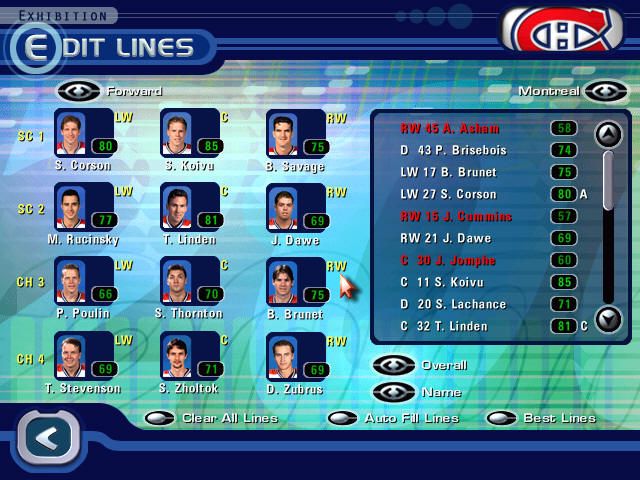
ROSTERS: Manage your team through line edits, trades, creating players and more.
•
STATS CENTRAL: Review team, player or user stats, and more.
•
CONFIGURE CONTROLLER: Change the controller button assignments.
•
LOAD/SAVE SETTINGS: Save and restore Rules, Options, Controller Configurations, User Logs (including User Stats and User Names), and Default Teams.
Mode Selection
NHL 2000 features five different game modes. Fire off an Exhibition match against any NHL team, take your team to the Stanley Cup® in Season or Playoff mode, win a world Tournament, or jump into the intensity of an OT shotfest in Shootout.
Play Levels
The four play levels in NHL 2000 range from Beginner to All-Star. NHL 2000 rookies can start as beginners and increase the difficulty of play as their skill level increases.
Hockey Rules!
•
PERIOD LENGTH: Choose 5, 10, or 20 minute periods.
•
PENALTIES: Adjust the frequency of penalty calls.
•
BIG HITS: Adjust the number of big hits on the ice.
•
FIGHTING: Adjust the amount of fighting.
•
OFFSIDE: When OFF, the ref doesn't call Offside violations.
•
ICING: When OFF, the ref doesn't call Icing violations.
•
2 LINE PASS: When OFF, the ref doesn't call 2-Line Pass violations.
•
INJURIES: Toggle the possibility of player injuries ON/OFF.
•
RINK TYPE: Select a rink and rules that conform to NHL or INTERNATIONAL specifications or let the computer select the rink type of the home team (AUTO).
•
TIE-BREAK: AUTO, CONTINUOUS OT, SHOOTOUT, OT and SHOOTOUT, or SINGLE OT.
Shooting for the Stanley Cup - Season Mode
In Season Mode you are responsible for all decisions on behalf of your team. From trades to season length, set up your season and set your sight on the Stanley Cup.
To start a season:
•
From the Game Setup menu, choose ADVANCED OPTIONS. The Advanced Options screen appears.
•
With SELECT MODE highlighted, press to choose SEASON from the Select Mode pop-up window. The Season Settings menu appears.
•
Choose desired settings for your season by toggling with the D-Button through the available options. Turning CPU Trading ON allows computer teams to trade amongst themselves and to offer you trades as well. Press START to return to the Advanced Options menu.
•
Finish adjusting other options as you would in an Exhibition game and press START to advance to the Team Select screen.
•
D-Button ↔ through the available NHL teams. When your desired team appears, press START to continue to the Season Central screen.
**Season
.png)







_1.png)


.png)
_1.jpg)
.png)


.png)







_1.png)


.png)
.png)


_1.png)
