Starting the Game
When the NHL® Blades of Steel® 2000 title screen is displayed, press the START Button to go to the Mode Select Screen.
About Mode Selection
Select "Game" in the Menu to display the following three modes and six Top Menu items:
•
Exhibition: Select 2 teams and play a game.
•
Season: Play 1 season according to an actual NHL® schedule.
•
Playoffs: Choose your team and participate directly in the NHL® playoff tournament as one of the season's top teams.
Top Menu
•
Options: Game option settings. (See P.22)
•
Stats: View Game results and statistics. (See P.17)
•
Management: View player information, team tactics, and strategy. Also create and trade players.
•
Rules: Change Game Rule settings. (See P.15)
•
Save: Save Game. (See P.23)
•
Continue: Load Data. (See P.24)
Exhibition Mode
1. Select Exhibition Mode. The following two modes are displayed:
•
New Game: Exhibition Menu (five total menus) is displayed.
•
Load Roster: Select only if you have data you want to load from a memory card.
The following covers the Exhibition Menu:
1. Select either Home team or Away team using the Directional Buttons ◄ and ►. Press the X Button to enter, △ Button to delete.
2. After all controllers have been set up, assign either Home team or Away team to each controller using the Directional Buttons ◄ and ►. Proceed to game with X Button.
Management
Display 6 submenus by pressing the X Button.
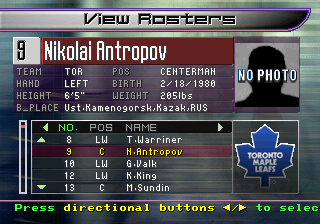
View Rosters
Information on individual skaters may be viewed here.
•
Directional Buttons ←→: Select teams
•
X Button: View player abilities, record and lineup data
•
▲ Button: Press while in the team's roster screen to deselect
•
L1 Button: Switch between player statistics from present and past seasons.
•
R1 Button: Switch between Season, Abilities, and Playoff note player data screens.
Edit Lines
View or change team members in the lineup. It is possible to view all teams, but changes can be made only to your own team.
Toggle cursors between player roster and lineup members using the Directional Buttons ←→. Press the X Button to enter operation mode. A blinking cursor indicates operation mode.
On Player Roster
•
Directional Buttons ←→: Toggle teams
•
Directional Buttons ↑↓: Toggle players
•
X Button: Determine the player to add to the current lineup (display turns red). At this point, the operation mode moves to the lineup member and the new player is exchanged for a player selected with the X Button.
•
▲ Button: Deselects the player selected by the X Button. Deactivates the operation mode if no player was chosen.
On Lineup Member
•
Directional Buttons ←→: Toggle lineup
•
Directional Buttons ↑↓: Toggle players
•
X Button: Selects player switching, after which the cursor moves to the player roster. Press the X Button to make the switch.
•
▲ Button: Deselects the player selected by the X Button. Deactivates the operation mode if no player was chosen.
Strategy
This mode lists the team's strategy. You may select Auto or Manual.
Auto Strategy
Executes a strategy according to the strategy frequency (length of the graph) determined here.
Manual Strategy
The player can issue all commands related to the strategy during that game. The value of strategy frequency has no importance in this mode.
•
Directional Buttons ↑↓: Move the cursor to select team name, Manual switch, strategy category (Offense, Power Play, Defense, Penalty Kill), and strategy name.
•
Directional Buttons ←→: The cursor on the strategy name determines the ratio at which various strategies needed in Auto mode are executed. When the ratio values are all equal, strategies will be executed completely randomly. Cannot be changed in Manual mode. When the cursor is on items other than strategy name, changes will be made to the selected item.
Create Players
This mode allows users to create their own player. "Create player" can make & hold up to 32 players.
Create Players 'Player Roster Mode'
To make a new player, select 'Create a New Player'. To change or delete an existing player, select 'Created Players'.
•
Directional Buttons ↑↓: Selects the number of the player that is being created.
•
✘ Button: Enters the creation mode.
Caution
Players currently on the team are displayed in red and cannot be altered. In addition, a player that has played even one game cannot be altered even if he is not on any team. However, if a player does not belong to a team, he can be deleted in the creation mode.
Create Player 'Creation Mode'
•
Delete: Completely erases this player and returns to the selection screen.
•
Undo: Cancels changes made in this mode so far. Toggle each item using the Directional Buttons ↑↓, and enter Make Changes mode with the ✘ Button.
Make Changes Mode
•
Directional Buttons ↑↓: Select letters
•
Directional Buttons ←→: Move cursor
•
□, ○ Buttons: Insert, delete
Skills
•
Directional Buttons ↑↓: Change skills
•
Directional Buttons ←→: Increases/decreases skill
Trade Players
Trades players. A single team is