STARTING UP
A Memory Card is required to play this title.
•
Set up your PlayStation™ game console according to the instructions in its instruction manual. •
Make sure the power is OFF before inserting or removing a compact disc. Insert the RIVEN 1 disc and close the disc cover. If you wish to save your game, insert a Memory Card (sold separately) into Memory Card Slot 1.
•
Insert game controllers and turn on the PlayStation™ game console. RIVEN supports the Sony Mouse (sold separately). If you wish to use the Mouse, plug it into Controller Port 1 now.
Follow on-screen instructions to start a game.
Riven is for one player.
PLAYING THE GAME
Start Screen
You will come to the main Start Screen.
•
Move the cursor to Game Start and press or to begin a new game.
•
Move the Cursor and press or to Continue to load a previously saved game from the Memory Card.
Basics
Moving through Riven is simple and intuitive. Use the Directional Buttons to position the pointer where you would like to go, then "click" by pressing the BUTTON or BUTTON. (If you have a Mouse, LEFT CLICK.)
When you would like to move forward, click near the center of the screen. When you want to turn right or left, click on the right or left side of the view.
Details
You are able to turn either 90° or 180° from most locations by moving the hand pointer to the left or right side of the view and clicking. When the hand pointer changes to point either left or right, you will turn 90° in that direction.
Likewise when the pointer changes to point left or right with a bent finger, clicking will turn you 180° in that direction. It also may be possible to look or move up and down in certain areas. In these cases, when the pointer is near the top or bottom of the screen, the regular hand pointer with the thumb extended will change to a pointer that points up or down with the thumb retracted.
In some locations, when you are very close to an object, clicking to the side of the object will move you back one step. Some areas are not accessible. Clicking on these areas will have no effect, indicating that they are not valid paths and contain no important information.
Sound plays an important part in Riven. Listen carefully for valuable clues if you hope to complete the game!
ZIP MODE
Riven has a Zip Mode which enables quick transportation to places you have already been. When Zip Mode is turned on at the In Game Options menu, the pointer changes into a lightning bolt when it is over certain objects or areas.
Clicking will zip you to these areas immediately, bypassing all the areas in between. You can only zip to a location you have previously visited. Be careful: if you use Zip Mode too early or without care, you may miss some important details in the areas that you are bypassing.
You can only use Zip Mode to zip to locations on the same disc.
MANIPULATING OBJECTS
Basics
If you want to examine or use an object, just click it, or click and drag it.
Details
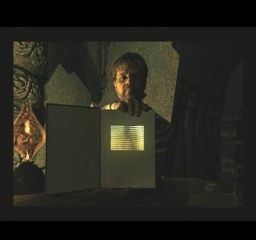
Clicking an object will either bring that object closer to you or bring you closer to the object. If the object is functional, clicking it may activate it, or manipulate it (such as turning on a switch or flipping the pages of a book). If the object is not important, clicking it may have no effect.
It is also possible to move some objects, such as switches and levers, by dragging them. If an object can be dragged, the regular pointer will turn into an open hand.
When you click the object, the pointer will change into a grabbing hand and you will be able to move the object. There are a few objects which can be picked up and carried with you. When one of these objects is selected, it will automatically come into your possession. To access an item you have picked up, go to the Book and Journals option.
OPTIONS
During a game, press the START BUTTON to pause the game and bring up the OPTIONS MENU (RIGHT CLICK if using a Mouse). Use the Directional Button to move the cursor to an option, then press the or BUTTON (LEFT CLICK on Sony Mouse) to select it. Option settings typically range from 1 (low) to 5 (high).
•
Cursor Speed: Adjust how freely your cursor moves on the screen.
•
Scroll Speed: Adjust the speed of transitions at the side of the screen.
•
Memory Card: Choose to Save your place in a game or load a previously saved game. You can save your progress at any time during a game. You will also be given the option to save when changing discs.
•
Zip Mode: Toggle Zip Mode ON or Off.
•
Book and Journals: Use this option to view the Books and Journals you have collected. Click on the desired item to open it for viewing. To close it, move the cursor to either side of the screen to bring up an Exit prompt.
•
Exit: Exit the options menu and return to your game in progress.
MENU
876.16 Revisions to Riven completed. There are still a number of minor adjustments which need to be made, but the
 (Disc 1).png)

_1.png)

 (Disc 2).png)





 (Es,It,Pt).png)

.png)





.png)






.png)