GETTING STARTED
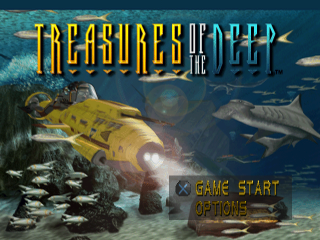
After the start-up sequence, the Main Menu will be displayed. Here you will have two selections, GAME START and OPTIONS. Choose GAME START to go directly to the briefing section or OPTIONS to customise your game configuration.
OPTIONS
Press the X button to select your choice and advance. Press the A button to Exit out or return to the previous screen. Use the Directional buttons to toggle between each choice. Press the UP/DOWN Directional buttons to cycle between these choices:
•
CONTROLLER SETUP Allows you to reconfigure the Controller settings.
•
LOAD Load Games from either Memory card slot.
•
SAVE Save Games to either Memory card slot. To do this requires one free block on your Memory card. Saves include all subs, weapons, equipment, money & high score data.
•
HIGH SCORES List high scores for each completed level.
•
MUSIC Volume level for background Music.
•
SOUND FX Volume level for Sound FX.
•
DIFFICULTY Choose from NOVICE or EXPERT mode.
•
CREDITS View the TREASURES OF THE DEEP" credits list.
After you've made your choices, press the A button or START button to return to the Main Menu. Choose the GAME START option to go to the Dive Site Selection Screen and select your mission.
DIVE SITE SELECTION
On the Dive Selection Screen you will see your list of assignments. Use the Directional buttons to highlight a mission. Press the O button to begin your briefing.
During the briefing, your commander will give you a complete rundown of your dive objectives. Using full-motion video, you'll see your intended target and be briefed on enemies or any other secondary objectives you may be assigned.
When the briefing ends, press the START or X button to go to the Dive Command Center (D.C.C.) or press the O button to review your objectives again. Press the A button to exit Dive Site Selection.
DIVE COMMAND CENTRE (D.C.C.)
Press the LEFT/RIGHT Directional buttons to select between WEAPONS/EQUIPMENT/SUBS/GO TO DIVE rooms. Press the X button to enter the selected room.
WHILE IN D.C.C. Rooms
Press RIGHT/LEFT/UP/DOWN Directional buttons to choose an item. Press the x button for a description of each item. Press the X button again before you select the number of each item you wish to purchase.
Press the UP/DOWN Directional buttons to choose how many of an item you want to buy, then press the X button. Press the X button again to confirm your purchase.
GO TO DIVE ROOM
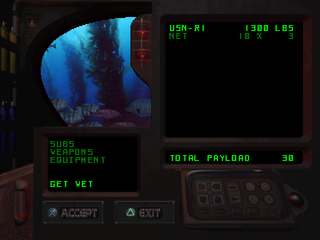
You can configure your Sub and payload to be carried to your mission.
On the bottom-left Computer Screen, use the UP/DOWN Directional buttons and press the X button to select:
On each of the above items, pressing the UP or DOWN Directional buttons selects the item. Pressing the LEFT or RIGHT Directional buttons increases/decreases the amount of the items to be taken into a mission.
Press the X button to accept your choices, or press the O button to clear them.
On the top-right Computer Screen, the sub selected and its payload are displayed on the first line. Also, any weapons/equipment selected to be taken for the dive are listed including their quantities and weight. The total payload selected is listed at the bottom of this screen. If payload exceeds the limit, reduce the selected amounts.
You're now ready to dive!
PLAYING THE GAME
There are a few basic things you should know before you take on a mission. Make sure to read both the "CONTROLLER INFORMATION" and "GETTING STARTED" sections of this manual before piloting a sub.
SUB VIEWS
There are two different selectable Sub views: first person or third person, press the SELECT button to find out which view is most comfortable.
SELECTING WEAPONS AND EQUIPMENT
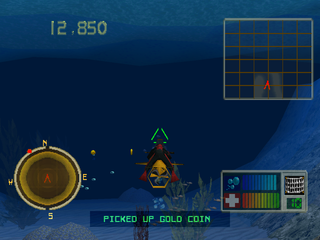
Once you have started your mission, you will notice your life and air gauge near the bottom right corner of the Game Screen. Along with these gauges is the current weapon or equipment that you have selected.
You can toggle through your weapons with the O button, and toggle through equipment with the A button. Whatever you have selected will be fired or used by pressing the button. The number underneath the weapon or equipment selected shows how many of that item are left.
THE LIFE BAR
This bar displays your health. When you are hit by enemies, the bar will decrease. When this bar is getting low, you can heal yourself by either picking up medkits or using a medkit which you might currently be carrying. When this bar has been fully depleted, your sub is destroyed.
LOCKING ONTO AN ENEMY
Torpedoes and Missiles require you to lock onto an enemy first. To do so, first select your weapon (Torpedoes or Missiles). When an enemy sub comes into view, a red or yellow triangle will appear over it. When you fire your weapon, it will automatically home in to that enemy.
To switch enemies, hold the SELECT button and press the A button. Smaller enemies such as divers and sharks cannot be locked onto until you get the sonar upgrade. Red dots appear on the sonar display after the upgrade signifying an enemy vehicle.
DIVE COMPLETE
RETURN TO SURFACE
When you see the message Return To Surface, this means that you have completed all the mission objectives and can now end the mission by floating to the surface of the water. Once this is done, your money will be tallied and you
.png)






 (Es,It,Pt).png)

.png)