Console Ports
Starting Up
Set up your PlayStation®2 computer entertainment system according to the instructions in the Instruction Manual. Make sure the MAIN POWER switch (located on the back of the console) is turned on.
Press the RESET Button. When the power indicator lights up, press the OPEN Button and the disc tray will open. Place the ACECOMBAT® 04 shatteredskies disc on the disc tray with the label side facing up. Press the OPEN Button again and the disc tray will close.
Attach game controllers and other peripherals, as appropriate. Follow on-screen instructions and refer to this manual for information on using the software.
Memory Cards
To save game settings and progress, insert a Memory Card (8MB) (for PlayStation®2) into MEMORY CARD slot 1 of your PlayStation®2. You can load saved game data from the same card, or from any memory card containing previously saved games.
At least 75KB of free space must be available on the memory card in order to save game data. If less than 75KB of free space exists, delete old data before saving.
Do not remove the memory card or turn off the power on the PlayStation®2 while data is being saved or loaded. Your game data may be lost if you do.
For more information, see Saving and Loading on page 20.
Game Modes
Press the START Button or Button in the Title Screen to display the Mode Select Screen. From here you can start a game, practice with the tutorial, or set your game options.
New Game
Select this mode to start a new game. Before beginning play, select your difficulty mode, ranging from VERY EASY to HARD. Choose the mode that best fits your experience level; for example, try a VERY EASY game if you are a first-time pilot. (For instructions on how to play, see page 11.)
Continue
This mode is available once you load saved data from a memory card using the LOAD option (see below). Use it to continue a game from the point where you saved. (For memory card information, see page 2. For information on saving game data, see page 20.)
Only memory cards inserted in MEMORY CARD slot 1 will be recognized.
Load
Select this mode to load saved data from a memory card inserted in MEMORY CARD slot 1. The memory card must contain a previous save from ACECOMBAT® 04 shatteredskies.
Tutorial
In this mode you can review basic game rules and practice controlling your aircraft. To train, select one of five stages, each taking you through a different mission: BASIC TRAINING, MISSILE TRAINING, GUN TRAINING, SP WEAPON TRAINING and PRACTICAL TRAINING.
During training, use the same controls as when playing a game. A controller image in the upper right corner will show you which buttons to press. For beginners, training is essential for learning the controls; for more experienced players, training between actual missions is integral to improving your skills and increasing your game scores.
VS Mode
In this mode, two players can pilot their favorite aircraft in head-to-head combat. Choose from five different missions, such as a race for points or a one-on-one dogfight. Each mission has a different set of objectives, rules, and including victory conditions.
Before starting the mission, choose your aircraft by selecting either 1P AIRCRAFT or 2P AIRCRAFT. Select a VICTORY COUNT as the amount of points needed to win. When ready, select START MISSION to begin.
Game Options
Access this mode to adjust various game settings and review your flight data.
Controller Setup
Change the controller settings. Options include:
•
PLAYER - Select the controller to which the changes will apply: PLAYER 01 or PLAYER 02. The default is PLAYER 01.
•
CONTROL TYPE Select your control mode: NORMAL or EASY. The default is NORMAL. (Both control mode settings are shown on page 5-6.)
•
REVERSE - Toggle ON or OFF to set the Left Analog Stick controls for ascent and descent. The default is OFF.
•
VIBRATION - Turn controller vibration ON or OFF. The default is ON.
•
PILOT VIEW Toggle the underbelly and overhead camera view NORMAL or REVERSE. The default is NORMAL.
Screen Settings
Adjust the playing screen. Options include:
•
SCREEN POSITION- Center the game screen on your TV.
•
BRIGHTNESS - Intensify or dim the brightness of the display.
•
SCREEN RATIO With a standard television, select 4:3. With a wide-screen television, select 16:9.
•
CAPTIONS - Set to ON or OFF. The ON setting displays every caption during the game; the OFF setting displays captions only for important messages.
•
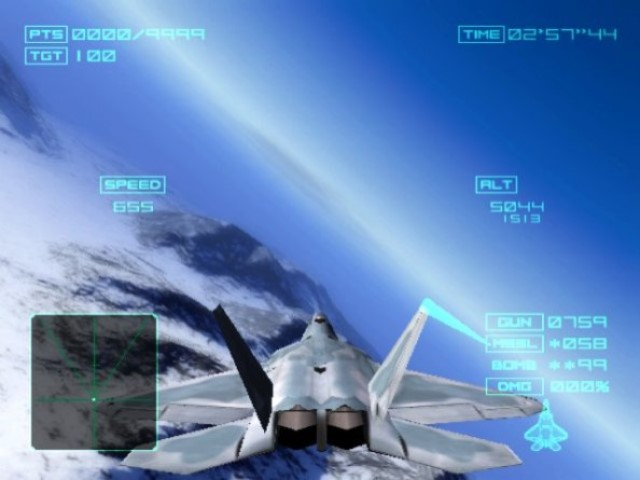
HUD UNIT - Select TYPE A or TYPE B for your heads-up display. TYPE A HUD shows all measurements utilizing the English Standard while TYPE B HUD shows all measurements in metric units.
Sound Settings
Change the speaker setting and sound volume. Options include:
•
SOUND - Select MONO or STEREO depending on your speaker configuration.
•
BGM VOLUME - Adjust the background music volume for the game.
•
LEVER Use Left Analog Stick to switch between Stereo and Mono settings
•
XButton ACCEPT / A Button: CANCEL
•
SE VOLUME - Adjust the sound effects volume for the game.
-






_1.jpg)