GETTING STARTED
STARTING UP
Set up your PlayStation®2 computer entertainment system according to the instructions in the Instruction Manual. Make sure the MAIN POWER switch (located on the back of the console) is turned on.
Press the RESET button. When the power indicator lights up, press the open button and the disc tray will open. Place the BLOOD OMEN™ 2 disc on the disc tray with the label side facing up. Press the open button again and the disc tray will close.
Attach game controllers and other peripherals, as appropriate. Follow on-screen instructions and refer to this manual for information on using the software.
DUALSHOCK®2 ANALOG CONTROLLER CONFIGURATIONS
•
left analog stick (L3 button when pushed down)
•
right analog stick (R3 button when pushed down)
BLOOD OMEN™ 2 is best played with the DUALSHOCK®2 analog controller. The controller should be connected to controller port 1. With this analog controller, the ANALOG mode button and mode indicator are always set to ON, indicating that the controller is in analog mode.
The controls shown on page 4 are the default configurations. When vibration is ON, the controller will vibrate in response to game events. You can adjust vibration ON/OFF from the Options menu.
CONTROLLERS/ACCESSORIES
Before starting play, make sure you have a DUALSHOCK 2 analog controller inserted into controller port 1. To save game progress and settings, insert a memory card (8MB) (for PlayStation 2) into MEMORY CARD slot 1. Do not insert or remove controllers or accessories once the power is turned on. GAME BASICS
STARTING A GAME
1. From the Main Menu, select START GAME and press the △ button.
2. The game will scan for a memory card (8MB) (for PlayStation®2) and check the data on it.
3. Highlight NEW GAME for a new game or highlight the saved game you want to play and press the △ button.
4. On the Choose Blocking Type screen, select your preferred blocking controls and press the △ button to start your game.
Note: If you don't have a memory card in MEMORY CARD slot 1, you will see a warning message. Follow the directions to play without a memory card. You MUST have a memory card to save game progress.
BLOOD OMEN™ 2 is an epic game. We highly recommend using a memory card so you can save your progress for those times when Kain suffers a setback. A BLOOD OMEN™ 2 game requires 82KB of free space on a memory card. SAVING A GAME
As you explore the world of Nosgoth, you will notice ancient symbols on the ground that light up when Kain steps over them. These are called checkpoints. Once Kain activates a checkpoint, you will be able to save all your progress up to that point. TO SAVE A GAME:
1. Press the START button to pause the game.
2. Use the directional button to select SAVE GAME and press the △ button.
3. Highlight NEW SAVE GAME for a new game or highlight a saved game you want to overwrite and press the △ button.
4. If the memory card is unformatted, you will be given an option to format it (or exit the save process).
5. Your saved game will appear. Select EXIT and press the △ button to resume gameplay.
6. To resume a saved game, use the steps in "Starting a Game." When you resume a saved game, all Kain's progress is restored up to the last activated checkpoint. SETTING OPTIONS
Use the Options menu to adjust game settings either before or during play. On the menu, press the directional button / to highlight options and press △ to change the setting.
To open the Options menu, either select OPTIONS from the Main Menu or press the START button to pause during a game, highlight OPTIONS and press the △ button.
•
VIBRATION - Toggle the controller's vibration function ON or OFF.
•
BLOCKING - Toggle between ASSISTED and SKILLED blocking modes. (See page 12 for details.)
•
SOUND - Adjust the volume level of the game's sound effects.
•
MUSIC - Adjust the volume level of the game's music.
•
AUDIO - Choose STEREO or SURROUND depending on your system's audio configuration. Choose SURROUND only if you are using a Dolby Surround Sound™ receiver. If you select SURROUND without a Dolby Surround Sound™ receiver, audio errors may occur.
•
EXIT - Select EXIT and press the △ button to close the Options menu.
HEAD UP DISPLAY
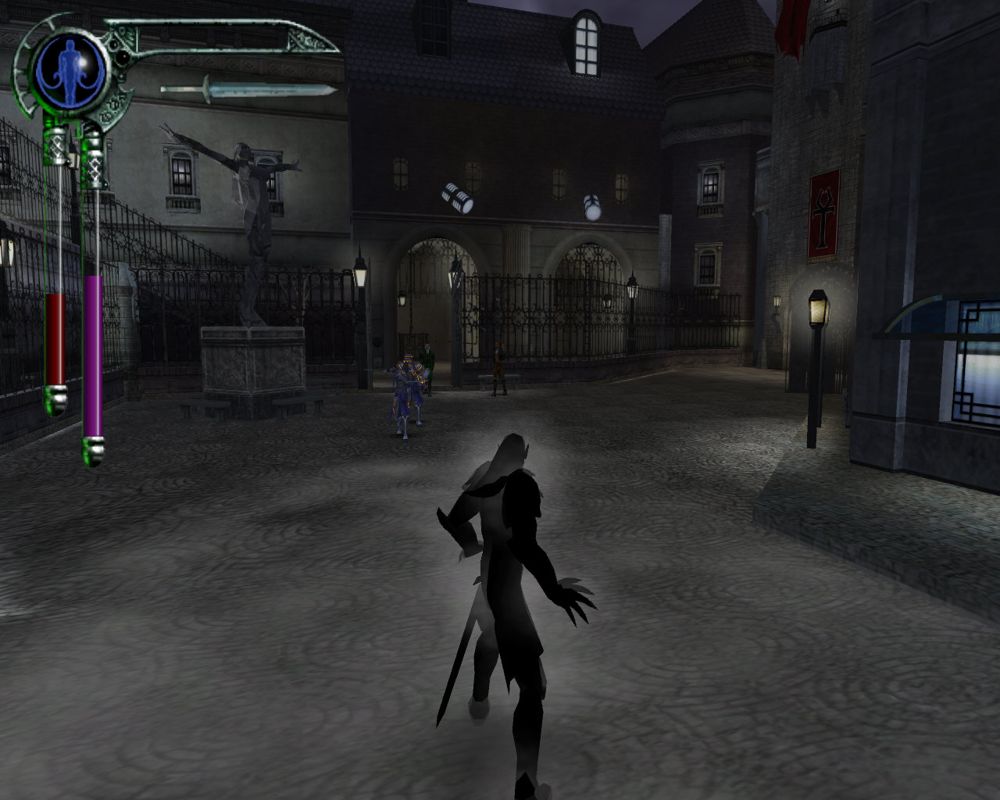
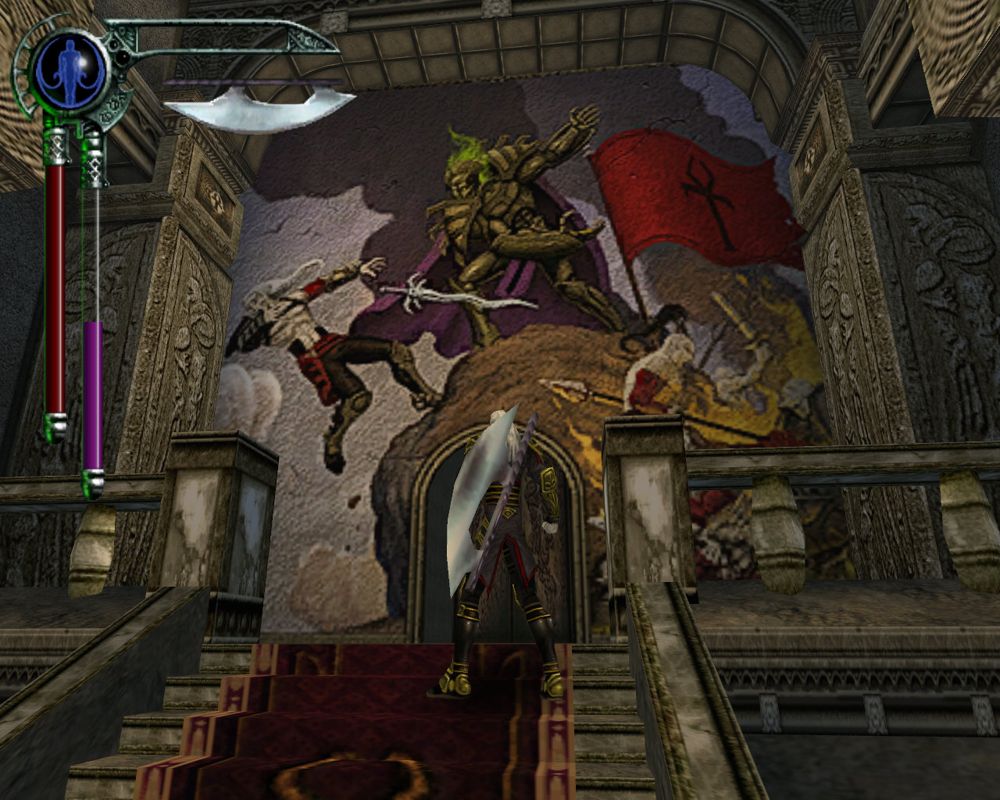
The Head Up Display (HUD) appears in the upper left corner of the screen. This is where you can monitor Kain's current life force, his vampiric Lore, and his Rage Meter. •
DARK GIFT INDICATOR - This circular gauge shows which Dark Gift Kain has currently .png)

.png)
