Starting the Game
PlayStation®2 Setup
Set up your PlayStation®2 computer entertainment system according to the instructions in its Instruction Manual. Make sure the MAIN POWER switch (located on the back of the console) is turned ON.
Press the RESET button. When the power indicator lights up, press the OPEN button and the display will open.
Place the KND - OPERATION: V.I.D.E.O.G.A.M.E. disc on the disc tray with the label side facing up. Press the OPEN button again and the disc tray will close.
Attach game controllers and other peripherals, as appropriate. Follow on-screen instructions and refer to this manual for information on using the software.
Memory Card (8MB) (for PlayStation®2)
To save game settings and progress, insert a memory card (8MB) (for PlayStation®2) into MEMORY CARD slot 1 of your PlayStation®2 system.
You can load saved game data from the same memory card or any memory card (8MB) (for PlayStation®2) containing previously saved games.
Playing the Game
Memory Card (Recommended)
It is best to play Kids Next Door with a memory card in order to maximize the gaming experience. If you do not have a memory card in your PlayStation®2 when the power is turned on, you will be prompted to insert one.
The game uses an autosave feature, so you can decline, but will be unable to save your progress or your unlocked content.
Create Profile
The game requires that you create or load a profile before you reach the Main Menu. Using the virtual keyboard, enter whatever name you'd like and select Enter to confirm.
Use the Profile Manager from the Main Menu to create, select or delete other profiles.
Main Menu
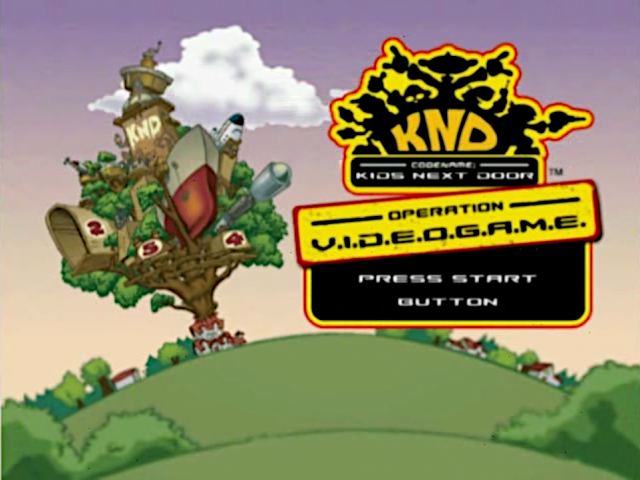
A screen will now appear, with the KND Treehouse Headquarters on the left and a series of options on the right. Choose an option to get started.
•
Start Game: Start the adventure! Kids Next Door, Battle Stations!
•
Load Game: Load the last level played or any prior level.
•
Options: Tailor the game settings to suit your own tastes.
•
Top Secret: Access game cheats, unlockable images, and other cool stuff!
•
Manage Profiles: Create, Select or Delete Profiles.
•
Credits: View the credits (Hint: And in some cases play the credits by playing all the way through the game).
Top Secret Content
Look to the field below the locked image for a hint on what to do to unlock the content. Once the content has been unlocked, look to the same field for information on how to access the content. Certain content will have different options on how to use it.
Secret Code Menu
Press the button to access the Secret Code menu. Use the up and down functionality of the directional buttons or left analog stick to swap the currently selected operative for another one.
Use the left and right functionality to switch between the different icons to adjust them all. Once you've entered the code, press the button to activate the code. You will be notified if the code was unsuccessfully entered. Press to return to the Top Secret Menu.
Pause Menu
Press the START button to pause the game. From the Pause Menu, select Resume, Options, or Quit.
Use the directional buttons or left analog stick to highlight your selection then press the button to confirm. Press the button to return to the game.
Collected Items
The Pause Menu also lists the items that you have collected in the level to this point.
•
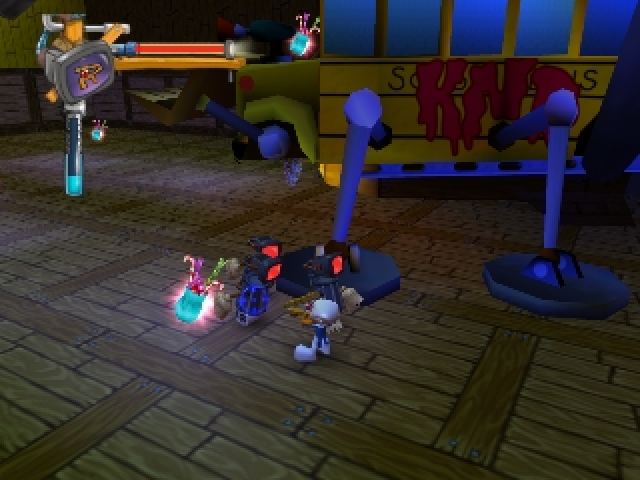
The Spare Part icon on the top represents how many pieces must be collected before the next 2x4 Tech upgrade will be available.
•
The next icon down represents different level goals, such as the number of Fireflies that you have saved.
•
The last icon represents the number of Rainbow Monkeys that have been collected in the level so far. Remember, collect Rainbow Monkeys to unlock Top Secret content. Resume
You re-enter the gameplay right where you left off.
Options
The Options Menu contains all of the sound and vibration options that are available from the Front End. Press the button to return to the Pause Menu.
Quit
This takes you back to the Main Menu.

_1.png)

.png)
_1.png)
.png)


_1.jpg)
.png)

_1.jpg)





_1.png)
.png)
.png)

.png)


