GETTING STARTED
*Note: Illustration may not match all PlayStation 2 console types. For owners of SCPH-70000 series PlayStation 2 systems, refer to the setup instructions supplied with your system.* Set up your PlayStation®2 computer entertainment system according to the instructions in its Instruction Manual. Make sure the MAIN POWER switch (located on the back of the console) is turned ON.
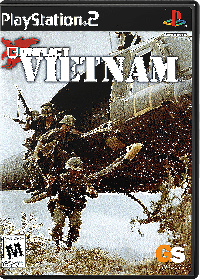
Press the RESET button. When the power indicator lights up, press the OPEN button and the display will open. Place the Conflict Vietnam disc on the disc tray with the label side facing up.
Press the OPEN button again and the disc tray will close. Attach game controllers and other peripherals, as appropriate. Follow on-screen instructions and refer to this manual for information on using the software.
Memory Card (8MB) (for PlayStation®2)
To save game settings and progress, insert a memory card (8MB) (for PlayStation®2) into MEMORY CARD slot 1 of your PlayStation®2 system.
You can load saved game data from the same memory card or any memory card (8MB) (for PlayStation®2) containing previously saved games.
STARTING UP
DUALSHOCK®2 ANALOG CONTROLLER CONFIGURATIONS
•
left analog stick (L3 button when pushed down)
•
right analog stick (R3 button when pushed down)
Health and Healing
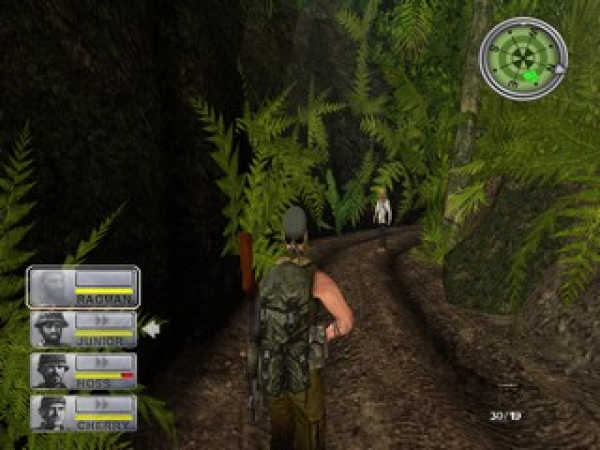
Each soldier's health is displayed by a yellow bar. As a soldier gets injured, the yellow portion of the bar shrinks. A completely red control panel means the soldier is down and wounded. Such soldiers are deemed 'MIA' (Missing In Action).
If a soldier suffers poisoning of any sort, a green bar appears. Heal MIA and poisoned soldiers using a Medical Field Dressing, which can be equipped from your selected soldier's Inventory (Using Your Inventory on p. 16).
There are a few possible methods to heal MIA soldiers.
•
Equip a Medical Field Dressing and approach the injured soldier and press the □ button when the flashing text 'HEAL <SOLDIER'S NAME>' appears.
*Note: This can also be completed in Aim Mode.*
•
Select the MIA soldier (note his red control panel) then use team orders (L1 button + □ button) to call another Squad Member to his aid.
•
Use the Orders Crosshair (L1 button + □ button) and send another Squad Member to do the dirty work.
*Note: Leave a seriously injured soldier too long without treatment and he'll die. If any of your squad dies, the mission is a failure.*
*Tip: Soldiers not under your direct control automatically heal themselves if they become severely wounded - but only if they have a Medical Field Dressing in their Inventory.*
Compass/Radar
•
Objective Arrow - follow to reach next primary objective
•
Green Blips = Squad members/Identified 'friendlies'
•
Red Blips (not shown) = MIA units
The compass in the top right of the screen shows the compass heading that the selected soldier is looking in (or moving towards). You can use the compass in conjunction with the map (SELECT button) and the visible terrain to navigate through the landscape more safely.
*IMPORTANT: The green arrow marker shows the direction to the next mission-related objective.*
Current Weapon
An image of the selected weapon, or object in hand, is shown on-screen (lower right).
Ammo Clip/Ammo/Number of items
The first figure is number of rounds (bullets) remaining in the loaded clip (magazine) while the second number is the total number of clips held in the selected soldier's inventory. For weapons without a clip, such as the shotgun, the second figure is the total number of rounds. In the case of single use items (such as grenades) the total number is shown.
Aiming Cursor
An 'aiming cursor' sight is shown for a currently selected weapon. The type of sight alters depending on the weapon chosen.
L2
To cycle between targets in default (third-person view), press the L2 button.
R3
Changing to Aim Mode (press R3 button) reveals a more detailed view but you cannot cycle targets.
L3
To zoom the sight in further (if the weapon has a secondary zoom), press L3 button.
*Note: You may prefer to switch the gun sight off. You can do this within the PROFILE section of the OPTIONS Menu. See Profile Preferences on p.28 for details.*
Flashing Text and the □ button
Any flashing text and □ button appearing on the lower right of the game screen indicates that you can perform the named action because you are next to something or someone you can interact with.
Press the □ button (or Action button) to complete the action. For example, if you approach another soldier, you'll see the text 'TALK' flashing. Press the □ button to start a conversation.
*Note: See The Action Button section on p.16 if you need more detail.*
MAP OBJECTIVE MENU
Press SELECT button to halt the action and view the Map/Objectives screen. This is a detailed breakdown of