GETTING STARTED
STARTING UP
Set up your PlayStation®2 computer entertainment system according to the instructions supplied with your system. Check that the system is turned on (the on/standby indicator is green).
Press the OPEN button to open the disc cover. Insert the Guitar Hero™ Encore: Rocks the 80s disc in the system with the label side facing up. Attach game controllers and other peripherals as appropriate. Follow the on-screen instructions and refer to this manual for information on using the software.
Memory Card (8MB) (for PlayStation®2)
To save game settings and progress, insert a memory card (8MB) (for PlayStation®2) into MEMORY CARD slot 1 of your PlayStation®2 system.
You can load saved game data from the same memory card or any memory card (8MB) (for PlayStation®2) containing previously saved games.
DUALSHOCK 2 ANALOG CONTROLLER CONFIGURATIONS
•
left analog stick (L3 button when pushed down)
•
right analog stick (R3 button when pushed down)
Directional Buttons
•
Press Up to activate Star Power
left analog stick
•
Move it up to activate the Whammy Bar
Button Functions
Cooperative Mode
Each player can adjust the difficulty to fit their skill level. If you want to succeed in cooperative mode you really need to work as a team.
You share a rock meter with your co-player, and to activate star power you'll both need to tilt your Guitar Hero Controller at the same time. Unlike the other multiplayer modes, in this mode you can fail a song! Pro Face-Off
This is the ultimate duel for guitar champions. Two players battle it out playing the same note chart at the same time on the same difficulty level. Finish the Medium, Hard, or Expert Career levels to unlock this mode.
TRAINING
Guitar Hero Encore: Rocks the 80s offers two forms of training: Tutorials
These interactive tutorials teach you everything you need to know about Guitar Hero Encore: Rocks the 80s and are highly recommended for both beginners and experienced players. Practice
You can take any song in the game that you've currently played and can practice any part of it. You can choose to play the song at the normal setting, or you can slow the song down to really help you out.
OPTIONS MENU
Tune your settings here. You can access many of these options from the in-game pause menu as well as from the main screen.
Audio Settings
Change the volume of the band (background music in game), guitar (the part you're playing in game) and sound FX (crowd volume, background noises) in the game. You can also turn Stereo Sound on and off.
Video Settings
•
Lefty Flip (Player 1 and Player 2): Flips the note locations around on the screen for players that like to hold the controller in their left hand.
•
Widescreen Display: Adjusts the picture to fit widescreen televisions.
•
Progressive Scan: If your television supports progressive scan (and you have the correct component cables), you can turn progressive mode on using this option.
•
Calibrate Lag: Some televisions have an audio visual lag that can make it difficult to play the game. Use this screen to calibrate your television's lag.
Manage Bands
Delete or rename the bands you've created.
Data Settings
Save your game progress, load a game from the memory card, or turn auto save on or off.
Bonus Videos
Watch the bonus videos you've purchased in the Store.
Credits
Check out all the totally awesome people who helped make this game!
HOW TO ROCK
NAMING YOUR PROFILE
Just because you've got big hair and tight pants doesn't mean you're ready to rock; you need the perfect band name! This band name will serve as the name of your Guitar Hero Encore: Rocks the 80s Profile. You can edit this name later in "Manage Band" located in the Options Menu.
GAMEPLAY
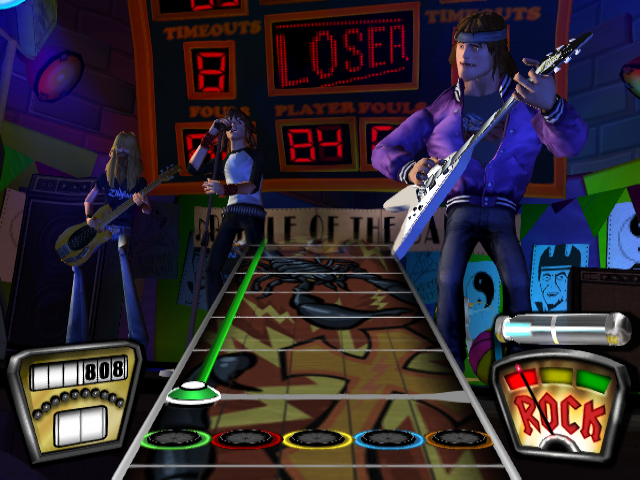
Guitar Hero Encore: Rocks the 80s gameplay consists of pressing the Fret Buttons and strumming on the Strum Bar UP or DOWN in sync to the notes that are scrolling toward you on screen. Basic Notes
1. Hold the Fret Button that corresponds to the note on the screen.
2. Strum on the Strum Bar UP or DOWN to play the note.
If you see a string of the same notes you don't have to release the corresponding Fret button for each note, you can keep it held down.
Long Notes (otherwise known as Sustains)
1. Hold the Fret Button down
2. St
.png)



.png)
.png)



.png)
.png)

.png)
.png)







_Front_Cover.jpg)







.png)