PlayStation 2 Setup
Set up your PlayStation®2 computer entertainment system using the Instruction Manual. Ensure the MAIN POWER switch on the back of the console is on.
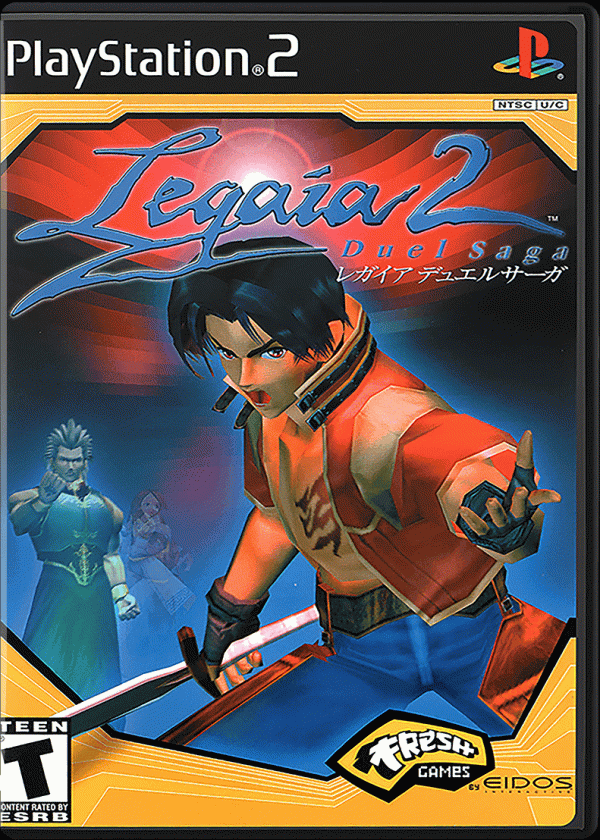
Press the RESET button. When the power indicator lights up, press the open button to open the disc tray. Place the Legaia 2 Duel Saga disc label-side up, then press open again to close the tray.
Attach game controllers and other peripherals as needed. Follow on-screen instructions and refer to this manual for software usage.
PlayStation 2 Components
DUALSHOCK®2 Analog Controller
Legaia 2 Duel Saga can only be played with the DUALSHOCK®2 analog controller. PlayStation® controllers like the original DUALSHOCK® analog controller or standard controllers are not compatible.
Connect the controller to controller port 1. The ANALOG mode button and mode indicator are always ON (red), indicating analog mode. Do not insert or remove controllers or accessories while the power is on.
This game uses the vibration function. The controller will vibrate in response to game events. You can turn vibration ON/OFF using the Vibration option in the CONFIG. window.
Controller Layout
•
right directional button
STATUS Command
Use this command to view a character's status.
Character Status (A)
•
The character's current status. Use R2 / L2 buttons to switch to other characters.
•
HP: Character's hit points. Right number is max HP, left is current HP.
•
MP: Character's magic points. Right number is max MP, left is current MP.
•
AP: Character's Art points. Right number is max AP, left is current AP.
•
LV: Character's level. Rises when experience points reach predetermined numbers.
•
EXP: Current experience points. Rise with each battle victory.
•
Next: Experience points needed to reach the next level.
•
STR: Strength. Affects normal attack power.
•
AGL: Agility. Affects attack order, hit rate, and guard rate in battle.
•
CHA: Charisma. Affects preemptive attack rate, escape rate, and likelihood of abnormal status in battle.
•
INT: Intelligence. Affects the attack power of special attacks.
•
MEN: Mental power. Affects defense against special attacks.
•
ART BLOCKS: Number of attack moves that can be done in one turn.
Status Information Types (B)
Various types of status information are displayed here. Change the type using the directional button or the left analog stick.
•
ORIGIN: The Origin's current level and experience points are displayed.
•
ARTS: The Arts the character has learned are displayed.
•
EQUIP: The items the character currently has equipped are displayed.
•
NICKNAMES: The nicknames the character has been called are displayed. Nicknames are sometimes acquired when the character is talking to others.
•
SKILLS: The skills the character currently has equipped (green) and the skills that have been learned and can be used (white) are displayed. Grayed skills have not been learned yet.
•
COOKING: The names of and recipes for dishes that have been learned are displayed.
SKILLS Command
Use this command to equip Offense Skills and Defense Skills.
Offense Skills and Defense Skills
Some skills, called Offense Skills and Defense Skills, must be equipped with the SKILLS command to be effective. Offense Skills activate when attacking. Defense Skills activate when using the GUARD command during battle.
One Offense Skill and one Defense Skill can be set. Select and enter the desired skill. Select the skill you want to equip from the list and press the button. Equipable skills are in bright text; skills still being learned are darkened.
CONFIG. Command
Use this command to change various game settings.
•
Sound: Set sound output to STEREO or MONO.
•
Battle Command Entry: Choose between the directional button or the button to enter commands during battle.
•
Battle Item Order: Sort items displayed with the ITEM command by EFFECT or ACQUIRED order.
•
Camera Movement: Set camera movement during battle to FAST, NORMAL, or SLOW.
•
Message Speed: Set message text speed to NORMAL, FAST, FASTEST, or INSTANT.
•
Cursor: Set initial cursor position (outside battle) to MEMORY or FIXED. MEMORY recalls the last position.
•
Movement Speed: Set character movement (directional button) to WALK or RUN.
•
Status Display: Set how the status window is displayed on the Field Screen. OFF (no display), TIME (displays if character doesn't move for a while), PAUSE (displays when character stops moving), ON (always displayed).