Main Menu
Use the Menu Controls to navigate the Main Menu.
Start Game
Start a new adventure. If there is no LEGEND OF KAY save game on your memory card, the game will generate a file with slots for up to four save games.
You can also start without a save game file, but in this case you won't be able to save your progress.
The Master's Advice
A wise warrior does not save the game manually. He has the game saved for him! Go to the Options Menu and activate the Autosave option. Now your progress will be automatically stored on the memory card.
Load Game
In this menu you can access up to four save games. You can find out at which level the game was saved, which weapons you have found, how many Energy Points and Magic Points you have, and your overall score.
Use the Menu Controls to select and load a saved game.
Options
To set various options, select a menu item by pressing the directional buttons and cycle through the different settings by pressing.
Your changes will be activated when you choose Apply and press the button. To leave the Options Menu, press the button.
Game Options
•
Difficulty: Normal is the default setting. You can also select Easy or Hard. Nightmare is only recommended for highly advanced fighters.
•
Autosave: Active by default. When On, your progress is saved whenever you touch a Save Point in the game. When Off, you can store your save games on the memory card by opening the Pause Menu and selecting Save Game.
•
Camera: Use this option to invert the camera controls or restore the default camera setting.
•
Mini-Map: You can set the Mini-Map to Relative or Absolute mode. In Relative mode, the position arrow (indicating what direction you're looking in) always points up. If you turn around, the map will rotate. In Absolute mode, the map remains fixed, and the arrow rotates depending on your movements.
•
Vibration: Turn the controller's vibration function On or Off.
•
Skip Cut-scenes: Set this option to skip all cut-scenes or only cut-scenes you have already seen. You can choose to skip a cut-scene whenever you see the hint To Skip on screen.
•
Subtitle: Activate this option to see the subtitles during the comics and cut-scenes.
•
Center Screen: Align the game screen to your television. Use the directional buttons to move the image and press the button to confirm or the button to cancel.
•
Sound: Switch between Stereo/Dolby Pro Logic II and Mono sound, depending on your monitor or sound system setup.
•
Music Volume: Adjust the music volume.
•
SoundFX Volume: Change the volume of sound effects.
•
Voice Volume: Adjust the volume of voice output during cut-scenes.
In-Game Pause Menu
Press the button while playing to open the Pause Menu. When the game is paused, all the onscreen displays are shown.
•
Continue: Close the Pause Menu and continue playing.
•
Tips: If you bought a Tip in the Shop, select this option to read it. •
Save: Enter the Save menu. Press the directional buttons to select a free saved game slot and press the button to confirm. You can also overwrite or delete an existing save game. You can save at any time during play, the status you had achieved at your last Save Point is the status you will save.
•
Options: Select this to enter the Options Menu.
•
Quit Game: End the current game and return to the Main Menu.
Playing the Game
Quests
The tasks you need to perform during the game are called Quests. You usually get Quests from other characters in the game.
To find out which Quests are still open for the current level and which ones you have already solved, press the button. The Quest Menu appears, showing a short list of all Quests for the level.
•
Asterisks mark Quests you haven't yet looked at.
•
Quests you've already solved are marked with tick marks.
Use the left analog stick to choose a Quest and press the button to find out more about the task. For some Quests you may see pictures of items that you need to find or activate. The item image is dimmed until you collect or activate the item.
Press the button to close the Quest Menu.
The Master's Advice
He who reads requires silence. The game is paused while the Quest Menu is open. You can therefore inform yourself without getting caught unawares by the rats.
Subtitles and Cartoon Sequences
Press the button to activate or deactivate subtitles. Press and hold the button to cancel cartoon animation sequences.
Game Over
If you've lost your last life you can still continue the game at the last Save Point by choosing Continue and pressing the button.
Screen Displays
Status
•
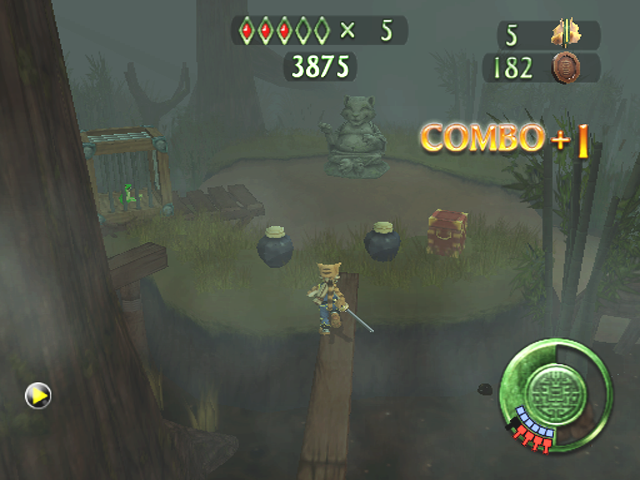
Multiplier: Every point you make is multiplied by the Multiplier.
•
Lives: Number of remaining Lives you have.
•
Money: Amount of money you've acquired in the game. You can use this money to buy items in the Shop.
•
Keys: Number of Keys you are carrying at the moment.
Jade Circle
The Jade Circle keeps you informed about your Health Points, Magic Points and Items.
•
Health Points: Each red dot is
.png)



.png)


.png)












_1.png)


