Starting Up
Set up your PlayStation®2 computer entertainment system according to its Instruction Manual. Make sure the MAIN POWER switch (located on the back of the console) is turned on.
Press the RESET button. When the power indicator lights up, press the open button and the disc tray will open. Place the MDK™2 ARMAGEDDON disc on the disc tray with the label side facing up. Press the open button again and the disc tray will close.
Attach the game controller and a memory card (8MB) (for Playstation®2), if you have one. Follow on-screen instructions and refer to this manual for information on using the software.
To Play MDK™2 Armageddon
Plug in your DUALSHOCK™2 ANALOG CONTROLLER into CONTROLLER PORT 1. Insert your MEMORY CARD (8MB) (FOR PLAYSTATION®2), if you have one, into MEMORY CARD SLOT 1.
Make sure the MAIN POWER SWITCH (LOCATED ON THE BACK OF THE CONSOLE) IS TURNED ON. Press the RESET button. When the power indicator lights up, press the OPEN button and the disc tray will open.
Place the MDK™2 ARMAGEDDON disc on the disc tray with the label side facing up. Press the OPEN button again and the disc tray will close.
Game Start and Option Screen
After pressing the START button on the title screen, the game will enter the Game Start and Option screen. If you don't press the START button during the title screen, MDK™2 ARMAGEDDON will enter into an automatic demo mode that will playback snippets of MDK™2 ARMAGEDDON gameplay.
Main Menu Screen
At the Main Menu screen you can start a new game, load a previous game, change your options, or view previously seen movies.
New Game
Choosing the New Game option will start a new game of MDK™2 ARMAGEDDON. You will first be given an option to choose among a number of save slots per MEMORY CARD (8MB) (FOR PLAYSTATION®2).
After you make your choice you will be asked to pick a difficulty level. The levels, from most easy to most difficult, are EASY, MEDIUM, HARD and JINKIES! After making this choice the intro movie will begin following a short loading period.
Load Game
A MEMORY CARD (8MB) (FOR PLAYSTATION®2) can be used to store MDK™2 ARMAGEDDON save games. Choosing the LOAD GAME option will allow you to continue your game from a previously saved location.
Save games are automatically generated during gameplay and stored on the MEMORY CARD (8MB) (FOR PLAYSTATION®2).
Options
The Options menu offers a number of gameplay options. Both audio and controller settings can be found and adjusted here.
Audio Submenu
Members of this submenu modify features related to the sound and music in MDK™2 ARMAGEDDON.
•
EFFECTS VOLUME: This option controls the volume for sound effects in MDK™2 ARMAGEDDON.
•
MUSIC VOLUME: This option controls music volume.
•
VOICE VOLUME: This option controls voice volume.
NOTE: These are all pre-determined sets that are not customizable.
Mad Catz Controller Info
MDK2 ARMAGEDDON supports the Mad Catz Panther PX joystick. You can find the controller configuration in the Options menu under Controls. Once in Controls, go to Controller Layout. There you will find the control layout for the Panther PX.
Game Options
Members of this submenu modify features related to the general game functions.
•
Display Movie Text: This feature toggles the display of text during movie playback and tutorials.
•
Play Movies/View Credits: This menu option will allow the player to play movies independent of gameplay only after they have been viewed during the game. View Credits shows the game credits.
Paused Menu
There is an in-game menu that can be accessed during gameplay by pressing the START button. This menu has the following options:
•
CONTINUE: Returns to the game.
•
LOAD GAME: This reloads from a saved checkpoint.
•
OPTIONS: This accesses the option screen.
•
QUIT: This quits the game and returns to the Main Menu screen.
Sniper Scope
Pressing the "SNIPER" button on the analog controller (DUALSHOCK™2) causes Kurt to enter sniper mode. A new graphical user interface appears when Kurt enters sniper mode.
This GUI features a zooming viewport that Kurt controls so that he can zoom in and zoom out while tracking his potential target. Kurt can use his inventory controls to select from various sniper bullets.
Pressing the "SHOOT" button causes Kurt to fire a single sniper shot. Be careful with your ammunition because all shots, with the exception of the default sniper bullet, have limited ammunition. NOTE: Kurt can only strafe left and right when in sniper mode.
Ribbon Chute
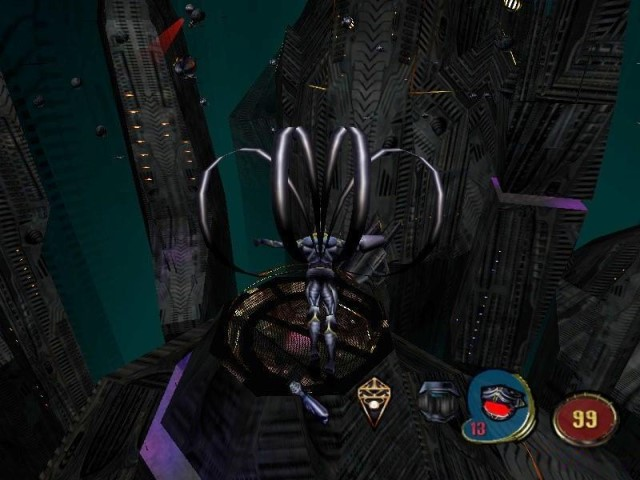
When the "JUMP" is pressed and held, Kurt's ribbon chute is activated. While activated, the ribbon chute allows Kurt to glide around his environment.
Movement controls can be used in combination with the ribbon chute to explore the environment.
NOTE: Should Kurt open the ribbon chute in an updraft, he will rise into the air
 (Guille Suhr's conflicted copy 2015-02-01).png)

.png)
 (Guille Suhr's conflicted copy 2015-02-01).png)
.png)
.png)
.png)



_1.png)





_1.jpg)


.png)

.png)


_1.png)
.png)