Getting Started
Set up your PlayStation®2 computer entertainment system according to its Instruction Manual. Ensure the MAIN POWER switch (on the back of the console) is turned on.
Press the RESET button. When the power indicator lights up, press the open button to open the disc tray. Place the Digital Hitz Factory disc label side up, then press the open button again to close the tray.
Attach game controllers and other peripherals as needed. Follow on-screen instructions and refer to this manual for software information.
PlayStation 2 Components
Main Menu
Rotate the menu using the up and down directional buttons. Press the button to confirm your selection from six modes.
Music Creation
This mode allows you to create, load, and edit songs. The interactive interface provides easy control within the creation environment.
Compose your song by selecting from a wide variety of Music Styles, Loops, Snares, Drumbeats, Bass, Vocal, and Melody riffs. A quick tutorial is available in the manual and in-game.
Music Mixer
In the Music Mixer, you can be your own Mix Master. Select a song and bring in loops on the fly. Arrange loops, drop beats, and hook up the crowd control.
Music Credits
Check out the inventive minds that put Digital Hitz Factory on the shelves.
Music Stack
The Music Stack is where you can listen to your completed songs or songs built into the CD in jukebox mode. You can also view your own videos.
Music Setup
Customize various in-game options including Sound, Video, Interface, Grid, and Storage space. You can also change the skin/texture of your Generator Interface.
Music Lesson
Learn the intricacies of the Hitz Factory interface, from basics to complex topics. This comprehensive tool provides the knowledge needed to wield Digital Hitz Factory's full potential.
Complete the Lesson tutorials to get a comfortable feel for Digital Hitz Factory's functionality.
Music Setup Options
•
SOUND OPTIONS: Adjust master volume control, FX volume, Time Signature, Metronome, and the Riff editor.
•
VIDEO OPTIONS: Toggle various video Mode and Editor Functionalities on/off.
•
STORAGE SPACE OPTIONS: View storage space values for Digital Hitz Factory.
•
INTERFACE OPTIONS: Adjust screen position, ergonomics of Track and Riff editors, and pointer speed.
•
CONTROLLER OPTIONS: Adjust controls to fit your preference.
•
SKIN SELECTION OPTION: Customize the display of your Track Editor by toggling different skins.
Creating a Song – Quick Start Guide
From the Main Menu, select Music Creation to enter the music-making environment. Before starting, familiarize yourself with a few interface functions.
Interface Functions
•
TRACK EDITOR GRID: The screen where songs are assembled.
•
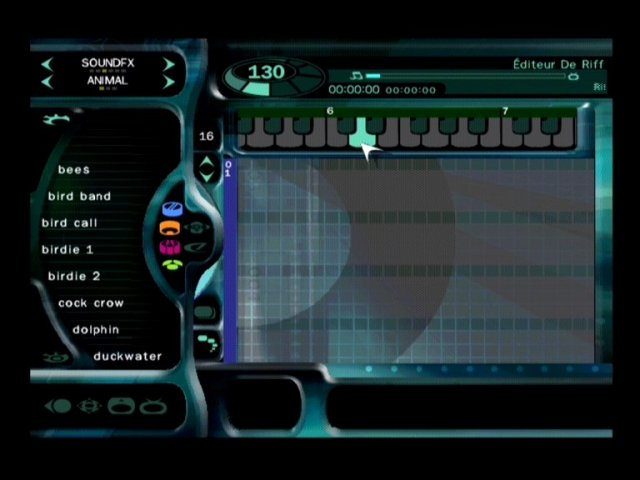
INSTRUMENT EDITOR: Generate music for your songs.
•
VOICE TO MUSIC MODE: Record vocal samples into Digital Hitz Factory.
•
SAMPLE A RIFF MODE: Record and store samples (drumbeats, baselines, etc.) into Digital Hitz Factory.
•
BLOCK SIZE MODE: Modify the scale/size of the Blocks on the Track editor grid.
Track Editor Mode Specific Functions and Controls
•
PLAY SONG: Move pointer to desired start position and press Start button.
•
PREVIEW/DEMO RIFF: Start button
•
SELECT AND PLACE RIFF: R3 button
•
Delete Area: Press the SELECT button, highlight the area to be deleted, then press the button.
Loading Songs from DHF CD
1. Move pointer to the Memory Card Manager icon (bottom left) and press R3 button.
2. Move pointer to the Game CD icon and press R3 button.
3. Scroll through the list, move pointer over the desired song, and press R3 button.
4. Move pointer to the Load icon and press R3 button to load the song.
5. Press the button to return to the Track Editor screen.
Loading Songs from Memory Card
1. Move pointer to the Memory Card Manager icon (bottom left) and press R3 button.
2. Move pointer to the Memory Card slot 1 or 2 icon and press R3 button.
3. Scroll through the list, move pointer over the desired song, and press R3 button.
4. Move pointer to the Load icon and press R3 button to load the song.
5. Press the button to return to the Track Editor screen.
Saving Songs to Memory Card
1. Move pointer to the Memory Card Manager icon (bottom left) and press R3 button.
2. Move pointer to the Memory Card slot 1 icon and press R3 button.
3. Move pointer to the Save to Memory icon and press R3 button to save.
Selecting a Musical Style
Select a Musical Style (MS) using the R3 button and directional arrows until your preferred style is selected.
Selecting Riffs
Once you have a MS, select Riffs from the Music Generator. For example, if you select Trance as your MS, choose a drum riff by hovering over the drum riff icon and pressing the R3 button. This will bring up a scrolling list of drums to insert.
Select a bass riff by hovering over the bass riff icon and pressing the R3 button. A new

_1.png)