GETTING STARTED
*Note: Illustration may not match all PlayStation 2 console types. For owners of SCPH-70000 series PlayStation 2 systems, refer to the setup instructions supplied with your system.* Set up your PlayStation®2 computer entertainment system according to the instructions in its Instruction Manual. Make sure the MAIN POWER switch (located on the back of the console) is turned ON.
Press the RESET button. When the power indicator lights up, press the OPEN button and the disc tray will open. Place the NHL2K6 disc on the disc tray with the label side facing up. Press the OPEN button again and the disc tray will close.
Attach game controllers and other peripherals, as appropriate. Follow on-screen instructions and refer to this manual for information on using the software.
QUICK GAME
Select Quick Game from the Main Menu to jump right into a game and experience the action firsthand.
Team Select
•
Move the left analog stick or directional button left to select the away team and right to select the home team.
•
Press the R1 or L1 to cycle forward or backward through the available teams.
•
Press the R1 and L1 simultaneously if you want to randomly select a team (not including all-star team).
•
Press the L2 button and R2 button simultaneously if you want to randomly select a team (including all-star team).
•
Press the R2 or L2 to cycle through the alternate jerseys that may be available for your selected team.
•
Move the right analog stick up or down to select a User Profile.
•
To create a user record, click the right analog stick. The User Records Screen appears. Highlight a slot and press Select Create and enter a User Name on the Virtual Keyboard. Press to return to the Team Select Screen.
•
Press to access the Game Options Screen and customize game settings (Difficulty, Game Speed, Quarter Length, Arena, etc). Press or SELECT to return to the previous screen.
•
Press or START to advance to the Player Lineup Screen.
Player Lineup
•
Press START to go directly to the game.
•
To alter the game lineup, press button to enter the lineups menu, then move the left analog stick or directional button left or right to highlight an option (Adjust Lineup, Scramble Starters, Fantasy Basketball) and press to select it.
Adjusting Lineups
•
To switch two players in the lineup, highlight the first player's name and press. A check mark will appear next to his name.
•
Highlight the other player and press. The two players will switch positions.
•
Press to return to the Player Lineup Screen.
•
Press START to load the game.
Scramble Starters
This selection scrambles the starting rosters for your team with starters from other teams in the league.
•
Press START to save your changes and return to the Player Lineup Screen.
•
Press START again to load the game.
Fantasy Basketball
This option allows you to perform a fantasy draft and pick your favorite players for your team.
•
Press again to begin the Fantasy Draft. The home team picks first.
•
Move the left analog stick or the directional button to highlight the player position you wish to draft for.
•
Press to access the list of available players at that position.
•
Move the left analog stick or the directional button to highlight the player you wish to draft.
•
Click the right analog stick to view the player's Player Card.
•
Press to draft the player.
•
When you're done drafting all of your players press START to begin the game.
Dual Player Control
Sometimes, a situation arises on the court that would allow a specific player on your team to drive the lane for an easy bucket or step back to the perimeter for a trey, but they have to move before you get the ball to them before the window closes or the play will get shut down. Use Dual Player Control passing to put a specific player into motion to make an attempt at a big play.
Press the button to select the player you want to put into motion. Press UP, DOWN, LEFT or RIGHT on the directional button to send the player in that general direction.
The Shot Stick
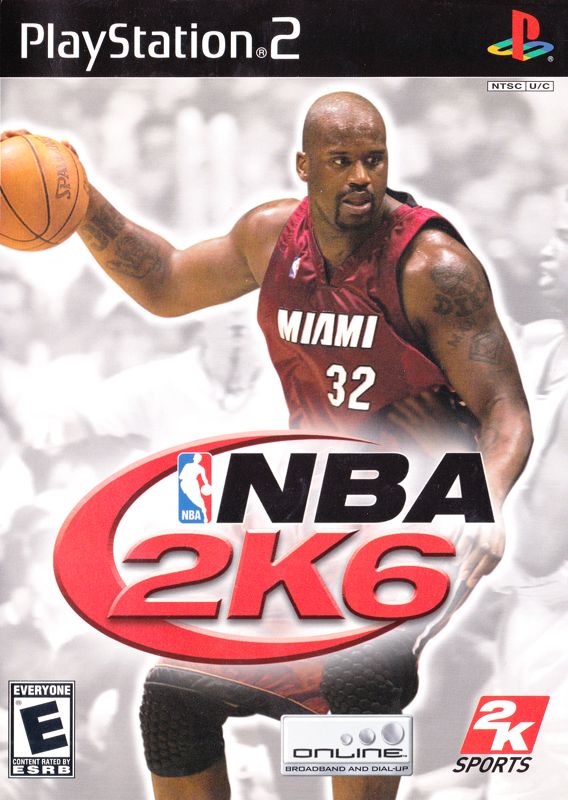
New to NBA 2K6 is the Shot Stick. Now you have the power to decide not only where to shoot, but what type of shot to take.
To take a jump shot, simply set your shot up and 'press back' the shot stick (move down on the right analog stick) and release it at the top of your jump.
Layups and Dunks
Attacking the basket in NBA 2K6 is where the Shot Stick shines. To perform a layup, drive to the basket and use the shot stick to decide what type of shot to take.
Shot Stick Layup Types
To perform a dunk with the Shot Stick, press the R1 then move the analog stick one of 4 directions to get the desired dunk.
Shot Stick Dunk Types
It is important to remember that not all players can perform all dunk types. Big men are usually better at the power dunks, whereas finesse players are better at the fancy dunks. Generally, the higher the player's skill, the more likely they are to execute the desired dunk.
.png)

.png)






.png)


_1.jpg)