GETTING STARTED
*Note: Illustration may not match all PlayStation® 2 console types. For owners of SCPH-70000 series PlayStation 2 systems, refer to the setup instructions supplied with your system.* Set up your PlayStation®2 computer entertainment system according to the instructions in its Instruction Manual. Make sure the MAIN POWER switch (located on the back of the console) is turned on.
Press the RESET button. When the power indicator lights up, press the OPEN button and the disc tray will open. Place the Teenage Mutant Ninja Turtles® 2: Battle Nexus™ disc on the disc tray with the label side facing up. Press the OPEN button again and the disc tray will close. Attach game controllers and other peripherals, as appropriate. Follow on-screen instructions and refer to this manual for information on using the software.
MEMORY CARD
To save or load your game in progress, a memory card (8MB) (for PlayStation®2) is required. Insert the memory card into memory card slot 1 (memory card slot 2 is not used) of the PlayStation®2 computer entertainment system before starting play.
You can load your saved games from the same card, or from any memory card containing previously saved Teenage Mutant Ninja Turtles® 2: Battle Nexus™ games. *NOTE: Teenage Mutant Ninja Turtles® 2: BattleNexus™ uses at least 99 KB of memory card data to save each game. Make sure there is enough free space on your memory card before starting play. Do not insert or remove a memory card while saving or loading games or after the power has been turned ON.* INTRODUCTION
The Turtles' return has come at an unexpected time. They now find themselves forced into exile on a strange, alien planet, the result of a new time and space warping technology that has fallen into the wrong hands.
But hope glimmers as they soon discover a hostage, a robot named Fugitoid, whom they rescue and convert to a valuable ally. Together they must defeat the bizarre enemy infestations on the planet and get back home to Earth!
TO GET STARTED
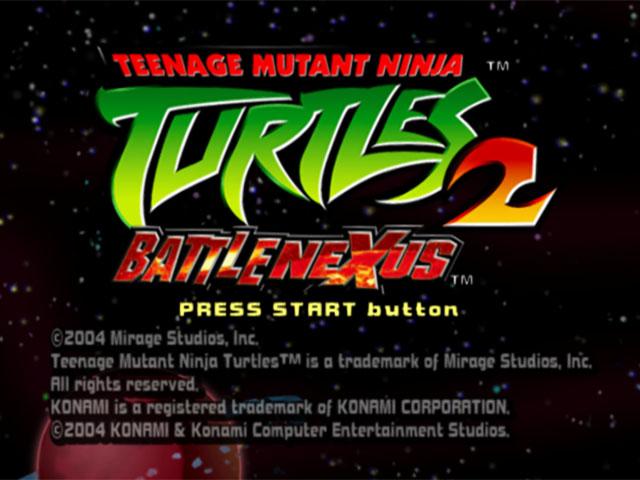
1. Press the START button after you see the Teenage Mutant Ninja Turtles® 2: Battle Nexus™™ title screen. The Main Menu appears. MAIN MENU
The Main Menu is the first screen you see after you press the START button from the title screen. From here you have three options:
Start a new adventure with the Turtles.
Load a saved game from data saved on the memory card (8MB) (for PlayStation®2).
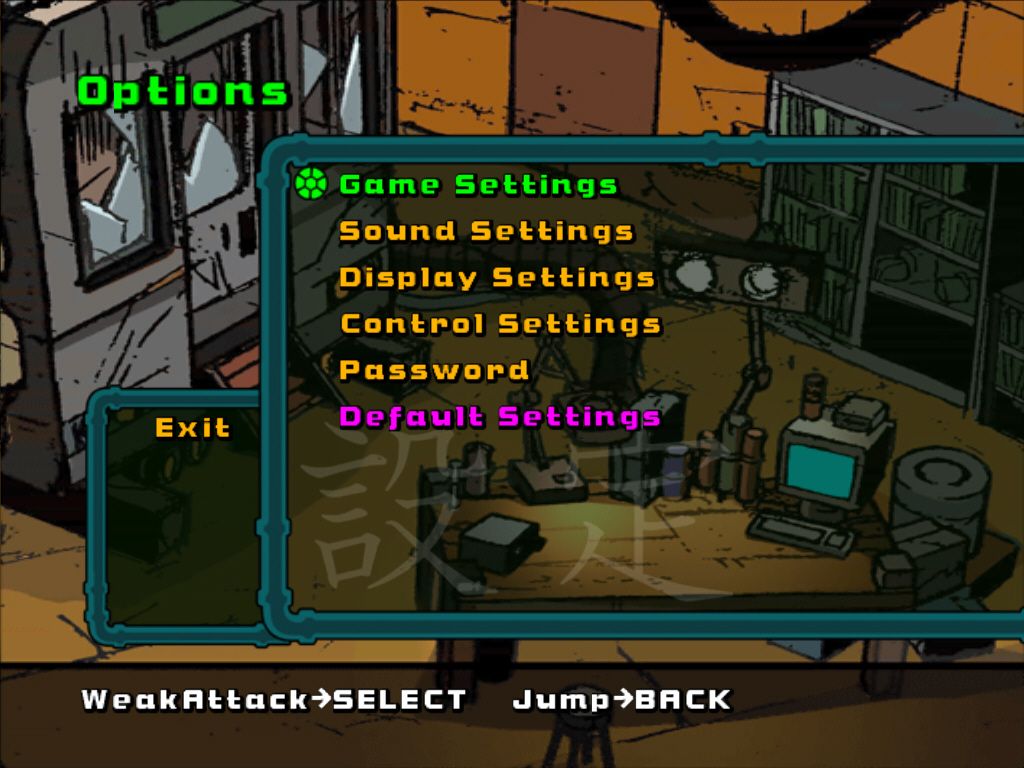
Change the game settings.
*NOTE: A fourth option, Classic Arcade Game, appears on the Main Menu once you unlock a special bonus mode. This allows you to play the classic Teenage Mutant Ninja Turtles® arcade game.* NEW GAME
CHARACTER SELECTION
All four Turtles get in on the action even in a single player game. Here is where you select the sequence of your Turtles for battle. The sequence is important because each Turtle has his own unique skills and weapons, and the combination of their different skills under specific situations is their only means of survival. For a single player game, the PRESS START BUTTON banner is displayed only for the first port.
•
To select your Turtle sequence:
1. Press the / directional buttons to highlight a Turtle.
2. Press the button to confirm your selection.
3. Repeat this sequence until all four Turtles are selected.
4. Press the button to proceed to the Stage Selection screen.
*NOTE: After bonus characters have been unlocked, they can be selected with the / directional buttons. Note that characters of the same affiliation (for example, Raphael and Casey Jones) cannot be selected at the same time.*
STAGE SELECTION
The path toward victory is littered with danger and destruction. Only a clear vision of your ultimate goal will ensure success. This screen is where you track your progress toward this success.
A Turtle icon shows your current location. Press the directional buttons in the direction of the arrows displayed on the screen to move the Turtle icon in that direction. Press the button to enter the desired stage.
After clearing a stage, the highest rating is displayed and you can reenter that stage at any time. Stages that have been cleared are displayed with their rating, and stages that have not been cleared are displayed with green icons. Stages that cannot yet be entered are marked with smaller icons.
If you are unable to progress, try clearing a stage that has not yet been cleared, as this may open up a new path. Paths through the game may split into several branches. If you still can't access a certain stage, try investigating a nearby stage.
R1 BUTTON MENU
Press the R1 button while in Stage Selection to display the following menu.
This option appears only after you have worked your way to another world. It allows you to warp to a station — the main starting point — in another world. If the station of a certain world is not open, you cannot warp to that world.
Select a character.
This provides a quick, in-game refresher on which controls result in which actions.
Change options.
Save game data.
Load game data.
•
**Return to Title Screen

_2.png)