Starting Up
This CD-ROM can only be used with the Saturn System. Do not attempt to play this CD-ROM on any other CD player, as doing so may damage headphones and speakers. 1. Set up your Sega Saturn system by following the instructions in your Sega Saturn System Instruction Manual. Plug in Control Pad 1. 2. Place the Sega Saturn CD-ROM, label side up, in the well of the CD tray and close the lid. 3. Press the Power Button to load the game. The game starts after the Sega Saturn logo screen. 4. If nothing appears, turn the system OFF and make sure it is set up correctly.
If you wish to stop a game in progress, the game ends, or you want to restart, press the Reset Button on the Sega Saturn console to return to the Game's Title Screen. If you wish to return to the Control Panel, press Buttons A, B, C, and Start simultaneously at any time. If you turn on the power without inserting a CD, the Audio CD Control Panel appears. To play a game, place the Sega Saturn CD in the unit, press the D-Button to move the cursor to the top left button on the Control Panel, and press Start. The opening screens of a Game will appear. Your Sega Saturn CD-ROM contains a security code that allows the disc to be read. Be sure to keep the disc clean and handle it carefully. If your Sega Saturn system has trouble reading the disc, remove the disc and wipe it carefully, starting from the center of the disc and wiping straight out towards the edge. Introduction
Worms combines the best elements from the very best games ever created. It requires great thought, strategy, and elements of sheer outrageous fortune. It provides players with an almost infinite range of playing possibilities, and we guarantee that no two games will ever be the same! Teams take turns bombarding the enemy with whatever weapon they feel is likely to reap the best reward. Some weapons are limited in terms of supplies, and therefore strategy is required for the best results. Each Worm has an initial energy level which is depleted through the battle. Once this is at zero, the Worm is removed from play. The last team remaining wins the game.
Each battle has a time period, and once this is over, a period of Extra Time may be played where all remaining Worms are reduced to 1 unit of energy and the slightest hit will render them out of the game.
Each Worm has a limited time in which to make its move (adjustable, of course!) and can walk, jump, and even teleport to new pastures.
Screen Display
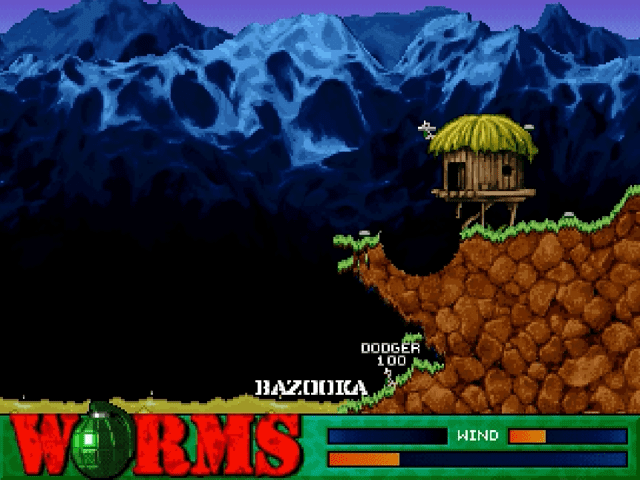
The screen consists of the landscape, which can be either zoomed out or at normal resolution. It also features an energy bar showing the relative strengths of all teams and the number of rounds they have won (medals).
A panel at the bottom shows the wind strength and direction, along with a clock showing the time remaining for the current turn. Press the Z button twice to zoom in and out.
Energy Panel
The energy panel is visible by scrolling the screen to the top. The bar gets depleted as worms take hits. When a team wins a round, a small medal appears next to their name.
Menu Options
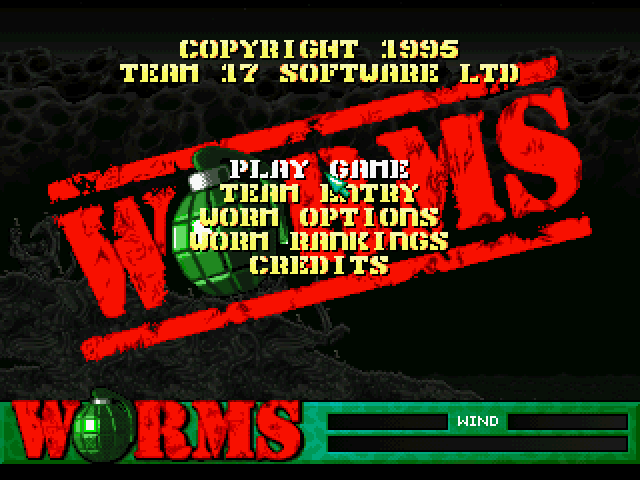
The main menu offers the following options:
Play Game
Begin the game with the current settings. From this menu, you will go to the Team select options and then onto the game itself. You must select at least 2 teams with which to play (to a maximum of 4, each having 4 worms).
When teams are highlighted, the following options are available:
•
Control the arrow using the D-Pad to highlight an option.
•
Select or toggle between options by pressing the C button.
•
More teams can be listed by clicking DOWN, and the list can go back again by clicking UP.
Once the teams are selected, toggle between League or Friendly options and press START to begin the game. The League setting places all the worms in a league where the WORM STATS are updated after a match. The aim is to be the best, reach the top of the table, and stay there. The Friendly setting allows a series of matches to be played without updating the WORM STATS.
Team Entry
When you first load WORMS up, a selection of default and computer-controlled teams are already present and these can be selected. Edit and customize your teams by highlighting CLEAR and pressing the C button to wipe the default selection (optional).
Next, highlight either TEAM NAME, CAPTAIN, or a WORM and press the C button to begin editing. Use the Up and Down D-Pad Buttons to enter a letter, and Right or Left to move onto a new letter or back to a previous one.
•
Up to eight characters can be entered.
•
Press the C button to move down to the next name.
•
Repeat the process for other names, or press again to skip.
•
After the last name has been accepted, the arrow will reappear.
Click on NEXT or LAST to edit the next or previous Worm team. You can select if the team will be controlled by a human player (HUMAN) or by the computer (CPU) at three distinct skill levels.
Highlight ENERGY and press the B button to decrease a Worm's energy level, or the C button to increase it. When all changes have been made, click on EXIT to return to the main menu.
Worm Options
Highlight an option by moving the arrow using the D-Pad and pressing the C button to




 (En,Fr,De,Es,It).png)