Getting Started
Ensure the power to your SNES unit is turned OFF. Insert the Game Pak into your SNES unit and turn the power ON.
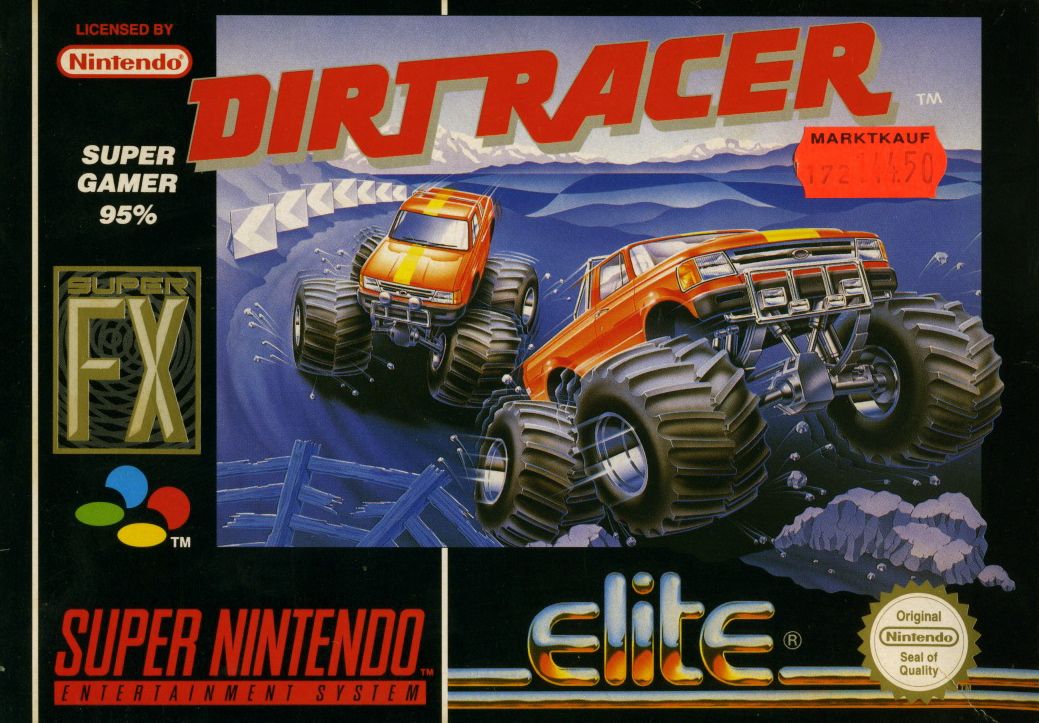
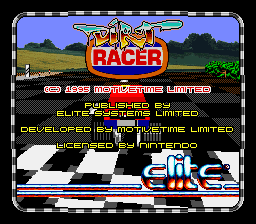
After the licensing screen has cleared, Dirt Racer will go into demonstration mode. To get out of the demonstration, press the START button, then the Language Selection screen will be displayed. Select the appropriate language by pressing LEFT or RIGHT on the control pad. Confirm your selection by pressing the START button. You will then go to the Game Selection screen.
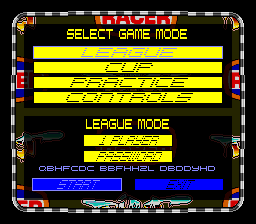
You can start a game by selecting either a League or Cup and a Practice on a selected track. Confirm your choice by pressing the START button.
Practice Mode Setup
If you are new to Dirt Racer we suggest you begin by racing in Practice mode. After selecting the PRACTICE option the PRACTICE MODE options screen is displayed, then select a 1 PLAYER game. The highlight is already over START, you move on to the next section by pressing the B Button. You can now enter your name using the control pad.
To enter your name and select your vehicle:
•
To select a letter, press the B button.
•
If you make a mistake, move to the DEL square and press the B button.
•
Once you have entered the name you wish to use, move the highlight over the END icon and press the B button.
•
To change the vehicle that you use, press LEFT or RIGHT on the control pad.
•
You can change the vehicle that the computer uses by pressing the B button.
The two vehicles that will be racing are now displayed. Press the START button and you will see your car on the starting line waiting to start the race. Cup Tournament Setup
Each human player will be asked to enter his or her name. After everyone has entered their name, you will be presented with a list of the first round races; each human player will be highlighted.
At the top, you are informed which country you are racing in, the round you are taking part in and which track you will be racing on. Before you race you can see what the current best times are on the track you will be racing on. If you highlight the RECORDS icon and press the B button you will be shown the course records. To start the race, highlight the START icon and press the B button on the control pad. You will now be able to choose which vehicle you wish to drive.
You can select which vehicle to drive by pressing LEFT or RIGHT on the control pad. When you have selected your vehicle, press the START button on the control pad. If two players are taking part in the race, both players must press the START button before the race begins.
If you wish to quit out of the Cup, you can do so on this screen. Before you press START to select your vehicle, hold down the SELECT button and then press START at the same time. You will then be asked to select if you wish to CONTINUE to carry on with the cup or EXIT to quit the cup.
In-Game Indicators
During a race, a face on the screen will change expressions based on your performance:
•
If you are winning, the face will smile.
•
If you are losing, it will look unhappy.
•
If both cars are close, he will open his mouth.
Match Results
After the race has finished, you are presented with the MATCH RESULTS screen which shows you the lap and total times for your race. At this point you can see the records for the track by highlighting the RECORDS icon and pressing the B button.
You will see if any of the times you have just done are in the top 5. To continue to the next round of races, highlight the CONTINUE icon and press the B button on the control pad.
Practice Mode
Before you attempt to race against the more experienced computer or human driver, it may be wise to practise driving around the tracks and learn the best course to take for becoming the best. Dirt Racer is equipped with a practice mode where you can practice on any track that you wish. Tracks in different countries can only be selected by entering a password. In the Practice mode you can either race against the computer.
Difficulty Levels
You can also change how difficult you make the game. If you move the highlight over the LEVEL icon and press the B button on the control pad, it will change from EASY to MEDIUM and then HARD.
The difficulty levels affect your resources as follows:
•
EASY: You will have 9 cars to complete the course.
•
MEDIUM: You will have 6 cars to complete the course.
•
HARD: You will only get 3 cars with which to complete the course.
League Game Retrieval
When you are taking part in a League tournament you will be given a password at the end of the season. This password will contain the information on the number of human players taking part and which division each player is in.
To enter a League password:
•
Select the LEAGUE option on the GAME SELECTION screen.
•
Highlight the PASSWORD icon and press the B button on the control pad.
•
Enter your save game password.
•
Highlight the END icon and press the B button on the control pad.
You will then be informed whether the password that you entered was correct or incorrect. If the password was incorrect, try entering it again. If the password you entered was correct, then you will carry on in the league from where you were.
Cup Game Retrieval
In the Cup tournament, you are given a password after you have won the tournament that you have taken part in. You can use this password again to choose which country you want to race in the next time you race in
 (En,Fr,De).png)


 (En,Fr,De).png)



.png)


.png)
.png)


 (Beta).png)

 (En,Fr,De,Es,It,Nl,Sv).png)