Console Instructions
Top View
Front View
Set up your PlayStation® game console according to the instructions in its Instruction Manual. Make sure the power is off before inserting or removing a compact disc. Insert the Big League Slugger Baseball™ disc and close the Disc Cover. Insert game controllers and turn on the PlayStation game console. Follow on-screen instructions to start a game. Starting a Game
After selecting a game mode follow these steps:
1. Game Settings
Select 1P vs. 2P, 1P vs. COM, or Watch (spectator mode). When beginning a Season mode game, select from either a 10 or 30 game series. Load game data to continue a previously saved Season mode series.
•
[1P vs. 2P] can play against a friend
•
[1P vs. COM] can play against the computer
•
[WATCH] can watch the computer play
•
[Beginning: 10 games/30 games] start Season mode
•
[Continue] continue in Season mode as saved on the Memory Card.
•
Note: [Continue] is displayed only when the saved data is loaded.
2. Team Selection
Select from 12 different teams. Set two teams for 1P vs. 2P, and 1P vs. COM modes, and select one team in Season mode.
3. Season Information
View the season schedules, team rankings, and stats. Select one of the following four categories with the directional buttons: Game Start, Schedule, Standings, or Scoring. Confirm your selection with the button.
You can go to the next or previous page in the schedule with the L1 and R1 buttons.
In Scoring, you can see the statistics of the best 10 players in the league. The statistics of a batter are in four categories: Average, RBI, HR, and SB. The statistics of a pitcher are also in four categories: Winning, ERA, Save, and Strikeouts. You can switch the categories with the L1 and R1 buttons.
4. Player Fielding
Press the button to set the player fielding to either Automatic or Manual. When Automatic is selected, all players will field hits, but the player must control where the ball is thrown after it is caught or fielded.
Note: In Exhibition mode, you can switch between which team is on offense first with the directional buttons.
5. Set Batting Order & Position
Adjust the player batting order and position to your liking. Highlight the player you want to move and press the button. Next highlight the position where you want to move the player and press the button again.
How to Change Order
Switching & Changing of Lineup
This is how you switch two players in a game:
•
Select a player from one of the 18 players using the directional buttons and press the button to confirm your selection.
•
The player you selected is highlighted and blinks yellow.
•
Then, select the other player you want to switch and press the button to confirm your selection.
Changing of Field Position
Use the same procedure as Switching and/or Changing of the Lineup
Starting a Game cont.
6. Set Pitcher
Choose a pitcher from the roster. Select one with the directional buttons and confirm with the button.
The Data of Players:
•
Batter: from left to right, player's name, fielding position, batting order, average, home runs, scoring, and stolen bases are indicated.
•
Pitcher: from left to right, player's name, pitching style, right/left handed, ERA, wins, loses, and saves are indicated.
•
Note: Pitching style: OV = Over Hand, SD = Side Arm, UD = Under Hand
7. Select Stadium
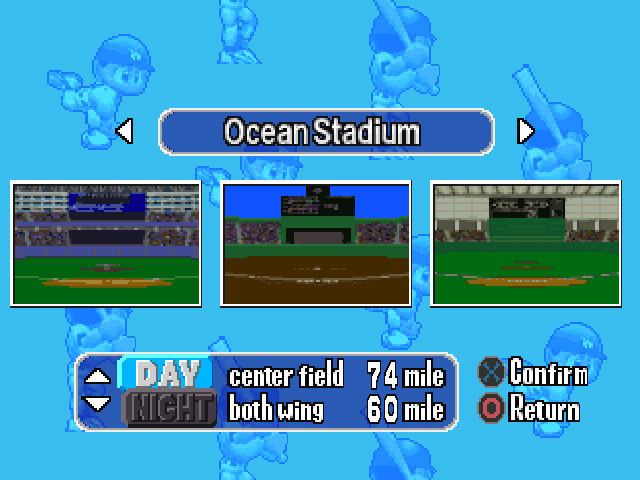
(Exhibition mode only) Choose a stadium from the six stadiums. You can choose between day and night games with the directional buttons.
Now Let's Play Ball!
Edit Mode
You can create your original player and team by using a Memory Card (for PlayStation®). Select an item you want to edit using the directional buttons and press the button to confirm your selection. •
[Batting Order & Position] Adjust team lineup and player positions. Save changes to a Memory Card (for PlayStation®) •
[Create Team] Edit/Design a new team
•
[Create Player] Edit/Design a new player
How to Save the Order
Save a change of Starting Order of your team in the Memory Card (for PlayStation®). Select [Order] at the Edit Select Screen and it will lead to Team Select Screen. Select a team using the directional buttons and press the button to confirm your selection, and then DH OFF / DH ON appears. DH can save DH ON or OFF separately. Create Players
Create your own batter and pitcher.
1. Select Batter & Pitcher
•
Select a Player icon at the Edit Select Screen using the directional buttons, and confirm your selection by pressing the button.
•
Select Batter or Pitcher icon that you wish to edit.
**2. Select Batter and
.png)


.png)

.png)
.png)

.png)





.png)














.png)