Preparation for Your Quest (Game Setup)
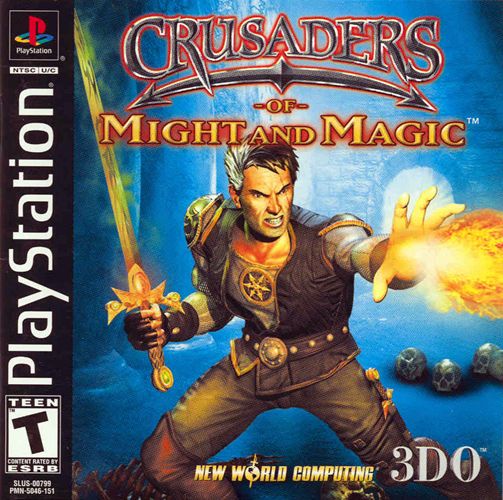
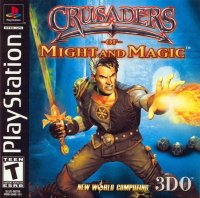
Set up your PlayStation game console according to its instruction Manual. Make sure the power is off before inserting or removing a compact disc. Insert the "Crusaders of Might and Magic™" disc and close the Disc Cover. Insert game controllers and turn on the PlayStation game console. Follow on-screen instructions to start a game. If you wish to load or save information during play, insert a Memory Card, with at least 2 free Memory Card blocks into Memory Card slot 1.
It is advised that you do not insert or remove peripherals or Memory Card once the power has been turned on.
PlayStation Console
PlayStation Controller
Starting Your Quest
As you are now cast into the face of a predestined battle, let me at least try to give some advice on how to get started!
Getting Under Way (Main Menu)
New Game
Select this option to embark on a new quest from the beginning. You will be challenged with various missions, only the successful completion of which allows you to delve deeper into the varied realms of Ardon.
Load Game
Select this option to magically be transported back to the last point within your quest at which you 'saved' your game. With this option, you utilize your memory card to select from potential saved Crusaders of Might and Magic games.
Should you have no saved games or no memory card inserted, you will be returned to the main menu.
Settings
Select this option to reveal the Game Settings Menu (described on next page).
Credits
Select this option to view credits - those without whom your quest would be impossible!
Game Options
Inverted Look to Normal Look
The Invert look option switches the way looking up and down in first person view is controlled.
Damage Particles On or Off
This special parental control feature allows parents (or those of timid disposition) to turn off the realistic blood associated with armed combat.
Level of Difficulty
This option allows you to select game difficulty (not available in the Game Paused Menu setting screen).
Interface Display
There are three options to this screen configuration.
•
Maximum: Will always display your health, mana, spell and items on the screen.
•
Partial: Sets your current spell and item to be always on and your health and mana will be displayed only if there is a change to them.
•
Minimum: Only shows the screen items when there is a change or if you double tap the L1 button.
Making Choices on the Move (Game Paused Menu)
You can perform several inspections while on your various adventures. To do this, press the START button to interrupt gameplay and call forth the in-game menu options.
Character
Select this option to view your vital statistics. You can also view your magical spells, weapons, armour and items in other sub menus.
Quest
Select this option to view your current game quest.
Score
Select this option to reveal your progress in relation to other heroes of the age.
New Game
Select this option to cancel your game in progress and begin a new one. Your previous game will not automatically be saved.
Load Game
Select this option to load a previously saved game.
Settings
Select this option to make adjustments to game settings (see "Settings Menu").
Saving Your Progress
Save Game
When playing the game, you can save at any Save Point found in a world. Save Points can be recognized by a circular stone texture that is always accompanied by a pulsing white and green light.
To trigger a save point, just walk up to the circular stone texture and you will be taken to the Save Game screen. At that point, you can select a save game slot on your memory card and then return to the game at the same point you started the save game process.
Thereafter, when you load a game from that save game slot, you will return to that same point in the game.