Console Setup
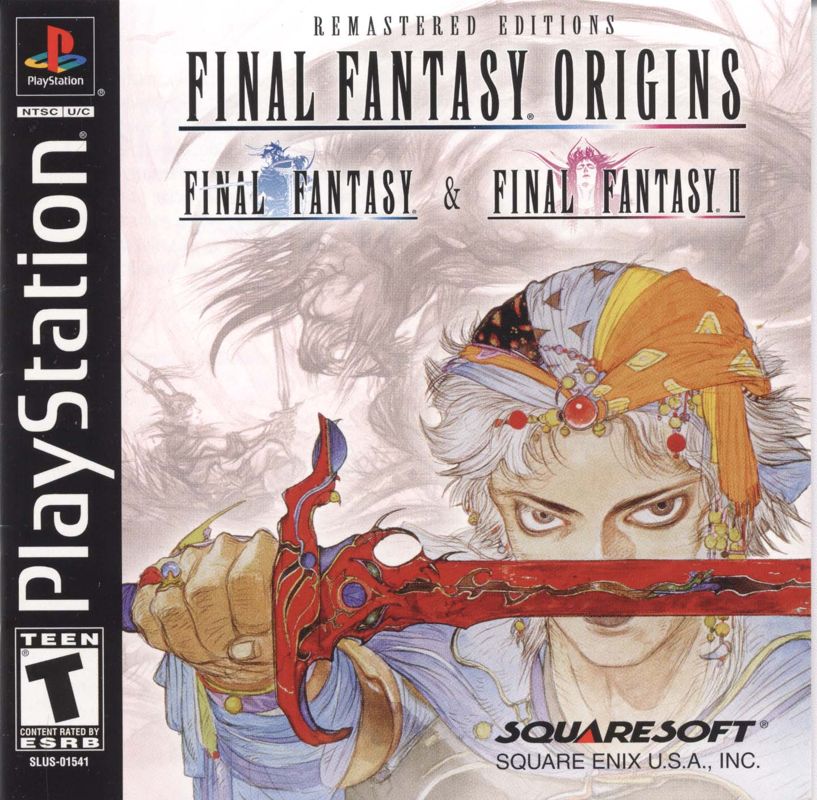
Set up your PlayStation® game console according to its instruction manual. Ensure the power is off before inserting or removing a compact disc. Insert the FINAL FANTASY® ORIGINS disc into your console and close the disc cover. Make sure there are enough free blocks on your memory card before commencing play (FINAL FANTASY® and FINAL FANTASY® II each require one free block for each save file).
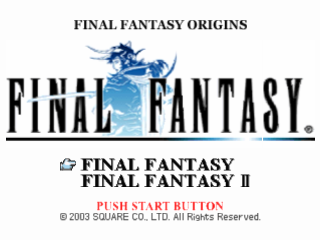
Insert a game controller into controller port 1 and turn the power on. The game selection screen will appear.
Console Components
Game Selection Screen
At the game selection screen, select either "FINAL FANTASY" or "FINAL FANTASY II." Each game operates independently of the other and uses separate save data.
Once you have selected a game, a soft reset will return you to that game's title screen. To return to the game selection screen, reset your PlayStation by pressing the RESET button. Menu Navigation
Use the directional buttons to highlight a selection, then press the button to confirm. To cancel changes and return to the previous menu screen, press the button.
Starting a New Game (FINAL FANTASY)
At the FINAL FANTASY title screen, use the directional buttons to highlight "New Game," then select a difficulty level. Press the button to confirm your selection and begin the game.
Difficulty Levels (FINAL FANTASY)
There are two difficulty levels in FINAL FANTASY:
•
Easy Mode - Suitable for novice players.
•
Normal Mode - Original game difficulty level. Suitable for more experienced players.
Character Settings (FINAL FANTASY)
Once "New Game" is selected, the character settings screen will appear. The player can assign each character a name and class here.
Use the directional buttons to select a character and press the button to confirm your selection. You will then be prompted to select the character's class.
Naming Characters (FINAL FANTASY)
The player will be asked to name each character. Move the cursor to the question marks beside each character graphic and press the button to bring up the name input screen.
Select letters with the directional buttons, then press the button to confirm your selection. To cancel a selection, press the button. Once the desired name is entered, press the START button to confirm and return to the character settings screen.
Loading a Saved Game
At the title screen, select "Load Game" and a MEMORY CARD slot when prompted. At the file screen, select a file from which to resume and press the button to confirm.
Saving a Game
You can save game data in the following locations and recover HP and MP as shown in the table at right.
Saving onto a Memory Card
This is the standard way to save your game data. If you stay at an inn or use one of the recovery items shown in the chart right, a save menu will appear.
Select the MEMORY CARD slot and file to which you wish to save. Choose "Yes" and press the button to proceed.
Recovery Locations
•
HP Recovery: Significant
Using a Memo File
The Memo File allows you to make a quick and temporary save to the console. Once the power is turned off or the RESET button is pressed, the Memo File will be deleted.
Data that the player wishes to save permanently should be stored on a memory card. To save a Memo File, select "Memo" in the main menu, then press the button to confirm. Only one Memo File can be saved at a time.
Main Menu (FINAL FANTASY)
1. Party members
A. Name
D. Status
B. Class
E. Current Hit Points (HP) / Max HP
C. Level
F. Current Magic Points (MP) / Max MP
2. Menu commands - Commands available within the main menu.
3. Current location - The party's current location.
4. Gil - Current amount of money.
5. Time played - Number of hours played.
6. Steps - Number of steps the party has taken.
7. Crystals - Indicates which of the four Crystals' light has been rekindled.
Menu Commands (FINAL FANTASY)
The following commands can be selected from the main menu:
Items (FINAL FANTASY)
In the Items menu, you can use or sort items that you currently possess. Pressing the O button allows you to access the commands "Sort" and "Key Items."
1. Commands: Use, Sort, Key Items
A. Use - Select the item you wish to use and press the X button. Depending on the item, you may be prompted to select which character to use it on. Select the character and press the X button twice to confirm. Attempting to use equipment from this menu will display the characters who can use it. Items can be rearranged here as well. Select the "Use" command, then select an item and press the X button. Select a second item and press the X button again to swap the selected items.
B. Sort - The
 (Rev 1).png)

 (Rev 1).png)

_1.jpg)



_1.png)



 (SGB Enhanced).png)

.png)


.png)

_1.png)




_1.png)