Starting the Game
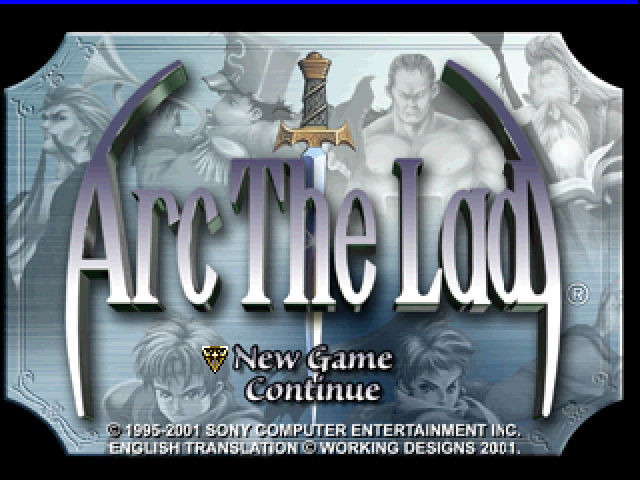
To skip the opening animation and proceed to the Title screen, press the START button.
The Title screen will display three options: New Game, Continue, and Convert.
New Game
If there is no save data present on the memory card, or to start the game over from the beginning, select New Game. Press the ✖ button. The game will start from the beginning.
Continue
To continue playing a previously saved game, choose Continue, then press the ✖ button. The Load screen will then be displayed.
Only three save files can be displayed on the screen at a time. Move the cursor up or down to display additional save files that may be on the Memory Card.
To help differentiate between the save files, each save file will list the character's current level, game time, and location of the save. To load the game, move the cursor to select the desired file. Press the ✖ button. The game will then be loaded.
Please do not remove the memory card during a save or a load.
Memory Cards
In Arc I, an empty memory card can store up to fifteen individual save files. Dual memory card support allows the game to recognize two different memory cards (one in MEMORY CARD slot 1 and one in MEMORY CARD slot 2).
The L1 and R1 buttons switch between installed Memory Cards when loading or saving a game.
Also, due to the fact that Arc Collection uses numbered save file names, we do not recommend that you copy individual saves with the Playstation Memory Manager, but rather load the save you want to copy, change the card, and save the game. Options
During the Battle screen, press the SELECT button to access the Options screen. To change any of these options, use the directional buttons to select a setting.
There are nine different options described on this page: Vibration, Sound, Message speed, Battle voices, Confirm save, Confirm setup, Confirm finish, Help window, and Open Chongara's Monster Book.
Vibration
Turns on or off the vibration for the DUALSHOCK® analog controller.
Message Speed
The speed at which text is displayed. Choose Normal or Fast.
Confirm Save
If this option is set to On, a confirmation box to save the game will be displayed before going into combat. The player will then be able to save the game before leaving the Map screen.
Choose Yes to enter the Save screen, or choose No to exit the Map screen and enter into combat. If this option is set to Off, there will be no option to save the game upon exiting the Map screen.
Sound
Determines how the audio is set up. Choose either Stereo or Mono.
Battle Voices
Turn on or off battle voices.
Confirm Setup
If this option is set to On, the player will be prompted to set up equipment for the characters before engaging in combat.
If the option is set to Off, then the equipment setup box will not be displayed before battles.
Confirm Finish
If this option is set to On, then a confirmation box will appear before ending each character's turn in battle.
If it is set to Off, then the confirmation box to end the character's turn will not be displayed.
Help Window
Turn on or off the help window during the different menu screens.
Open Chongara's Monster Book
Once Chongara joins the party, this option will be displayed. Chongara starts the game with a spell called Search. When Chongara uses this spell on a character or enemy, he discovers information about them.
Once Chongara casts this spell, keep pressing the button until all of the information has been transcribed into his book.
To view the information, select Open Chongara's Monster Book on the Configuration screen. Press the button.
Next, use the up and down directional buttons to scroll through the monsters that have been searched. The selected monster (written in orange letters) will display the following information: their original stats, the items they may carry, abilities, losses (number of times this type of monster has been destroyed), and wins (number of times the monster has defeated one of the party members).
To exit Chongara's Monster Book and return to the Configuration screen, press the button.
Starting the Game
To skip the opening animation and proceed to the Title screen, press the START button. The Title screen will display three available options: New Game, Continue, and Convert.
If there is no save data present on the memory card, or to start the game over from the beginning, select New Game. Press the ✖ button. The game will start from the beginning.
Continue
To continue playing a previously saved game, choose Continue. Press the ✖ button. The Load screen will be displayed.
Only three save files can be displayed on the screen at a time. Move the cursor up or down to display additional save files.
To help differentiate between save files, each save file will list the game time and save location. To load the game, move the cursor to select the desired file. Press the ✖ button. The game will be loaded.
Please do not remove the memory card during a save or a load.
Convert
Use the Convert option to import Arc I save data into Arc II. Converting save data will unlock special events that are ONLY available when save data is converted.
Note: In order to convert a save file, the file has to be at the end of Arc I.
To convert the data, select Convert. Press the ✖ button. The Convert screen will be displayed. Next, move the cursor to select a file




.png)
_1.png)