Race Modes
Single Race
Select Single Race for a one-player race against a computer-controlled opponent. You will use your dragster and selected parts on the track of your choice. If no car or track is chosen, default options will be used.
Enter the Shop to make your own selections before racing. The winner of a single race wins $1000 to spend in the Shop.
Single Event / Season
Select Single Event to compete in a complete drag racing event, or Season. A season is a series of events at tracks listed on the Track screen, with one full event at each different track in the game.
You will win prize money ($1,000 for each racer entered in the event) in each event you win. If you set your events to have more racers in the Race Settings screen, you will win more money.
Multiplayer Race
Select Multiplayer Race to race in two-player mode against a human opponent in a single race. Multiplayer is played in split screen view, and players can select their own views in their window.
The winner of a multiplayer race wins $1000 to spend in the Shop.
Multiplayer Event
Select Multiplayer Event to race in two-player mode against a human opponent in a Full Event or Season. In the Race Settings Menu, you can set the number of racers that will appear in any event.
The more racers that are in the event, the more money for the winner of the event.
Season Setup
To race in a season of events, go to the Tracks Menu and add whichever tracks you want to the Season Menu. You can also order them however you like.
When you return to the Race Menu, Single Event will be replaced by Single Season. Select Single Season to race through the series of tracks you selected.
Racing
Auto Staging
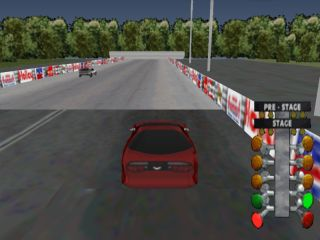
By default, auto staging is enabled. This will automatically allow your car to do a burnout and then move to the staging line. At this point, you only need to wait for the green light, press the accelerator, and stay in your lane.
It is best to accelerate when you first see the yellow lights come on, as your reaction time (in most cases) is slower than the time difference between the yellow lights and the green light.
Manual Staging
If you wish to override auto staging (to do a longer burnout or to deep stage), you can do so by hitting the brakes, at which point you control the car.
•
Do a burnout by holding down the line lock button and accelerating.
•
Advance to the line by accelerating slowly.
•
Hit the brakes as soon as you see the pre-stage light come on.
•
If you overshoot, tap reverse to back up a little bit.
The race start countdown will begin when both cars are staged. A car is staged when the stage light is lit.
Deep Staging
If the pre-stage light is not lit, the car is considered "deep staged". This means you have a slight distance advantage, but it is easier to jump the gun (start before the green light) with a quick reaction time. If you take too long to stage, you will be disqualified.
View Replay
At the end of each race, you will be given the option to view a replay of the race. Press the Select button at the end of the race, and the race will be shown again in Replay Mode.
•
L1 button: Change left lane camera views
•
L2 button: Change right lane camera views
Cycle among the 12 different camera angles in replay mode to find the best view. One of the camera views available is a TV camera view, which shows the race from TV-style camera angles. There are also cockpit and blimp views, as well as the standard chase, front, and track side views.
Select a Track
Tracks Menu
Season Menu
Add to Season
Single Race Track Selection
To select your track for a single race, highlight the Single Race option. Use the Directional Buttons to highlight the desired track, and then press the A button to return to the Main Menu.
Enter the Race Menu, and then select a race to begin racing at your selected track.
Season Race Tracks Selection
From the single race track column on the left of the screen, you can add or remove tracks in your Season list on the right side of the screen.
•
Move the Directional Buttons up or down to highlight the desired Track.
•
Press the X button to add it to the Season Track Menu.
•
To remove a track from your season track list, highlight the track and press the X button.
Tracks Menu Navigation
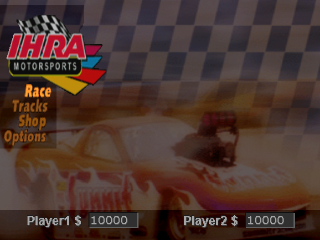
From the Main Menu, select the Tracks Menu by highlighting Tracks and pressing the X button. Move the Directional Buttons right or left to highlight Single Race Track on the left side of the screen or Season Race Tracks on the right side of the screen.
Shop & Vehicle Setup
Shop Overview
Enter the Shop from the Main Menu Screen. In the Shop, you can buy hundreds of different chassis, engines, transmissions, and tires, for a massive number of component combinations. The only thing limiting you is money, which you will earn by winning races.
When customizing your dragster in the Shop, always note the cost associated with each chassis or part. You will be unable to race if you have a