Setting Up Your PlayStation
Set up your PlayStation™ game console according to its Instruction Manual. Make sure the power is off before inserting or removing a compact disc. Insert the International Track & Field™ disc and close the CD door. Insert game controllers and turn on the PlayStation™ game console. Follow on-screen instructions to start a game. PlayStation Console Views
TOP VIEW
FRONT VIEW
Welcome to International Track & Field
Everything you have trained for comes down to this moment. It's just you against the best in the world, and only a few hundredths of a second separate you from grabbing the gold medal or going home empty-handed.
Your goal is to compete in eleven events and prove that you are the world's best athlete. Each competition includes a qualification setting which you must beat to prove you belong with the other world-class athletes. Your goal is not just to qualify, but to set new world records!
Multiplayer
Up to four players can participate in this game. The Multi-Tap™ (sold separately) is needed to play with three or four players. If there is an open spot, a player may press the START button to start playing during a game in progress.
Saving Game Data
A memory card (sold separately) can be used to save player names and World Records for the various competitions.
How to Play
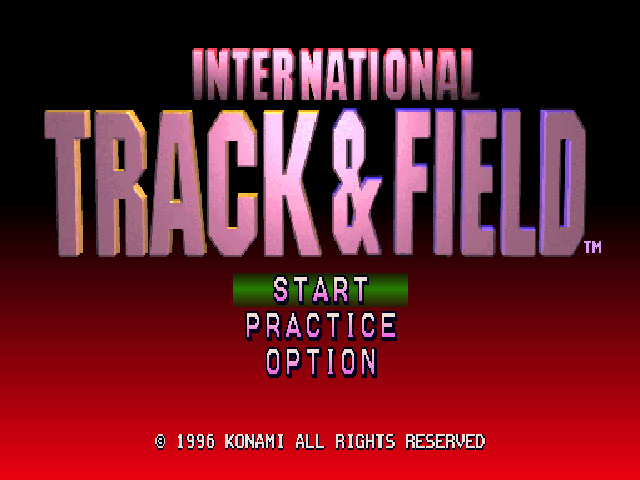
The title screen appears after the opening demo. These choices will be available for you to select:
•
START: Start a game from the beginning.
•
PRACTICE: Play the game in practice mode. Select the competition you wish to practice.
•
OPTION: The following settings can be modified: "KEY," "DIFFICULTY," "DISPLAY," "SOUND," "BGM VOL," "SE VOL," "MEMORY CARD."
Player Select Screen
Enter a player's name and country in the "PLAYER SELECT" screen.
•
Name: Move around the letters with the arrow buttons, then select them one at a time with the button. Use the O button to delete one letter at a time. Use the arrow buttons to select the enter symbol (1) and press the button, or press the START button to complete the name registration.
•
Country: Use the arrow buttons to select the country, and enter your selection with the button or the START button.
Player Select and Country Screen
Option Screen
Game Selection
Select an event with the arrow buttons in the game selection and description screen, then enter your selection with the button. Simple descriptions are displayed as you make your selection.
The events—except running and swimming—are divided into three "blocks". Each block represents one attempt to complete an event. You must complete all attempts and match or exceed the qualifying score to complete that event.
Scoreboard
When a competition ends, the electronic score board shows each player's performance, rank, and score (based on the performance).
Continue Screen
The Continue screen shows whether or not you qualified for a particular competition. If you didn't qualify, the game will be over, but you can continue playing by pressing the START button while "CONTINUE?" is displayed on the screen.
If you choose not to continue, the game will return to the title screen. If you do choose to continue, you may select any event in which you have not previously qualified. The Continue screen will only appear if one or more players failed to qualify. Otherwise the Game Select screen will appear.
Game Select Screen
•
Default controller settings
Practice Mode
In Practice mode you can select any event you wish to play. The Game Select screen will be displayed after you select your name and country. Select an event with the directional buttons and enter your selection with the button.
Exiting Practice Mode
•
Press the START button to pause the game.
•
CONTINUE: Continue the practice game.
•
GAME SELECT: Return to the Game Select screen.
•
EXIT PRACTICE: Return to the title screen.
Select a menu item with the directional buttons, then enter your selection with the button.
Option Menu
KEY
Change the button settings. Select the button you wish to change with the directional buttons, then simply push the new button you wish to use. Different actions cannot be set to the same button.
For example: For Player 1 to change the RUN1 control from the default setting to the button, highlight the 1P, RUN1 setting, then press the button on the 1P controller. Note that the JUMP1 button will now change because two commands cannot have the same button setting.
Option Screen





.png)





.png)
.png)