LOADING
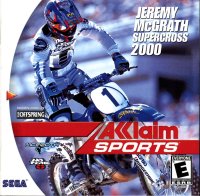
Set up your PlayStation® game console according to its Instruction Manual. Ensure the power is off before inserting or removing a compact disc. Insert the Jeremy McGrath Supercross 2000™ disc and close the Disc Cover. Insert game controllers and turn on the PlayStation® game console. Follow on-screen instructions to start a game. Memory Card Note
Please insert a MEMORY CARD into MEMORY CARD SLOT 1 BEFORE starting the game if you wish to load or save game data. Game options will be loaded automatically any time you turn on your PlayStation with a MEMORY CARD in MEMORY CARD slot 1. Console Diagram Labels
MAIN MENU
This screen is where you choose Game modes, access the Track Editor and select Options.
•
RACE: Start a single race, a new series, load in a saved series record, practice a track in time trials, race against the clock in a freestyle mode, or create and modify a custom rider.
•
TRACK EDITOR: Create and edit custom race courses.
•
OPTIONS: Alter these options to set up the game the way you like it.
Options
•
Controls: View and change default controls.
•
To change controls, press DIRECTIONAL BUTTON UP or DOWN to highlight an action/control, then press the button you want to perform that control.
•
To change VIBRATION and STEERING, highlight those items and press LEFT or RIGHT on the DIRECTIONAL BUTTON.
•
If the button is already in use, it will be reassigned.
•
You can also turn the vibration function on here if you are using a DUALSHOCK™ analog controller.
•
You can reset to default controls by pressing the SELECT BUTTON.
•
Audio: Set a range of audio options by adjusting the slider. Left is low, right is high.
•
Display: Configure which screen elements appear.
•
Memory Card: Access your MEMORY CARD.
•
Game Settings: Adjust the difficulty level (beginner/amateur/pro), the number of laps in a series (3-20) and toggle the weather in a series game (Random or Fair)!
•
Default Settings: Return all audio, display, control and game settings back to their original settings.
•
Exit: Exit options and return to the Main Menu.
Camera View
Press this button to cycle the camera to the next camera angle.
Get Moving
After the Main Menu, you select the number of players, bike class then the track. After that, select the rider that best suits the track you're riding on.
GAME MODES
There's all manner of motocross modes to dig your wheels into.
RACE
Hone your skills or challenge your friends in a single race. Pick any track and rider and start racing! Great when you just want to jump into a quick race or if you really want to learn a track. Take some time to master your machine and it'll pay big dividends at the finish line! SERIES
Choose Indoor Supercross, Outdoor Nationals, Combined or make up your own Custom series. In Series mode, you are racing for the best overall record expressed in points. Remember that if you want something good, you have to earn it! In Jeremy McGrath Supercross 2000, you start the single-player series with only the 125cc bikes and the Outdoor and Custom series available. Unlocking Bikes and Series
•
Place 1st in the 125cc Outdoor series to unlock the 125cc Indoor series and an extra Freestyle arena as a bonus!
•
Defeat the 125cc Indoor series and gain access to the 125cc Combined series.
•
Win the 125cc Combined series and unlock the 250cc Outdoor series plus another Freestyle arena!
•
Place 1st in the 250cc Outdoor series to race in the 250cc Indoor series. You'll also get a Freestyle arena just for fun!
•
Crush the competition in the 250cc Indoor series for the final stage: the 250cc Combined series.
Outdoor Nationals
Weather and track conditions play a big role when you hit the Outdoor Nationals circuit of 8 grueling races.
Indoor Supercross
An Indoor Supercross series consists of 8 races on indoor tracks all over the United States.
Combined
You get the best of both worlds in this 16 race romp combining Indoor and Outdoor tracks.
Custom
Choose any of the available tracks and what order you wish to race on them.
Setting Up a Custom Series
Races are listed from first to last.
•
Press the DIRECTIONAL BUTTON UP or DOWN to highlight a slot you want to change.
•
Press the DIRECTIONAL BUTTON LEFT or RIGHT to cycle through available tracks, including any Custom tracks from the Track Editor that are on your MEMORY CARD.
•
When all your races are set in the order you want, press the BUTTON to advance to the next screen.
Loading A Saved Series
When you choose to load a previously saved season record, you will be presented with a list of the seasons found on the MEMORY CARD in Slot One.
•
Press the DIRECTIONAL BUTTON UP or DOWN to highlight the season record you wish to load.
•
Press the BUTTON to load it into memory.
After loading the series record, you will be taken to the series pre-race screen, just before the next race in the series.

.png)
.png)



.png)

.png)

.png)
.png)
_1.png)

.png)
.png)
.png)




.png)




.png)
