Welcome to 3D Lemmings!
Lemmings are rodents with very little brain. They rely on you to make all their decisions. They appear on each level by falling through a trapdoor into a hostile environment.
They will blunder around, following each other even if it means wandering into a death trap. You have to lead them out of the level by giving them skills and powers to reach safety.
As you progress, environments become more difficult, but your aim is always to save as many Lemmings as possible. Hopefully, you'll rescue enough to advance to the next level.
Starting the Game
To play 3D Lemmings on your Sony PlayStation: •
Set up your Sony PlayStation in accordance with the instruction manual. •
Follow system directions to open the CD drive and place the CD onto the bed of the drive, ensuring the printed side faces upwards.
•
Close the CD drive and press the Power button to begin play.
Controlling the Game
You can play 3D Lemmings using a joypad or a mouse. Instructions throughout the manual will be given for both.
Main Menu
Once the game has loaded, an animated introduction will play.
•
To skip the introduction, press button X on the joypad or click the left mouse button. You will then see the main menu screen.
The main menu offers five choices, displayed one at a time in the top right corner.
•
Use left and right arrows on your joypad, or move the mouse left and right to cycle through the choices.
Play Option
•
To play the game, display this option and then press button X on the joypad or click the LEFT mouse button.
If you are just beginning a game session and have not loaded a previous game, you will be taken to the first level of your chosen difficulty.
If you have loaded a previous game or are returning from the main menu, you will see a list of completed levels (in green). The next level will be shown in white if never attempted, or red if attempted but not completed.
•
Pressing button X on the joypad or clicking the LEFT mouse button will play the chosen level.
•
The screen also tells you how many Lemmings were saved and how much time was still available on all completed levels.
•
Pressing button O or clicking the RIGHT mouse button will take you back to the main menu.
Level Select
Alter the difficulty of the game by choosing a skill rating.
•
Choices are FUN, TRICKY, TAXING, MAYHEM, and PRACTICE mode.
•
Cycle through choices by pressing button X or O on your joypad, or by clicking on your left and right mouse buttons.
Codes
This allows you to skip levels you have already completed.
•
Select the password screen by pressing button X on the joypad or clicking the left mouse button.
•
When using a joypad, move the cursor to the letters you wish to enter using the arrow buttons, then select them by pressing button X.
•
With a mouse, move to your chosen letters and then click on the left mouse button.
•
When you have entered the complete code, select 'End' option by using the D-Pad or mouse to move the cursor over the End icon and then press button X or click on the left mouse button to select it.
•
If your password is valid, you will be taken to the chosen level.
Options
•
Press X or left click the mouse to select the motion.
Practice Mode
•
Display the 'Level Select' icon on the main menu using the left and right joypad arrows or by moving the mouse left and right.
•
Choose 'Practice' by cycling through the choices using button X or O on the joypad, or by clicking on the left and right mouse buttons.
•
Then use the left and right joypad arrows or move the mouse left and right to display the 'Play' icon and press button X on the joypad or click on the left mouse button to select it.
You will be shown a menu of every skill and special obstacle in the game.
•
To practice one of the skills, use the joypad arrows or move the mouse to highlight the chosen icon and then press button X on the joypad or click the left mouse button.
•
For an explanation of all skills and how to allocate them, read the sections headed 'Allocating skills' and 'Status bars and icons'.
Once you have chosen a skill, you will see a revolving view of the level.
•
To play the level, press button X on the joypad or click the left mouse button.
•
To see a demo of the level, press button O on the joypad or press both mouse buttons.
•
To return to the practice menu, press button O on the joypad or click on the right mouse button.
You play the practice level just like a normal level, except there will be a BIG pointer indicating exactly where to apply the skill. We strongly recommend trying many practice levels to get a feel for the game.
Objective Screen
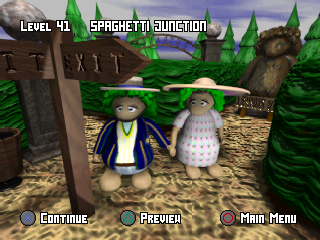
Every level you attempt will be preceded by an objective screen. This screen tells you how many Lemmings will enter the level and how many you have to save.
The objective screen gives you three choices:
•
Pressing button X on the joypad or clicking on the left mouse button plays the level.
•
Pressing button O on the joypad or clicking on the right mouse button takes you back to the main menu.
•
Pressing button on the joypad or both mouse buttons shows a rotating view of the level along with some extra information.
Playing the Game
Your aim is to get


.png)
