GETTING STARTED
Important! Do not insert or remove peripherals or Memory Cards once power is turned on. You will need a Memory Card to save your games.
•
Set up your PlayStation game console according to the instructions in its Instruction Manual. •
Make sure the power is OFF before inserting or removing a compact disc.
•
Insert the NASCAR® Heat™ disc and close the disc cover.
•
Insert the game controllers (and Memory Card if you have one).
•
Turn ON the PlayStation game console. The introductory sequence will begin. To skip this sequence and go directly to the Main menu, press the start button. MEMORY CARDS
You will not be able to save your progress if you do not use a Memory Card. Make sure there are at least 2 blocks for high scores/options and 2 blocks per profile name you save on your Memory Card before beginning your game. For example, to save one profile name and high scores you'll need a minimum of 4 blocks.
You cannot swap Memory Cards during play and you must leave the Memory Card in the slot for the complete duration of play.
Warning! Do not forget to save your progress before you close any game.
MAIN SCREEN
To begin racing, select an option from the Main Screen: •
Beat the Heat tests your skills with a variety of driving scenarios. See page 8 for more. •
Race the Pro lets you go head-to-head with some of the hottest NASCAR pros. You'll race against the actual tracks laid down by the pros when they played NASCAR® Heat™. See page 9 for more.
•
Single Race takes you to the track of your choice for a single race against a pro. See page 10 for more.
•
Championship lets you build a career as you race an entire NASCAR season. See page 11 for more information.
•
Multiplayer lets you and a friend compete against each other and the pack. See page 12 for more.
•
Career lets you save your game statistics under a profile name you create (requires Memory Card). See below for more.
Name Screen
From the Main Screen, select "Player 1" to create a name for yourself. You'll advance to the Name Screen. Use the directional button to highlight letters and press the button to select them.
Select "END" to save the name you've created and return to the Main Screen. Your name will now appear in the Player 1 name slot. If you are playing a Multiplayer game, select "Player 2" and the second player will then be able to create a name.
You can also access the Options Screen by pressing the button. See page 15 for more on the Options Screen.
SAVING YOUR RESULTS
NASCAR® Heat™ allows you to save the results of your racing career, as well as settings you have selected, under a profile. You will need a Memory Card to save each profile. See "Memory Cards," above, for more about Memory Card requirements. Once you create a profile, NASCAR® Heat™ will prompt you to save the results of your racing career after noteworthy events, such as trophy finishes and fastest laps. These results will be saved under the selected profile and posted in the Career Screen, described below. Career Screen
From the Career Screen you can create a NEW profile, LOAD a stored profile or DELETE a profile. Once you've created a profile for yourself, you can return to the Career Screen between races to see how well you're doing in the various NASCAR® Heat™ games.
GAMEPLAY
Once you've selected a game and made a few more selections, you'll advance to the track. Review the on-screen information and then press the button to start.
ON-SCREEN INFORMATION
•
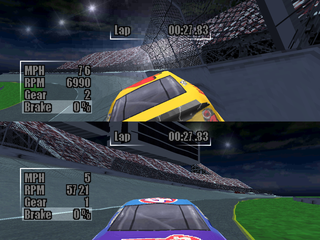
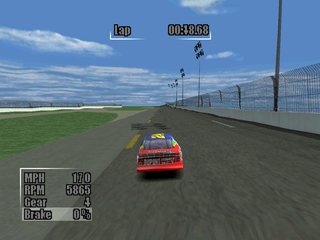
The HUD will display your speed in miles per hour (MPH), your revolutions per minute (RPM), which gear the car is in and the percentage of brake you are applying.
•
The Draft Meter displays the amount of wind resistance cut by drafting another car.
•
The race position indicator will display your position in the pack. A box displaying tire wear and remaining fuel will replace the race position indicator a short while before you reach the entrance to the pits and whenever your fuel levels become critically low.
•
Lap Information will display data about your last lap and best lap, and will notify you when you are approaching the final lap.
During the race, the screen will also display the advice of your Spotter, a member of your crew. Use this information to move up in the pack. Depending on your selection in the Pause Options Menu, described on page 15, you may also see the nametags of all your opponents' cars.
Remember, during a race you can pause the action by pressing the start button. This will take you to the Pause Screen, described on page 15.
Finishing
Once you've finished a race, practice run or qualifying lap, you'll be taken to a Replay Screen where you can review the action. See page 13 for more on the Replay Screen.
Once you've finished watching the replay, you'll advance to the Results Screen, where you can see where you finished and view information about the race.
Depending on your performance, you may also be prompted to save your results. If you select "Yes" from the on-screen dialogue box, you will advance to the Career Screen
.png)

.png)
