STARTING THE GAME
1. Set up your PlayStation™ game console according to the instructions in its Instruction Manual. Make sure the power is OFF before inserting or removing a compact disc. 2. Insert the PGA TOUR® 98 disc and close the Disc Cover.
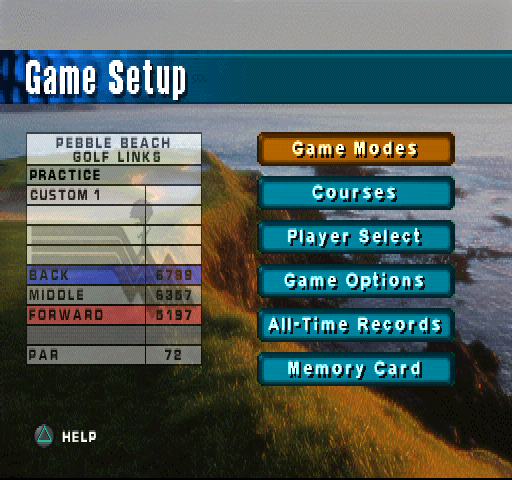
3. Insert game controllers and turn on the PlayStation™ game console. 4. To skip through the introductory screens and video, press START at each screen. The Game Setup menu appears.
Game Setup
Help
•
To view Help text, press and hold.
•
To view information for the highlighted option, press (where available).
•
To accept changes and continue, press START.
Tip
To go directly to the Controller Setup screen from the Game Setup menu or any of its submenus (e.g., Game Modes, Courses, etc.), press.
Game Modes
Choose your game mode by selecting one of eight different types of play. Also, select the number of holes to play, and toggle Mulligans, Tap-Ins, and Handicaps ON/OFF.
Note
Default options are listed in bold in this manual.
Mode
Select from eight types of play: PRACTICE, STROKE PLAY, SHOOT-OUT, SKINS Game™, FOURSOMES MATCH, FOUR-BALL MATCH, SKILLS CHALLENGE, or TOURNAMENT.
Tip
When MODE is highlighted, press ● to get a brief description of the selected mode.
Holes
Select 18 HOLES, FRONT 9, or BACK 9.
Note
This option isn't available in PRACTICE and SHOOT-OUT modes. When options aren't available, they are grayed out and may not be selected.
•
In SKILLS CHALLENGE mode, you select 1, 2, or 3 SHOTS rather than the number of holes.
•
In TOURNAMENT mode, select 18, 36, or 72 HOLES.
Mulligans
Cycle ON, OFF, 1 PER 9, or 1 PER 18. A mulligan is a "take back." When you take a mulligan, you get to replay your last ball as though you'd never hit it. Mulligans are not allowed during Skills Challenge or Shoot-out play.
Handicaps
Toggle player handicap strokes ON/OFF for all players. When ON, players can set a handicap from the Controller Setup menu to compensate for varying degrees of skill—give less experienced players a higher handicap. Handicaps are not available in Practice, Shoot-out, Skills Challenge, or Tournament modes.
Tap-Ins
Toggle ON/OFF. A "Tap-In" is a short putt. When you take a Tap-In, a stroke is added to your score and that hole is completed (this is a great way to speed up play). Tap-Ins are not allowed during Skills Challenge or Shoot-out play.
Courses
Select one of the five world-class courses included with PGA TOUR 98, then set the course conditions under which you want to play.
Course
Select PEBBLE BEACH™, TPC AT SAWGRASS™, COLONIAL COUNTRY CLUB™, BAY HILL CLUB™, or TPC OF SCOTTSDALE™.
•
To view a video for the selected course, press.
Fairway
Cycle fairway conditions to NORMAL, SOFT, or HARD. The harder the ground, the faster and farther the ball rolls.
Greens
Set the greens speed to NORMAL, SLOW, or FAST.
Wind
Determine the strength of the wind on the course. Cycle between CALM, BREEZY, or STRONG.
Lie Effects
When ON (OFF is the default), your ball lie affects the distance and accuracy of your shot. Shots from sand traps and the rough are treacherous and unpredictable.
Player Select
You can play as or against a PGA TOUR pro, or create your own Custom golfer. For Custom golfers, you can determine your difficulty level and the amount of assistance you receive from your caddie. You can also choose any of the Custom golfer animations or the likeness of one of 14 PGA TOUR pros to represent your Custom golfer.
•
PICTURE OF THE HIGHLIGHTED GOLFER
1. To select a golfer, highlight one of the four scorecard slots and D-Button →. The slot reads <EMPTY> for an empty slot, CUSTOM for one of the Custom golfer animations, and the last name of the PGA pro if a PGA TOUR golfer is selected.
Tip
To quickly reset a scorecard slot to <EMPTY>, press R2.
•
To view a profile of the highlighted PGA TOUR pro, press ●.
2. To edit the selected golfer, press *. If you selected a Custom Golfer, the Custom Edit screen appears.
•
If you selected a PGA TOUR pro, the Pro Edit menu appears.
Custom Edit Screen
The Custom Edit screen gives you complete control over your Custom golfer.
Edit Name
Edit the Custom player's name.
•
To move the cursor left/right, highlight </> and press *.
•
To enter the highlighted character in the current space, press *.
Club Select
You can carry up to 14 clubs in your bag.
.png)




.png)



.png)







.png)



.png)