GETTING STARTED
Set up your PlayStation™ game console using its Instruction Manual. Ensure the power is off before inserting or removing a compact disc. Insert the PERSONA™ disc and close the disc cover. Insert the game controllers and turn on the PlayStation™ game console. Follow on-screen instructions to start a game. Console Top View
Console Front View
STARTING THE GAME
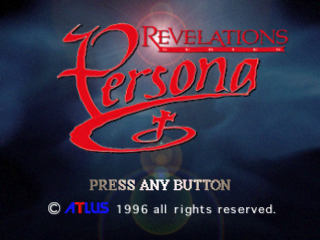
1. Place the Persona™ CD in the PlayStation™ and turn the power On. 2. When the demo ends, the title screen appears. You can interrupt the demo sequence at any time by pressing Start/X button.
3. If any button is pressed at the title screen, the computer will go into the Memory Card Check sequence.
4. Move the cursor with the Directional Button or Select, press Start or X button to make your choice.
NEW GAME
The opening video begins when a New Game is selected at the title screen. You will then be asked to enter your name.
Input Your Name
•
X: inputs the highlighted letter
•
Left: back space (non delete)
SAVING & LOADING
You can save the game if you go to the "Augustus Tree". This tree can be found on the 2-D map and in the 3-D dungeons.
If the memory card is not set or no more memory is available, a warning message appears and you won't be able to save the game. Do not remove the Memory Card during a save or load.
At the title screen, choose LOAD GAME with Start or X button, and the Load screen appears. Choose the saved game that you want.
ADVENTURE MAP
When the party enters a building from a 2-D Map scene, or into a room in 3-D Dungeons, the screen will shift to Quarter view. These are referred to as adventure maps.
In the adventure maps, you can use the facilities to:
•
Display where you are headed. This shows when the hero is at the exit.
•
Display Moon age. The arrow just outside of the Adventure Map indicates the exit.
The Adventure Map is in quarter view so you might have to adjust control of the character with the directional pad. The fastest way to adjust this is to hold your control pad diagonally and then control your character on the screen.
COMMAND SUB: ITEM
USE
A list of items will be shown. Move your cursor with the directional button, and press the X button to decide. If the item is shown in gray letters, you cannot use it with the USE command.
When the up or down arrow is shown on the item list, there are more items outside of the listed area. When each individual character is going to use medicine or incense, choose the item first and then choose the character you want to use items on.
EQUIP
Choose which character is to be equipped first. After choosing the character, use the directional button for Max or Remove, or the parts of the body to be equipped on, and decide with the X button.
When your cursor is on Max/Remove, Right and Left on the directional button moves the cursor between Max and Remove. When the cursor is in place to equip, pressing the X button will change the character.
When MAX is chosen, the display Max/Remove changes to ALL MAXIMUM. Put your cursor there, and press the X button. The computer will look into your inventory and search for the most powerful weapon and most effective armor and equip you at the "place to equip."
When you're at ALL MAXIMUM and move the cursor to the "place to equip" and press the X button, auto equipment will start. Press the Δ button to go back to MAX/REMOVE display.
When REMOVE is chosen, the display MAX/REMOVE changes to ALL REMOVE. Move the cursor here and press the X button to remove all equipment from the character. Move the cursor to "place to equip" and press the X button to remove equipment from the desired "place to equip."
When MAX/REMOVE is displayed, move your cursor by pressing Up or Down on the directional button to the place you would like to equip and press the X button. The Item choice window will appear. Choose the item you would like to equip by pressing Up or Down on the directional button and decide by pressing the X button.
Items described in gray letters cannot be equipped. If the Up and/or Down arrow is shown at the Item choice window, it indicates that there are items outside of the screen.
SORT
The Computer will ask you to utilize empty spaces and fill it in with your item list. Choose Yes or No. When Yes is chosen, all the empty spaces will be filled.
A list of items in the inventory will be shown on the screen. Choose one item that you would like to move with the directional button and the name of the item will be displayed at the bottom of the screen. Then choose the place where it should go with the directional button. Press the X button and the items will be swapped. Repeat this until you have all the items at your desired place. When it's all done, press the Δ button to go back to ITEM command.
COMMAND SUB: MAGIC
CAST
First, choose whose Persona is to be
.png)

.png)
.png)
.png)
.png)

_1.jpg)






_1.png)