In all menu screens (except the main screen), button functions appear on the bottom right of the screen.
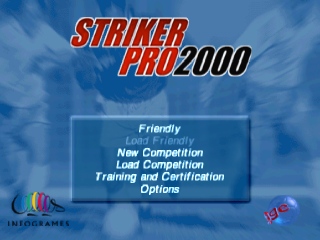
Friendly
The friendly game allows up to four players to take part in a single match.
When the game is over, players are given detailed statistical information about the match, and may then play again or quit back to the main menu.
Load Friendly
The preset Friendly structure allows you to define favorite Friendly games and options, then load them quickly from the first screen without having to go through the normal Friendly setup. These presets cannot be modified from within this menu structure; they must be defined and stored first from the 'Friendly Options' screen.
New Competition
New competition takes you to the competition menu.
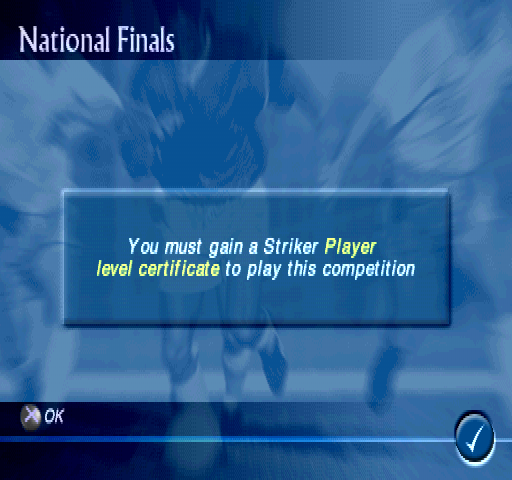
Some of these competitions are not immediately available, and are only unlocked when you have successfully completed the certificates in the Training section.
Load Competition
This allows you to load and continue a competition that you have previously saved onto a Memory Card.
Training & Certification
This takes you to the practice mode and the UEFA Certificate tests.
Options
This allows you to adjust various game settings.
Playing the Game
Select Teams
•
Use the directional buttons to highlight the team of your choice and press the button to select.
•
Each team's attributes are displayed in the top right corner by a series of highlighted stars.
•
You may select both teams manually.
•
Select your team by pressing the button and let the CPU choose your opponent at random by pressing first the button then the button.
•
You can have both teams selected by the CPU by pressing first the button then the button.
Game Options
Define settings for the match environment. In some competitions, the environment is already established and you cannot change it.
•
Extra Time - if the score is level at full time, extra time will be played.
•
Penalties - if the score is level at full time, the match is decided by penalties.
•
Golden Goal - if the score is level at full time, extra time will be played. The first team to score in this period is the winner and the match immediately ends.
•
Extra time and Penalties - if the score is level after extra time, the match is decided by penalties.
•
Golden Goal and Penalties - if neither team scores in the extra time, the match is decided by penalties.
•
Choose the orientation of the camera - Sideline, End View or Overhead.
•
Choose to play with or without the offside rule.
•
Sets the total duration of a match - 2, 5, 10 and 20 minutes.
•
Choose the stadium or let it be random, not always available.
•
Set the distance of the camera - 3 to 15m.
In the FRIENDLY Mode, you can save your settings by selecting the padlock icon with the directional button and press the button.
League Standings
(League competitions only!)
This screen shows you all the information for the standing of the teams in the League Competition and League-like Competitions. For all the competitions except League and Knockout, you can view the positions of the other groups in the competition by highlighting the group number and pressing the button or the button.
Next Match
(Knockout competitions only)
This information screen shows you the draw and results for the Knockout competition.
Assign Controller
In a multiplayer game this screen determines who will play which team. Use the Left and Right directional buttons to select your team. In a one-player League or Cup, you will only be able to play the first team you choose on the Select Teams screen. You can choose your controller configuration in the Options menu.
Team Management
Striker Pro 2000 is a quick and fast simulation game. Your victory will come essentially from your quick decisions, but several management options can help you to improve your performance. You decide the formation and strategy of your team and which players of your squad among 22 available will start the game.
Formation and Strategy
There are 2 formations each with several variants. You can check the players positioning on the pitch. When you are happy with your formation, you also can define your strategy and give more precise orders to your players.
Substitution
If you want to change the starting eleven, use the directional button to highlight your chosen player and press the button. Then highlight the player you wish to substitute in, and press the button again. The starting 11 are in white text, the substitutes in green text.
You can view each player's statistics by keeping the button pressed while he is highlighted.
Each player has his own attributes:
Also, depending on the player position on the field (Goalkeeper, Defender, Midfielder or Forward), you will have specific statistics for each player like tackles, passes or shooting. Data will be updated each time you play a match in the same competition.
Team Statistics
(Competitions only)
This screen shows information about both teams' performance so far in the competition.
During the Match
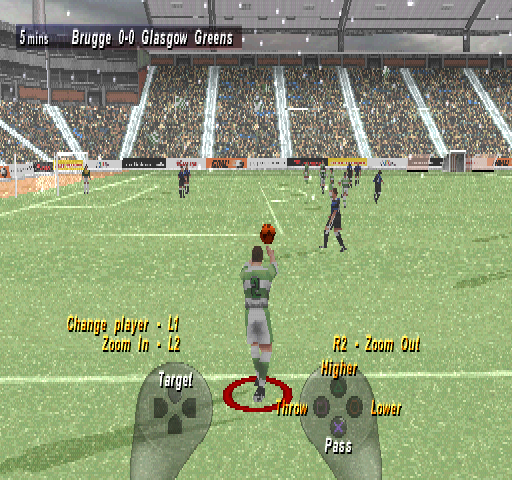
Press the button to bring up the in-game menu. You can access four menu screens by highlighting the icons with the directional buttons.
.png)




.png)





.png)