Track Selection
Choose a course by moving left and right with the Directional Buttons. Confirm your selection by pressing X.
Vehicle Menu
Use the Directional Buttons to cycle through the different vehicles. Press X to select the particular vehicle you want.
World Tour
World Tour is where you show your stuff. World Tour races are divided into 5 Classes: Hummer®, Safari, SUV, Truck, and Military.
You must take first, second, or third in order to progress on the race ladder. A player earns points based on his finishing position.
If the player wins that Class by earning the most points, a track will be unlocked. Once you have beaten each class race, you must then beat the Open class to win the game. Watch out, because the competition in the Open class is brutal.
Showroom
When you begin the game you are given enough credits to choose from only a few vehicles. Each vehicle has a class qualification, so that, for instance, only a truck may race in the Truck Class, and only a military vehicle may race in the Military Class.
If you take first, second, or third in a World Tour, you will win credits. You will win significantly more credits if you place first in a race, and you will win even more if you win the Tour.
Once you have won enough credits you can buy a new vehicle. You may sell one of your vehicles back to the dealer, naturally for less than what you paid for it.
Options
Game Settings
The sub-menu allows you to set various parameters for gameplay. Toggle the options using the Directional Pad right/left buttons.
•
Difficulty: Three settings, Easy, Medium, and Hard. Choosing a harder difficulty setting will make the opponents more aggressive and make it harder for you to spin them out. Furthermore, the track surfaces will become more difficult to drive on, and there will be less time to traverse checkpoints. Difficulty affects SINGLE RACE only.
•
Speedometer: Changes between MPH/KPH.
•
Checkpoints: You may turn the checkpoint timers off in Single Race. If you do turn these off, your handle will not be recorded in the High Score table.
•
Vibration: This turns force feedback vibration on and off.
•
Music Volume: This sets the default music volume when you race.
•
SFX Volume: This sets the default sound effects volume when you race.
Controller Settings
Select alternative control configurations from the list of supported controllers. Use the Directional Buttons to select an option and then press X.
Memory Card
Select this option from the Main Menu to access your Memory Card that is plugged into the PlayStation™ game console. The Memory Card sub-menu is detailed below. Use the Directional Buttons to select an option and then press X. Press ▲ to go back one menu.
NOTE: Do not remove a Memory Card during a Load or Save.
•
Load: Select the Load icon to load the current state of all aspects of the game. This includes all the bonus vehicles and reverse tracks you have unlocked, your game settings, and all your high score information. Follow the on-screen instructions to load a game.
•
Save: Select the Save icon to save the current state of all aspects of the game. This includes all the bonus vehicles and reverse tracks you have unlocked, your game settings, and all your high score information. Follow the on-screen instructions to save a game.
•
Delete: Select the Delete icon to delete a saved game. Follow the on-screen instructions to delete a saved game.
High Scores
Select this option to view the Hall of Fame. The names and times of your performance on all the tracks and all the World Tours are listed here.
Credits
Select this option to learn a little about the people who brought you Test Drive Off-Road 2.
Screen
Use the Directional Buttons to center the game screen.
Enter Name
Identify yourself for racing and high scores.
Camera
You have a choice of several camera positions in and around the car. It is helpful to find an angle that you are comfortable with at the beginning of the race, and sticking with it as you drive. Some practice will tell you what works best for you.
Press ▲ to alter the camera view of your vehicle; press ● for a view of what is behind your vehicle.
Racing Rules
Your First Goal
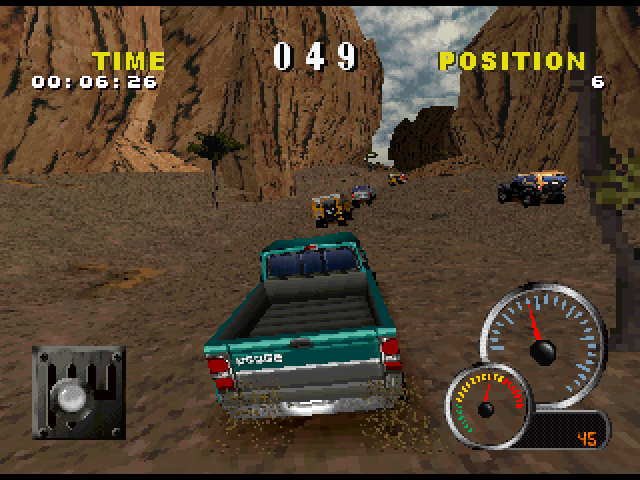
Once the race starts, you must make it to the next Checkpoint before the Checkpoint Timer counts down to zero.
Checkpoints
As you race around the track, you drive through checkpoints. These are shown as marker-standards to help you measure your progress.
You must reach the next checkpoint before the Checkpoint Timer counts down to zero or the race ends. When you cross a Checkpoint, you get more time added to the Checkpoint Timer. You can toggle the timer on and off in OPTIONS.
Finish Line
Each track ends with a Finish Line banner. The first car across the finish line is the winner.


_1.png)

.png)
.png)
_1.png)
.png)
.png)
.png)



_1.png)
.png)

.png)


.png)
_1.png)


.png)
.png)