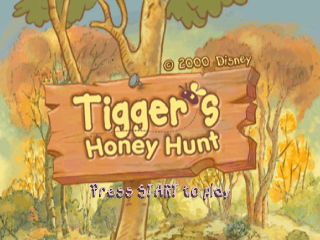
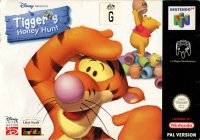
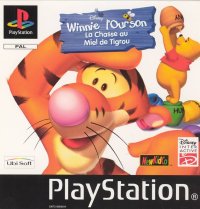
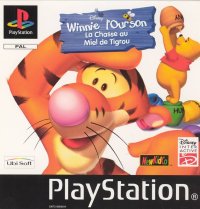
Tigger's Adventure
This is where you go on an adventure to find Honey!
•
Select "New Game" to start a fresh adventure.
•
Select "Load Game" to continue a previously saved game.
Load and Saving Games
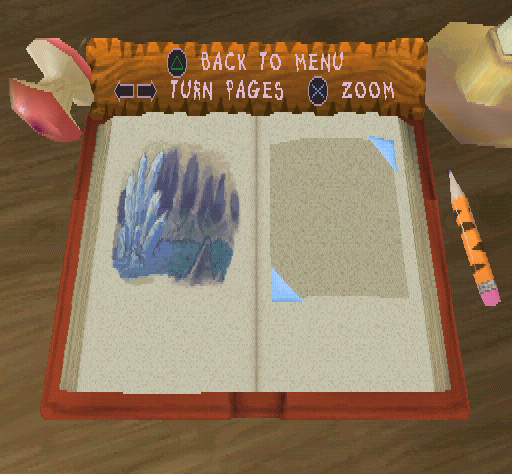
To load a game, select "Load Game" from the book. Highlight the saved game you wish to load and press the X BUTTON.
To save a game, select "Save Game" from the menu. Highlight one of the free save slots and press the X BUTTON.
Save and Load slots are denoted by a picture of a tree. The tree will change color when a game has been successfully saved.
Classic Mini Games Menu
This option allows you to play games with friends. See Page 9 for the rules of these games.
Options Menu
The OPTIONS menu allows you to personalize the game.
•
SOUND EFFECTS or MUSIC: Adjust volume by pressing LEFT or RIGHT on the controller. These volume levels can also be altered from the in-game menu.
•
SCREEN OPTIONS: Adjust the position of the screen by pressing the Directional Buttons.
The Classic Mini Games
You can play any of the three Classic Mini Games with up to four players, using only two controllers.
•
Use the DIRECTIONAL BUTTONS to choose the game you wish to play.
•
Press the X BUTTON to select the game.
•
Choose the difficulty level: Easy or Hard.
•
Select how many players you want to play.
Controller Icons
•
A Red Cross denotes that this player is already selected.
•
The Small Paw denotes a computer-controlled character.
Poohsticks
•
Use the DIRECTIONAL BUTTONS to move the stick around the stream.
•
Press the X BUTTON at the point you wish to drop your stick.
•
Look at the flow of water and try to avoid the blue patches.
•
Drop the stick at the same time as everyone else.
Owl, Paper, Scissors
Choose either Rock, Paper, or Scissors on the count of three to counter the other person's choice.
Press the corresponding button on your controller before the timer runs out. For example, pressing the X BUTTON chooses the scissors.