Getting Started
1. Set up your Sony® PlayStation™ game console according to its instruction manual. Plug in a game controller. 2. Insert the ZOOP™ disc and close the CD door. Always make sure the PlayStation game console's power is OFF before inserting or removing a compact disc. 3. Turn the PlayStation game console ON. Objective
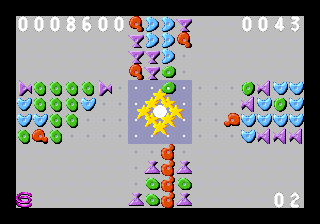
Colored shapes randomly appear along the grid and move toward the center square. You control the center piece within the square. You must eliminate the shapes (remove them from the grid) before they enter the center square.
Firing at and striking a shape that is the same color as the center piece eliminates that shape. If you strike a shape of a different color, the center piece exchanges colors with that shape, and the shape remains on the grid.
Once you eliminate the required number of shapes (as indicated by the number in the upper right hand corner), you will move to the next stage, and the play intensity will increase.
Hint
For higher scores and faster screen clearing, eliminate multiple shapes at one time. Change the first shape in a row/column to match the shapes behind it - then Zoop them all at once.
Note
When the colored shapes are about to enter the center square, the dots in the center square will flash and a warning will sound. If the colored shapes enter the center square, the game will end.
Power-Up Icons
As you play ZOOP, Power-Up Icons will randomly appear on the grid along with the colored shapes. If you strike a Power-Up, it will assist you in eliminating other shapes.
•
Proximity Bomb: Eliminates all the shapes touching the first shape hit.
•
Line Bomb: Eliminates an entire row or column of shapes regardless of color.
•
Color Bomb: Eliminates all the shapes in a quadrant that are the same color as the first shape hit.
•
Bonus Springs: Collect five of the Bonus Springs and they will clear all of the shapes off the grid.
Note
If a Power-Up or a Bonus Spring reaches the center square, it will disappear. Power-Ups and Bonus Springs will not end the game.
Menu
•
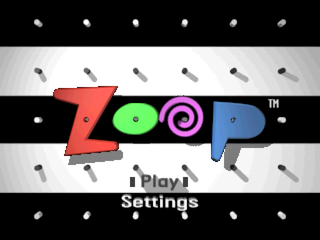
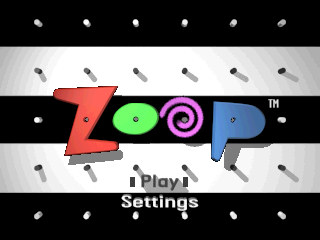
PLAY: Pressing the X Button while the cursor is on "Play" will begin in the game mode most recently selected. If unadjusted, ZOOP will begin game play at the default settings: Continual, Level - 1, Difficulty - 0.
•
SETTINGS: Pressing the X Button while the cursor is on "Settings" will allow you to access and change the game preferences before playing.
Note
Press the X Button to select any option.
Settings
•
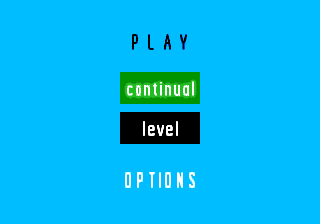
CONTINUAL: In a Continual game, once you have eliminated the required number of shapes to move to the next stage (as indicated by the number in the upper right corner), the game background will change, the speed that the shapes appear on the screen will increase, and current shapes will remain on the grid. Pressing the X Button while Continual is highlighted will take you to the Continual Stage Select and Difficulty Select screen.
•
LEVEL: In a Level game, once you have eliminated enough shapes to end the stage (as indicated by the number in the upper right hand corner), all the remaining shapes will be removed from the grid, the background will change, the speed that the shapes appear will increase. Pressing the X Button while Level is highlighted will take you to the Level Stage Select and Difficulty Select.
•
STAGE: Use the Directional Buttons to rotate the stage dial to the desired beginning stage. Press the X Button, or down on the Directional Buttons, to select the stage highlighted. In higher Stages, shapes appear on the screen more quickly.
•
DIFFICULTY: Use the Directional Buttons to adjust the difficulty bar to the desired difficulty. Press the X Button to select the difficulty and move back to the options screen. Difficulty determines the number of shapes on the screen at the beginning of game play. At a higher difficulty, more shapes will be placed on the screen.
Note
During a Continual Game, the shapes will only be placed on the screen on the opening stage. During Level play, shapes will appear on the screen at the beginning of each stage.
Scoring
•
Four: 1,000 Total Points
•
Five: 1,500 Total Points (5,000 full vertical column)
•
Seven: 2,800 Total Points (10,000 Full horizontal row)
Options
Pressing the X Button while Options is highlighted will allow you to adjust the Music and Sound Effects volume in the game.
Use the Directional Buttons to select + or - for the Music or Sound Effects. Pressing and holding down the X Button will adjust the volume louder (+) or softer (-).
To exit the screen, use the Directional Buttons to highlight EXIT, and press the X Button.




.png)










.png)



.png)
