Movie Player
Select Movie Player from the Main Menu to view previously unlocked cut scenes.
Options
Select Options from the Main Menu to configure various in-game settings.
Press or to select an item and or to change settings.
Press the button to confirm changes, or to reset settings to their original configurations when 'Default' is selected.
Controller
Select 'Controller' to change the control configuration of the Analog Controller (DUALSHOCK®2).
You can also use this screen to toggle the vibration function of the Analog Controller (DUALSHOCK®2) on or off, and adjust additional control settings, including evade sensitivity and camera rotation.
Sound
Adjust the music, sound effects and character voice volume and set the sound output to Stereo, Mono or Dolby Pro Logic II.
To play the game in surround sound, connect the console's DIGITAL OUT (OPTICAL) connector to a Dolby Pro Logic IIx, Dolby Pro Logic II, or Dolby Pro Logic decoder internal AV amp, turn one of the features on, and then select 'Dolby Pro Logic II'.
Screen Adjust
Follow the on-screen instructions to reposition the game screen on your TV.
Captions
Turn captions and enemy life gauge displays on or off.
Exit
Leave the Options Menu and return to the Main Menu.
Saving
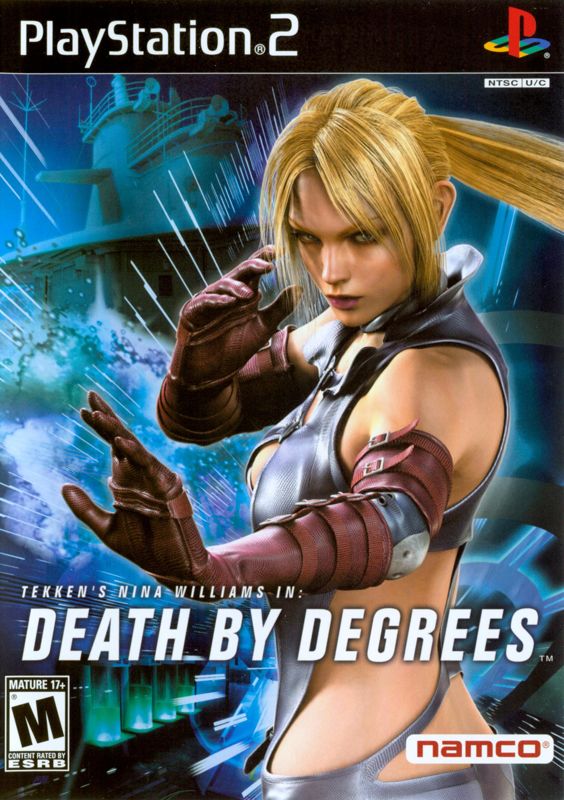
In DEATH BY DEGREES™, Save Points are situated at various locations throughout the playing environment.
Keep your eyes open for Save Points and be sure to save progress frequently.
Insert a Memory Card into MEMORY CARD slot 1 to save progress. A maximum of twelve games can be saved.
Data in the Challenge, Sniper, Stingray and Honeycomb Lock mini-games can only be saved within each mode.
Searching for Save Points
When entering areas in which Save Points are located, antenna reception bars will be displayed in the upper right corner of the screen.
The number of bars increases as you get closer to a Save Point. Three bars will appear when Nina is very near or on a Save Point.
Previously discovered Save Points will appear green. Press the button while standing on a Save Point to enter the Save Screen.
How to Save
Select a slot on the Save Screen and press the button to save your progress.
When saving over existing saved game data, the previously saved game data will be overwritten and lost.
The Game Screen
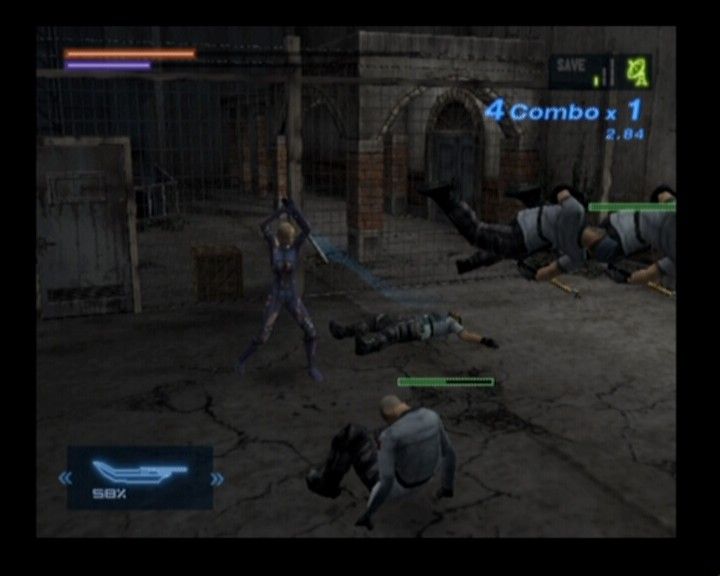
1. Antenna
2. Combo Number/Time Limit
3. HP Gauge
4. Focus Gauge
5. Enemy's HP Gauge
6. Attack Mode Icon
Antenna
Reception bars appear when a Save Point is nearby.
Combo Number/Time Limit
Appears when executing combos. Combos can be performed only until the time limit runs out.
HP Gauge
Shows Nina's remaining life. If this runs out the game will be over.
Focus Gauge
Increases upon execution of successful hits and when Nina takes damage.
In order to perform a 'Critical Strike', this gauge must reach a certain level.
Enemy's HP Gauge
This indicates an enemy's remaining life. The gauge turns red when the enemy is about to attack.
Attack Mode Icon
Shows the current Attack Mode: Command Skill, Firearm or Melee Weapon.
The Pause Menu
Press the button at any time during the game to open the Pause Menu.
Press ↑ or to select a command and confirm the selection by pressing the button.
•
Continue: Close the Pause Menu and resume the game.
•
Load: Continue playing previously saved game data.
•
Options: Configure various in-game settings.
•
Title Screen: Quit the game and return to the Title Screen.
Game Rules
Battle enemies with your bare hands using Command Skills, Melee Weapons (such as Tonfas), or Firearms (such as handguns).
Experience points are awarded for defeating enemies.
When Nina's experience points reach a certain level, the maximum amount of HP and Focus Points increase along with the amount of damage her attacks inflict (excluding firearm attacks).
Game Over
If Nina's HP Gauge is completely depleted due to enemy attacks, or if she falls victim to certain traps, the game will be over.
The same is true if Nina fails to clear certain mini-games.
When the Game Over screen is displayed, select 'Yes' to continue playing from the last save, or 'No' to return to the Title Screen.
Status Screen
View information including Nina's level and current experience points on the Status Screen.
This is also where you access and use items in Nina's inventory, learn new skills and view maps and files.
Press the button at any time during the game to open the Status Screen.
Press or to scroll through the various menus and screens, and press the button to enter each one. You can also press the 11 button and the R1 button to scroll through the menus and screens.
Viewing Nina's Status
Nina's status is shown at the bottom of the screen on the Item, Skill and File Pages.
The 'Skill Points' display show how many points Nina currently has; these are used to obtain new skills.
The 'Exp' display shows Nina's current experience points and the experience points needed to advance through the levels.
The 'Max Combo' indicator is the highest number of combo hits executed so far.
Item
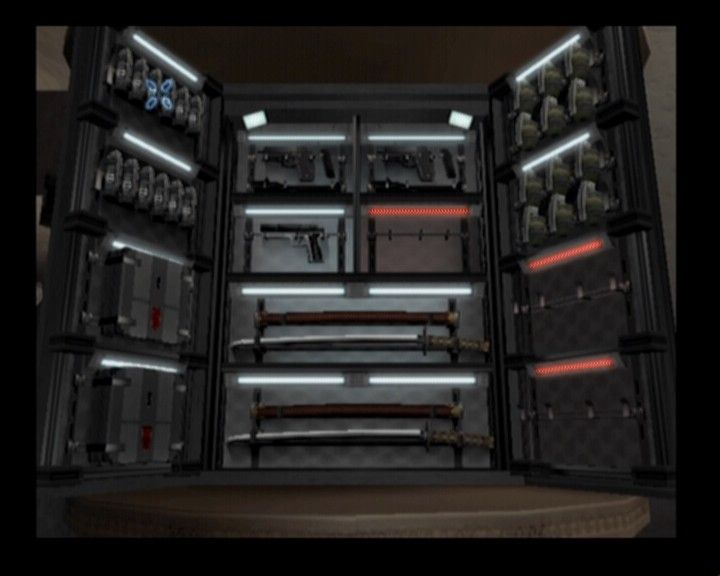
View and use items in Nina's inventory.
To use an item, press
.png)


.png)



_1.png)

_1.png)