GETTING STARTED
Set up your PlayStation®2 computer entertainment system according to its Instruction Manual. Ensure the MAIN POWER switch (located on the back of the console) is turned on.
Press the RESET button. When the power indicator lights up, press the (OPEN) button to open the disc tray. Place the ECHO NIGHT: BEYOND disc on the disc tray with the label side facing up. Press the (OPEN) button again to close the disc tray.
Attach game controllers and other peripherals as appropriate. Follow on-screen instructions and refer to this manual for information on using the software.
STARTING THE GAME
Press the START button at the Title screen to display the following menu selections:
•
NEW GAME: Begin a new game.
•
LOAD GAME: Load a saved game.
•
OPTIONS: Adjust the game's sound, screen, and controller settings.
OPTIONS
The OPTIONS menu can be accessed via the Title screen or the in-game menu.
Sound Setting
Switch between stereo, mono, and Dolby® Pro Logic® II sound settings. Adjust the game's background music, sound effects, and voice volume levels.
For Dolby® Pro Logic® II Decoding: This game is presented in Dolby Pro Logic II. Connect your game console to a sound system with Dolby Pro Logic, Dolby Pro Logic II, or Dolby Pro Logic IIx decoding to experience the excitement of surround sound. To activate this feature, select Dolby® Pro Logic® II from the Sound Setting game screen.
Screen Setting
Turn character movement effects ON/OFF, set screen aspect ratio, adjust screen brightness level.
Controller Setting
Turn the controller's vibration function ON/OFF, select controller setup.
Quit
To quit a game in progress and return to the Title screen, access the in-game menu and select the QUIT option. Confirming this selection without first saving your game will cause all progress to be lost. Always save game data prior to quitting.
PLAYING THE GAME
Picking Up Items
To pick up an item, stand in front of it (looking directly at it) and press the button. If the item can be picked up, its image and a brief description are displayed on the screen.
At this point, press the button to add the item to inventory, or press the button to leave the item where it was found.
Using Items
Press the button to open the item shortcut bar. A list of all available items is displayed on the bottom portion of the screen. Select an item with the directional buttons/left analog stick and press the button to use it.
Viewing Items
To view an item you've collected, select the ITEMS option from the in-game menu. Highlight the desired item with the directional buttons/left analog stick and press the button.
Investigating Objects
Many objects encountered in the game can be investigated to find out more about them. To do this, approach an object and center it on the screen.
Searchlight
Your character's spacesuit comes equipped with a searchlight that can be used to illuminate the darkness. In order to use the searchlight, it must have enough battery power.
The searchlight's brightness setting and length of use determines how quickly battery power is depleted. Pick up portable batteries as needed to maintain a full charge.
•
LOW BATTERY (Yellow): When battery power drops below 50 percent
•
LOW BATTERY (Red): When battery power drops below 25 percent
•
EMPTY: When battery power is exhausted
•
CHARGING: When recharging
•
*No message is displayed while battery power remains at acceptable levels (above 50 percent).
Conversation
To speak with characters encountered during the game, approach them and press the button. Important clues and items can be obtained by listening to what different characters have to say and assisting them if possible.
Character Movement
Character movement through the game world is controlled using the left analog stick, or directional buttons. Press the L1/R1 buttons to move from side to side and the button to open doors.
Lunar Surface Movement
Gravity outside the lunar facility is one sixth of what it is inside. Basic movement controls on the moon's surface remain the same, with the exception of the run command button.
Depending on the level of the terrain, pressing the button while on the moon's surface causes the character to either hop or jump.
Death
Death occurs if the character's heart rate exceeds 300 bpm (beats per minute), or after a fall from an unsafe height.
MONITORING SYSTEMS
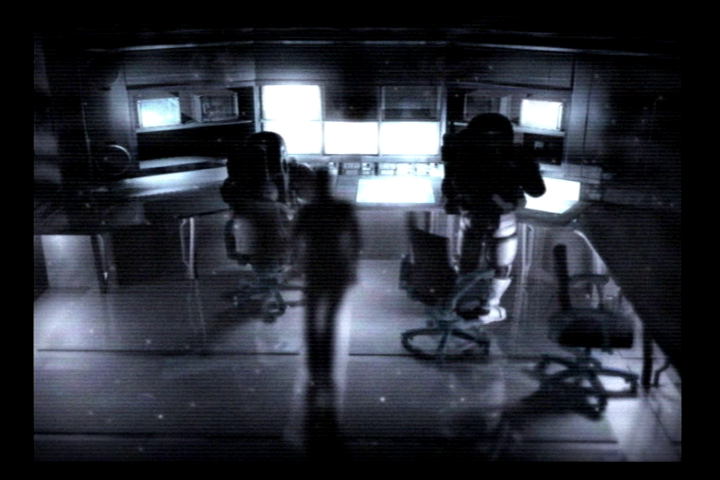
Press the button when in front of a monitoring system control panel to access the surveillance area screen.
•
01 Surveillance Area: Select a surveillance area from the list on the right and press the button to gain access to the security cameras located in that area.
•
02 Preview Screen: Located at the bottom right, this screen provides a preview of the selected surveillance area.
•
03 Map Display: Map of the selected surveillance area. Camera positions in the selected area are indicated by numbers on the map.
•
01 Camera View: Area visible with the currently selected camera.
•
02 Camera List: Press the R1/R2 buttons
.png)


.png)
.png)
.png)
.png)
.png)


.png)
_1.png)
.png)

.png)