GETTING STARTED
Set up your PlayStation®2 computer entertainment system according to the instructions in its Instruction Manual. Make sure the MAIN POWER switch (located on the back of the console) is turned ON.
Press the RESET button. When the power indicator lights up, press the OPEN button and the disc tray will open. Place the Silent Hill 4 The Room™ disc on the disc tray with the label side facing up. Press the OPEN button again and the disc tray will close. Attach game controllers and other peripherals, as appropriate. Follow on-screen instructions and refer to this manual for information on using the software.
MEMORY CARD (8MB)(FOR PLAYSTATION®2)
To save game settings and progress, insert a memory card (8MB)(for PlayStation®2) into MEMORY CARD slot 1 or memory card slot 2 of your PlayStation®2 system. You can load saved game data from the same memory card or any memory card (8MB) (for PlayStation®2) containing previously saved games.
In order to save game data, you will need a memory card (8MB)(for PlayStation®2) with at least 781 KB of space.
STARTING UP
DUALSHOCK® 2 ANALOG CONTROLLER CONFIGURATIONS
•
left analog stick (L3 button when pushed down)
•
right analog stick (R3 button when pushed down)
The game can be played using the DUALSHOCK®2 analog controller. Insert the controller into controller port 1.
The game cannot be switched between analog mode and digital mode. The mode indicator is always red, regardless of whether the vibration function has been turned on or off.
GAMEPLAY
New Game
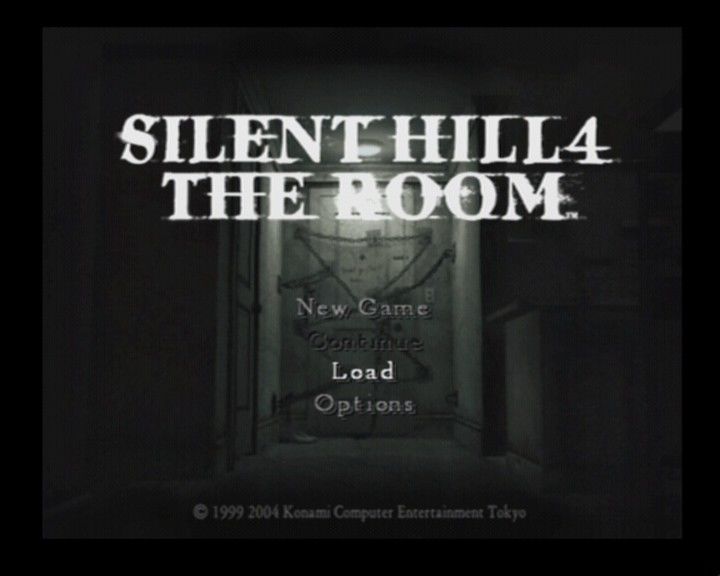
To begin a new game, select "New Game" from the title screen. Next, select the level of difficulty.
•
Easy: Recommended for beginners of action games. •
Normal: Recommended for the average player.
•
Hard: Recommended for the experienced action gamer. Regardless of which level is selected, all endings and scenarios are identical. (In the Hard difficulty level, some puzzles are more difficult to solve.)
Game Over
The game ends when Henry dies.
Continue
When the game is over, you return to the title screen. At this point, you have the option to continue. If Continue is selected, you will restart at the last continue point. The level of difficulty may also decrease slightly depending on the situation.
BASIC OPERATION
Basic Controls
•
L2 button: REAR VIEW CAMERA
•
directional buttons: MOVE ITEM CURSOR
•
left analog stick: MOVEMENT
•
right analog stick: RESET CAMERA
•
□ button: CHECK MAP/CHECK SCRAPBOOK
•
X button: ENTER/EXAMINE/ATTACK
•
Δ button: USE/EQUIP ITEM
Silent Hill 4 The Room™ was designed for play using a DUALSHOCK®2 analog controller. Certain button functions can be changed in the Options menu. Examine
When exploring an area using the first-person view, an eye icon pops up if there is something worthy of investigation. Press the X button to take a closer look at the object/area.
BASIC OPERATION CONT.
Item Icons
When the directional or the Δ button are pressed, an item icon appears at the bottom of the screen. To use or equip any of the items listed, use the left and right directional buttons to select the desired item(s), and press the Δ button.
Items can be kept in the item box located in the living room. There is a limit on the number of items that can be held at once, so carry only what you need.
Battle/Fighting
You must have a weapon equipped in order to do battle. As long as a weapon is equipped, press the R2 button to ready it. In order to attack the enemy, press the X button.
For hand-to-hand combat weapons, hold down the X button for an extended period to increase the power gauge and make the blows more powerful. Press the O button while in the ready position to jump back. Combine this with the left analog stick to jump right or left.
BASIC OPERATION CONT.
Map/Scrapbook
Switch back and forth between the Map and the Scrapbook by pressing the □ button.
Rooms that have already been explored, as well as doors that have not yet been opened, are marked in red on the map.
The Scrapbook contains notes and assorted bits of information in a file, viewable at any time.
Reset
To reset the game and return to the title screen, hold L1 L2 R1 R2 SELECT, and START at the same time.
OPTIONS
To access the Options screen, either select Options on the title screen or press the START button while pausing the game. Various settings can be changed in the Options menu, including:
•
BRIGHTNESS: Adjust the brightness of the screen.
•
SCREEN POSITION: Adjust the position of the game screen.
.png)

.png)
_2.png)
.png)
.png)


.png)



.png)



.png)






.png)
.png)