Getting Started
PlayStation®2 Setup
Set up your PlayStation®2 computer entertainment system according to its Instruction Manual. Ensure the MAIN POWER switch (on the back of the console) is ON.
Press the RESET button. When the power indicator lights up, press the OPEN button to open the disc tray. Place the Gran Turismo 3 A-spec disc label-side up. Press OPEN again to close the disc tray. Attach game controllers and other peripherals as appropriate. Follow on-screen instructions and refer to this manual for software information.
Saving & Loading
Gran Turismo 3 allows saving and loading several types of data on a memory card (8MB) for PlayStation®2. Game Data
Game Data tracks all game information, including completion percentage, best times, simulation mode data, records, and options. It can be saved and loaded from the Main Menu screen or My Home in Simulation Mode. Replay Data
After each race, you can save replay data for future viewing. There are two types: Full-lap replays and Best-lap replays.
Full-lap replays can be saved after any race. Best-lap replays can only be saved after Time Trial, Free Run, or Run & Settings in Simulation Mode's My Home. Replays can be viewed in Replay Theater or after each race. Ghost Data
(Time Trial & Free Run Modes only) After each race, your performance can be saved as Ghost Data. When loaded on the same track, a ghost car will be projected during the race, allowing you to compare your current pace to the saved data.
Garage Data
Garage Data allows you to access vehicles on your memory card. This is useful for racing in Arcade Mode with cars earned in Simulation Mode or for using different cars from different memory cards. Game Screen & Controls
•
Logitech GT Force Controls
Arcade Mode
Arcade Mode provides instant access to several race modes: Single Race, Time Trial, Free Run, 2 Player Battle, and i.LINK Battle. These modes allow immediate racing with a variety of cars and tracks. As you progress, more tracks and cars will become available. Single Race
Single Race offers the quickest access to competitive racing. Initially, you choose from available vehicles and tracks. More cars and courses become available as you progress. You can also select the difficulty level, which alters the aggressiveness of computer opponents. Time Trial
In Time Trial, the objective is to complete the course in the shortest amount of time. The fastest times are saved to Records. This is a solo race, so opponents won't interfere. Ghost Data can be loaded to compare your current pace with your record pace, helping to improve your time.
Free Run
Free Run allows you to drive on a chosen course without worrying about times or other racers. This is a great opportunity to learn track traits. You can also use Ghost Data to compare your current pace with record times on the track.
2 Player Battle
Use 2 Player Battle to compete head-to-head with a second player. The split-screen display may vary (top/bottom or left/right) depending on the selected Screen Setting. You can also adjust race settings in 2 Player Battle options.
Clear Status
Clear Status tracks your progress in Arcade Mode. As you progress, you will unlock more tracks and cars.
Load Garage
This feature allows you to access vehicles earned in Simulation Mode from your memory card. Once loaded, you can use your customized cars in Arcade Mode races (not available in Time Trial). i.LINK Battle
This mode uses i.LINK cables to connect multiple PlayStation 2 consoles, allowing up to six players to race against each other. Turn off the PlayStation 2 power when connecting an i.LINK cable. •
To conduct a two-player i.LINK Battle with two PlayStation 2 consoles and two TVs, use a 4-pin to 4-pin i.LINK cable to connect the S400 (i.LINK) ports on each console. •
For three or more players using three or more PlayStation 2s and TVs, use a commercial i.LINK hub (6-pin with 6 ports) and 4-pin to 6-pin i.LINK cables to connect the S400 (i.LINK) ports of each PlayStation 2 to the i.LINK hub. Beginning a Race in Arcade Mode
Difficulty
(Available in Single Race only) Select the level of difficulty. Higher difficulty settings result in more advanced and aggressive computer opponents.
Track Selection
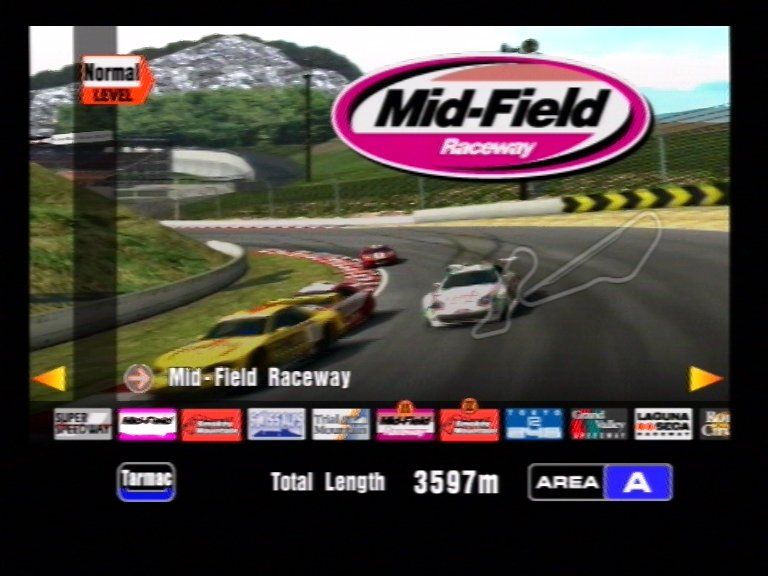
Select the course you wish to race on. There are two types: road and rally tracks. This screen also displays the track surface, overall difficulty rating, and course length.
Class Selection
Vehicles in Gran Turismo 3 are separated by different classes, each containing vehicles with similar capabilities. •
C class: Economy and compact cars. Great entry-level vehicles for learning controls.
•
B class: Sports cars. Combine engine power and lightweight design for speed.
•
A class: High-performance vehicles. Built for speed with excessive horsepower.
•
S class: Race models. Designed with the latest technology for rigorous high-speed racing. .png)

_2.png)
.png)



_1.png)


.png)
.png)


_1.jpg)


.png)