MAIN MENU
Use the directional buttons to highlight an option and press the button to confirm.
•
New Game: Start a new game from the beginning.
•
Continue: Load a saved game (will default to this if a save game is detected).
•
Options: Modify game options.
•
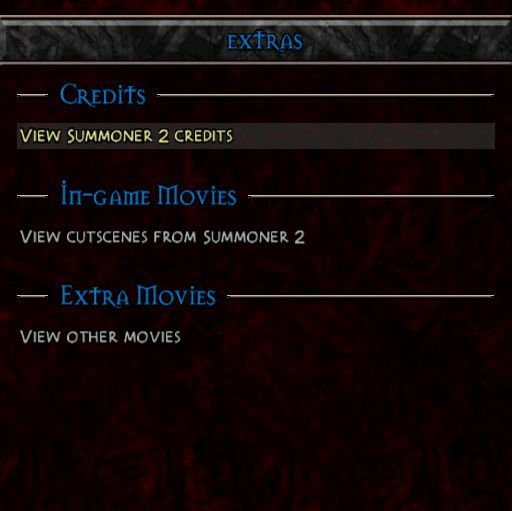
Extra: View extra features.
OPTIONS SCREEN
GAMEPLAY OPTIONS
•
Controller Vibration: Turns controller vibration ON or OFF.
•
Invert Y-Axis: Inverts the Y-Axis for first person mode (YES/NO).
•
Invert Camera Rotation: Inverts camera rotation on right analog stick while in-game (YES/NO).
•
Solo Mode Confirm: Turns solo mode confirmation ON or OFF.
•
Cutscene Subtitles: Turns cutscene subtitles ON or OFF.
SOUND OPTIONS
•
SFX Volume: Controls volume of all sound effects, except voice. When at 0, SFX are off.
•
Voice Volume: Controls volume of all voice in the game. When at 0, voice is off.
•
Music Volume: Controls volume of all music and cutscene soundtracks. When at 0, music is off.
•
Speakers: Choose between a MONO or STEREO speaker setup.
PLAYING THE GAME
Maia begins her adventure on the stormy Midnight Sea as pirates board her ship. When you start a new game, a tutorial helps you become accustomed to the game controls. The tutorial explains elements of gameplay, including how to engage enemies in battle.
It is highly recommended that you use the tutorial to learn how to play Summoner® 2. However, you may bypass any of the tutorial screens by pressing the START button and selecting the Skip option.
GAME SCREEN
The game screen provides important information about each active party member. It also shows the surrounding environment, Non-Player Characters (NPCs) with which to communicate, items to find and manipulate, and enemies to battle.
Character Status
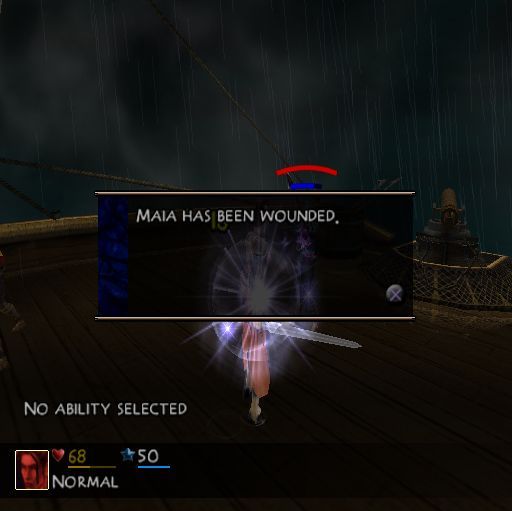
During regular gameplay, the portraits of playable characters appear at the bottom of the screen. The portrait of the currently selected character is outlined in yellow. You may switch between party members by pressing the button.
Health Points
The number next to the heart is the character's current number of health points (HP), while the bar below shows that number as a fraction of the character's maximum HP. The color of the HP number indicates the approximate health of the character.
•
White HP Number: 100% HP
•
Green HP Number: 50-99% of max HP
•
Yellow HP Number: 25-49% of max HP
•
Red HP Number: 1-24% of max HP
•
Gray HP Number: 0 HP (unconscious)
When the selected character has less than 50% of maximum HP remaining a heartbeat sound begins to play. It beats faster and faster as the character's HP level nears 0. When the HP value reaches 0 the character is knocked unconscious, but may be revived with spells or scrolls.
Unconscious characters remain on the ground where they fall and may not execute any actions. Unconscious characters' portraits are grayed out. If the entire party is at 0 HP, the game ends.
Ability Points
The rightmost number and the blue bar beneath it represent the character's Ability Point (AP) level. Ability Points are used to execute special abilities and cast spells. The number is the actual quantity of Ability Points remaining, while the bar shows that number as a fraction of the character's maximum AP.
As AP are depleted, the number darkens from white to dark blue. AP slowly regenerate over time.
Status
The second line displays any special status the character possesses. If there is no special status, the word "Normal" appears in white.
Beneficial status effects (e.g. invisibility) are in green type, while negative ones (e.g. poisoning) are red. If multiple special statuses are simultaneously in effect, they cycle.
Skill Points
A blue glow pulsing behind a character's portrait indicates unassigned skill points are available.
MINI-MAP
The Mini-Map displays the immediate surroundings of the active Player Character (PC). The faded blue outline delineates the space where PCs may walk. The section of the mini-map occupied by the active PC is highlighted in bright blue. New additions are made to the Mini-Map outline as the party explores more of their environment.
The currently selected character is represented by a yellow dot, while green dots represent other party members and red dots important non-player characters (NPCs). Red lines indicate important doors, and orange dots represent landmarks.
DIALOGUE
Maia and her companions meet hundreds of NPCs in their travels. You may speak to all of them.
When the active PC approaches an NPC, a mouth icon appears over the PC's head. To initiate the dialogue, press the button when the mouth icon appears. The character and NPC(s) in the dialogue speak and respond to each other, though at times you must select one response from several displayed.
When this occurs, use the directional buttons or left analog stick to highlight a response, then press the button to accept it. To move through a dialogue quickly, press the button as any line is being spoken. This cuts off any voice effects and displays the entire line of text.
Additionally, you may skip an entire dialogue sequence by pressing the START button at any time during that sequence (this also works for cutscenes). This is not recommended unless you have already viewed that sequence. Dialogue is
.png)


.png)


.jpg)

_1.png)

_1.png)

.png)


.png)

.png)
.png)

.png)






.png)